
Interpreting and your own voice sample
Turning simultaneous interpreting on, the three modes of the interpreter's voice, downloading the built-in voice and recording your own voice sample.
With interpreting, the translated sentence is also spoken aloud in your headphones while the original audio is lowered – like a simultaneous interpreter. This chapter describes the incoming direction (the other party's or a video's speech into your ears) and your own voice sample, which lets the interpreter speak in your voice in a call. Translating your own speech into a call is covered in the In calls: virtual cable, outgoing direction chapter.
What you need
- Translation turned on: the interpreter speaks the translated sentence.
- Headphones: from a speaker the interpreter's voice would end up back in the captions, and with a microphone source the app would re-translate its own voice. The app warns about this once, the first time you turn it on.
- A voice – one of the three options (below): the speech service (
voiceserver), or the app's own downloaded voice.
Turning interpreting on
In the Spoken interpretation section of the settings window's Translation tab, with the Speak the translation aloud switch. While running, the interpreter icon on the caption window's purple icon row, or the Ctrl+Alt+I hotkey (on macOS Control+Option+I), turns it on and off.
The interpreter's voice
The Voice of the interpreter field is one setting with three values:
| Mode (in the UI) | What you hear | What it needs |
|---|---|---|
| The speaker's own voice (cloned) | the speaker's voice, from a sample taken during the call; until there is a good enough sample, the service's default voice | a running speech service with a graphics card |
| A voice of the speech service (built-in or saved) | one of the service's built-in speakers, or a saved voice profile (saved ones first, including your own sample) | the same service, without a voice sample |
| Fixed voice inside the program (no speech service) | a fixed voice inside the app's own process, in 42 languages, from 185 voices | nothing: no service, no graphics card, just a voice model downloaded once (26–115 MB) |
A highlighted line under the voice mode tells you which voice will speak with the current settings, and warns at once if the voice does not match the target language. Language of the sample and the Listen button play a test sentence – the sample always goes to the playback device, never into the call.
Downloading the voice inside the program
The list of voices inside the program can be filtered by language (Language) and quality (Better quality voices only). The chosen voice's model must be downloaded once: the Download button in the Voice inside the program row starts it, shows the progress in percent, and can be cancelled. If the interpreter would start with a voice not yet downloaded, the app asks whether to download it.
No automatic fallback
If you asked for the cloned voice or the service's voice and the speech service cannot be reached, the interpreter stays silent, and the error shows on the status dot – the app does not switch to another voice by itself, because a voice that changes in the middle of a call is more confusing than silence. If you want to play it safe, turning off Use the speech service for the incoming direction switches the incoming interpreter to the voice inside the program: it does not go silent, it just speaks in a different voice.
The cloned voice in a call
In clone mode the speech service learns the speaker's voice from their first sentences.
- Refreshing the voice sample: how often the speaker's voice sample is refreshed. Zero keeps the first good sample.
- When the speaker changes, the learned voice must be released: the relearn button on the caption window's Translation and interpreting panel, or
Ctrl+Alt+V(on macOS Control+Option+V). The app does not notice by itself that someone else is speaking, because the swap only looks at the sample's audio quality. - Save the speaker's voice: the clone only lives in the service's memory and is lost at the end of the call. The Save the voice button stores it on disk under a name, so it can be chosen again from the voice list later.
Your own voice sample
The outgoing interpreter – which speaks your words to the other party in the call – also builds a voice profile from your voice during the call, but only after a few sentences: until then the other party hears a stranger's voice. From a sample read aloud in advance, the speech service builds a lasting profile, and the interpreter speaks in your voice from the very first word. This needs a running speech service.
Recording is in the outgoing part of the Translation tab. There, for the outgoing interpreter's voice (The voice of the interpreter), choose the Your own voice (saved sample) mode: the Your own voice sample part then appears.
- Enter the profile name (The name of your saved voice sample): letters, digits, underscores, hyphens and dots only, at most 64 characters.
- Press Start recording and read the sample text shown on screen aloud. The level meter shows the volume. The recording is at most 15 seconds; press Stop at the end.
- The app shows the length and a quality score, and warns if the recording is quiet, distorted, mostly silent or shorter than six seconds – in that case record it again.
- Listen plays it back (on the playback device, never into the call).
- Save to the speech service creates the lasting profile. Finally, the settings window's Save button keeps it in the settings as well.
Recording cannot be started while the outgoing direction is running: your microphone then goes into the call, and the other party would hear you reading. Turn the outgoing direction off first.
Your voice profiles
The Your voice profiles list shows the samples stored on this computer and the profiles saved in the speech service together. Each row says where the profile exists:
| State | What it means |
|---|---|
| on this computer and in the speech service | the sample is on this machine and the service knows it too |
| only on this computer, waiting to be uploaded | the service has not received it yet; the app uploads it when needed |
| only in the speech service, without a local sample | lost if the service is reinstalled |
| on this computer; nothing is known about the speech service | the service's list has not arrived yet |
A profile with a local sample survives a reinstall of the speech service. The Use button makes the selected profile your own voice; Delete asks where to delete it from and lists where the settings refer to it.
Pacing, mixing and playback
| Field | What it means |
|---|---|
| Sentences waiting to be spoken | more waiting sentences means fewer skipped ones, but the interpreter falls further behind; one sentence gives the lowest delay |
| Pace when catching up | when the interpreter falls more than three seconds behind, it speaks faster, up to this pace |
| Volume of the interpreter | only sets the interpreter's voice; zero is the unchanged volume, above it loud sentences may distort |
| Turning down the original sound | how much the original audio is lowered while the interpreter speaks |
| The call program | the name of the program whose audio should be lowered; empty means every other program |
| Playback device | where the interpreter speaks – usually the headphones; the virtual cable cannot be chosen |
The caption window's Translation and interpreting panel sets most of these while running: the Playback picker, the Call and Interpreter volumes, in the Voice row the service switch, the voice mode and the voice, and in the Interpreter row the Parallel, Queue, Catch-up and Sample sliders.
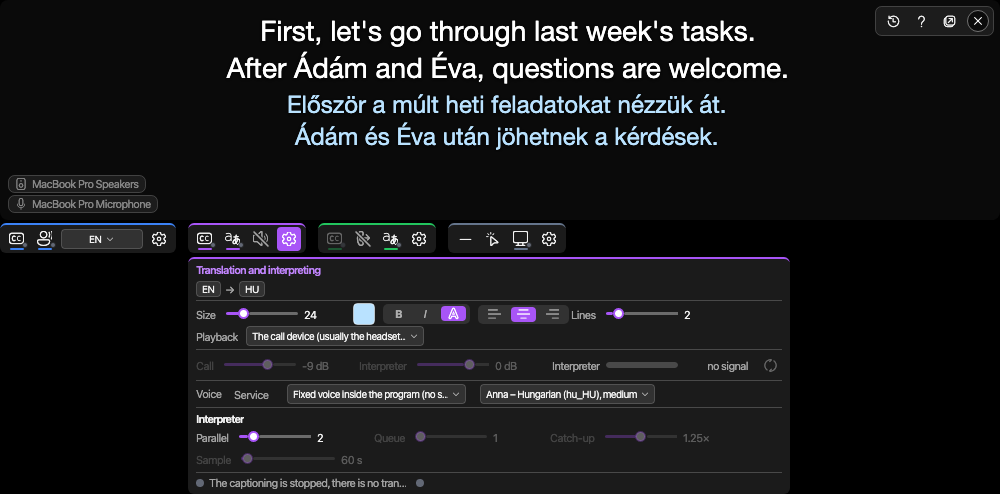
On macOS the app does not lower other programs: lowering the Call only works there with a cable source, where the app's own mixer plays the call audio. On Windows lowering applies to the named program, or with an empty name to every other program; with a cable source the app's own mixer does it there too.
How much delay
Measured on a 3-minute English talk: the chain's own part – recognition, translation, the first chunk of audio – is ready about 0.9 seconds after the end of the sentence; with the voice inside the program about 0.7 seconds, because there is no network or graphics card in the chain. On top of that comes waiting for the sentence to end, which the segmentation decides.
If something is wrong
| Symptom | Likely cause | What to do |
|---|---|---|
| the interpreter is silent, the status dot shows an error | the speech service cannot be reached | start the service, or switch to the voice inside the program |
| the interpreter is silent, the voice is "not downloaded" | the model of the voice inside the program is missing | download it on the Translation tab |
| the voice does not fit the language | the chosen voice is in a different language from the target | choose a voice for the target language; the highlighted line warns |
| a new speaker still sounds like the previous one | the clone learned the first speaker | relearn the voice (Ctrl+Alt+V) |
| the interpreter's voice shows up in the captions | it plays from a speaker | use headphones |
| the interpreter falls further and further behind | too many waiting sentences | fewer waiting sentences, a faster catch-up |
Where next
- Translation – the language pair and the translator
- Running the speech service: the Voice service chapter of the server manual.