
First start and connecting to the servers
The steps of the first start: the servers' addresses and keys on the Servers tab, the check, choosing the mode and the first captions.
On the first start LiveCaption does not yet know where the servers are, or which key lets it in. This chapter walks you through entering them, checking that the connection is alive, and getting to the first captions.
Before you start
- The servers should be running. If they are on this machine, the daily launcher brings them up (
launch-system.cmd, on macOSlaunch-system.command), in the fixed order: the account service, then the translator and the voice service, finally the caption service. Loading the models can take minutes. If the servers run on another machine, ask whoever runs them for their addresses. - Have a key. The servers only serve requests that carry a key. Where the key comes from is explained further down, in the "The key: where it comes from" section.
Once LiveCaption has started, the transparent caption window appears at the bottom of the screen. The first stop is the settings window: move the mouse over the top right corner of the caption window and click the window icon, or choose Settings… in the menu of the tray icon (on macOS the menu bar icon).
The Servers tab
In the list on the left of the settings window, choose the Servers tab. It holds the settings of the three servers, section by section in the same order: the address, the key, and the button of the web admin interface.
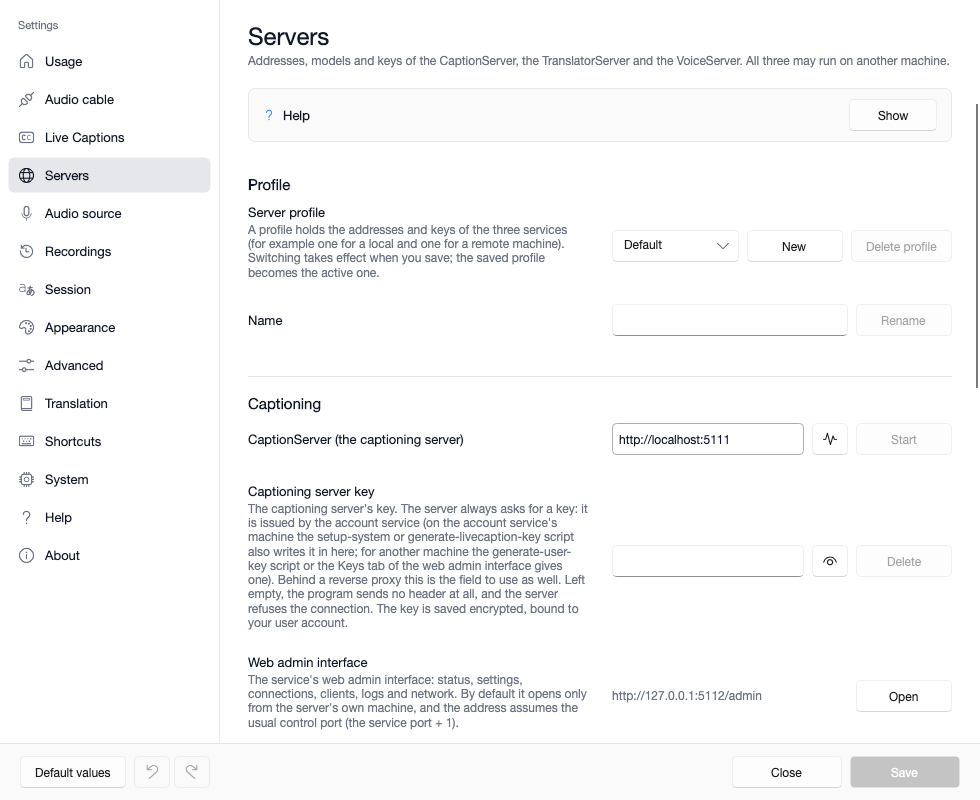
| Section | Field | Default (when everything runs on this machine) |
|---|---|---|
| Captioning | CaptionServer (the captioning server) | http://localhost:5111 |
| Translation | TranslatorServer (OpenAI-compatible endpoint) | http://127.0.0.1:8080 |
| Speech service | Address of the VoiceServer | http://127.0.0.1:8090 |
If the servers run on another machine, replace localhost or 127.0.0.1 in the address with that machine's name or address, and keep the port. The caption server is always needed (unless the caption source is the system's own live captions); the translator only with translation turned on, the voice service only for interpreting, unless the interpreter's voice is the program's own built-in voice.
The fields on the tab:
- Next to the address, the Check button with the pulse-line icon asks the server. The result also shows on the field's border: green if the server answers, red if it does not. Editing the address clears the mark.
- Start: starts the server on this machine, in its own window – for when you did not bring it up with the daily launcher. The button does not wait for readiness; Check shows that. On macOS the button is not available: there the servers are started by the daily launcher or by running them as a service.
- The key field (for example Captioning server key) is a password field: click the eye icon to see it, Delete empties it. Left empty, the program connects without a key, and the server refuses it.
- Web admin interface: Open opens the server's control page in the browser. It only works when the server runs on this machine.
What you enter takes effect with the Save button (in the bottom right corner of the window). Before saving, a change can be taken back: the two arrows in the bottom left corner undo and redo, and Close closes without saving.
The key: where it comes from
| Situation | Where the key comes from |
|---|---|
The whole system was set up on this machine by setup-system |
nowhere: the keys are already written in, the fields are filled |
| The servers run on this machine, but the key is missing | generate-livecaption-key.cmd (on macOS .command) issues it and writes it in; LiveCaption must not be running meanwhile |
| The servers run on another machine | whoever runs the servers provides it: on the account service's machine generate-user-key.cmd prints one key per service, or one is created on the Keys page of the web admin |
Type or paste the key you received into the field of the matching server, then save. The key is stored encrypted in the settings file: on Windows bound to the signed-in user, on macOS with a key held in the macOS Keychain. Another user or another machine cannot decrypt it – after copying the settings file over, the key has to be entered again. Issuing keys is covered in the server manual's Keys and permissions for clients chapter.
Encrypted connection: accepting the certificate
If the server runs encrypted, its address starts with https://. The server's own, self-signed certificate has to be accepted once:
- Press the Check button. If the connection fails on the certificate, the Certificate button appears.
- The button shows the certificate's issuer, validity and fingerprint.
- Compare the fingerprint with what the server's machine printed when it started, or with what the Network page of the server's web interface shows – and accept it only if they match.
From then on the program accepts only this one certificate for that address. If it changes later, the program says that it is not the one you accepted – it may be a legitimate replacement, but it may also be that a different machine is answering.
Choosing the mode: the Usage tab
On the Usage tab you tell the program what you use it for; from that the tab sets what the program listens to, and where it plays the interpreter's voice:
- The computer's audio – whatever plays on the speakers (a video, a lecture): nothing else is needed. This is what the program listens to by default.
- Your microphone – your own speech.
- Call – incoming direction only and Call – both directions – with one or two virtual audio cables; the In calls: virtual cable and the outgoing direction chapter covers them.
Below the mode, the tab writes out with concrete device names what to set where.
The first captions
After saving, the program connects to the server, and if captioning is on (it is by default), the first captions appear within a few seconds. Start a video or speak – depending on the mode you chose.
If everything is fine:
- the captions appear split into sentences, a few seconds behind;
- with translation on, the translation shows under them too (the target language is chosen on the Translation tab);
- on the caption window's toolbar the translation dot is green, and it pulses while working.
What the signals mean is explained in the Status dots, tray and menu bar menu, hotkeys chapter.
If no captions come
| Sign | Likely cause | What to do |
|---|---|---|
| Check is red | the server is not running, or the address is wrong | start the server, check the address and the port; while the model loads, wait a few minutes |
| The server refuses the connection | missing or wrong key | enter the key again and save |
| No captions, and the incoming level meter says "no signal" or "silent" | the program is not listening to what is playing | choose the right mode on the Usage tab; on macOS check the microphone and system audio permissions |
| Captions come, translation does not; the translation dot is red | the translator is not running or cannot be reached | check the translator's address and key on the Servers tab |
During a session the program does not ask questions: if a server drops out, the caption window signals it and points to the Servers tab. If the translator or the voice service drops out, captioning goes on without it. More cases: Troubleshooting.
Server profiles: several machines, one switch
At the top of the Servers tab, the Server profile is a named set of addresses: the three servers' addresses and keys. It helps when, for example, the servers run on your own machine at home and on a network machine at the office.
- New creates a copy of the selected profile, with its addresses and keys.
- Rename gives the profile the name typed into the Name field next to it.
- Delete profile deletes it after a question; the last profile cannot be deleted.
- Switching takes effect with Save; until then the running captioning uses the servers of the previous profile.
A profile holds only the addresses and the keys; every other setting (the translator's model, the voices) is shared.