
The caption window and the toolbar
The parts of the caption window, the toolbar's four sections and their settings panels, and how to move, resize and hide the window.
The caption window is the face of LiveCaption: a transparent band that always stays on top, carrying the captions, the translation and the captions of your own speech. Everything you want to adjust while working can be reached from here – move the mouse over the window's bottom strip, and the toolbar comes up.
The caption window
The window is transparent, always on top, and it does not take the focus: the call program or the video player stays the active window even when you click the captions. On Windows it does not appear in the Alt+Tab list either. On macOS a click brings it to the front for a moment, and it immediately hands the focus back to the other program.
- Moving: grab the window anywhere and drag it.
- Resizing: there is a resize grip in the corner of the window and – with the toolbar at the bottom – in the corner of the captions. Small dots mark the grip while the mouse rests on the bottom strip. The window remembers its size and position: next time it opens in the same place.
- Closing only hides it: captioning, translation and interpreting keep running, and the recording goes on too. To quit, use the
×button in the top right corner or the tray (on macOS the menu bar) menu. - The captions step aside under the large windows: while the settings window or the Recordings window is visible, the captions hide, and return when those close. This can be turned off on the System tab.
- By default the window stays out of screen sharing: the other participants of a call do not see the captions, only you. It can be switched on the Caption window icon strip and on the Appearance tab.
The toolbar
Move the mouse over the window's bottom strip, and four icon strips slide in under the captions – the four parts of the controls, four sections, each in its own colour. Together with them the names of the two audio devices in use appear in the bottom left corner, and the corner strip in the top right corner. A moment after the mouse leaves the window, all of them disappear. If there is not enough room under the captions, the toolbar goes above them.
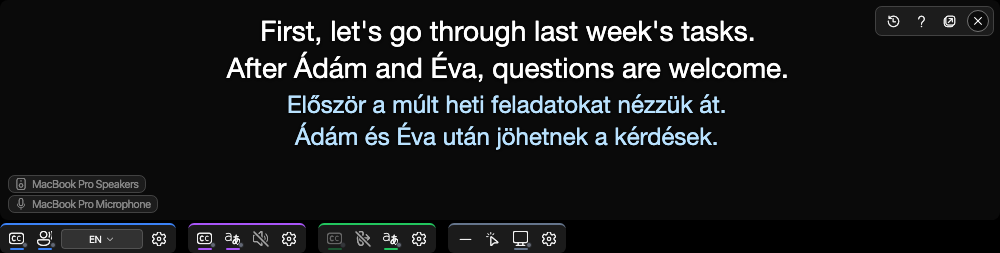
| Section | Colour | On its icon strip |
|---|---|---|
| Incoming audio | blue | the band of the spoken text (CC), captioning (speaking head), the speech language, a warning mark, the gear |
| Translation and interpreting | purple | the translation band (CC), translation, the spoken interpreter (speaker), the gear |
| Outgoing direction | green | the outgoing caption band (CC), outgoing interpreting, outgoing translation, a warning mark, the gear |
| Caption window | slate grey | hiding the caption window, click-through, exclusion from screen sharing, the gear |
In a narrow window the icon strips wrap into several rows. The tooltip of every icon says what it switches. Every change shows immediately and goes into the saved settings as well.
How a switch is drawn. When on, the icon is white with a thin underline in the section's colour; when off, it is faint and crossed by a diagonal line. A disabled switch fades; its tooltip still appears and says why it cannot be switched.
The gear opens the section's settings panel, in line with its own icon strip. Only one panel can be open at a time; another section's gear switches to its own. The panel stays open until you click the same gear again – meanwhile the icon strips do not disappear either. Esc does not close it, because the caption window does not get the keyboard. Hiding the captions does close it.
The notice line sits after the last icon strip: a faint line that shows for a few seconds what the last switch caused (for example "The speech language is now: …"), or why the program refused it.
Incoming audio
The blue section belongs to the other party's voice – or to the sound the computer plays: this is what becomes captions.
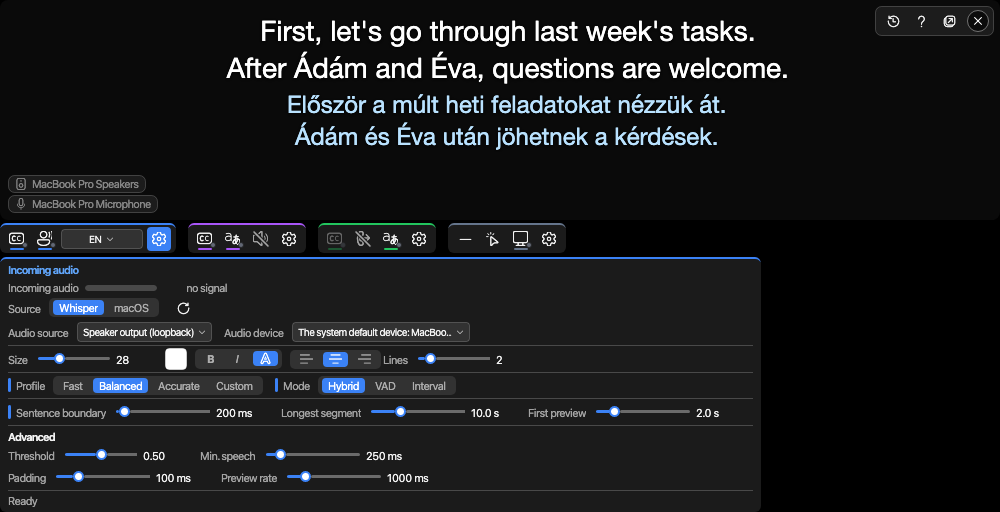
- The incoming audio level meter: a bouncing bar and the level in dBFS (0 is full scale, speech is typically between −40 and −10). "no signal" when there is nothing to measure, "silent" when the source is quiet.
- Source: Whisper (your own caption server) or the system's live captions – on Windows Windows Live Captions, on macOS the button reads macOS. Next to it, the restart button clears the screen and the unfinished sentence – for example after you rewound the recording.
- Audio source and Audio device: what the program listens to (the computer's sound, the microphone or the virtual cable), and on which device. Whatever would bring a new problem is dimmed, and its tooltip says why. While captioning runs, the program asks before switching, because the captions and the interpreter may go silent for a few seconds.
- The band's appearance: Size, colour, bold, italic, outline, alignment and Lines.
- Segmentation: Profile (Fast, Balanced, Accurate, Custom), Mode (Hybrid, VAD, Interval) and the three timing values (Sentence boundary, Longest segment, First preview), below them the Advanced row with the finer recognition values. They act during a running session too; with the system's live captions they are disabled, because there the system segments. Details: Segmentation and accuracy.
- At the bottom the status: the audio device, the input level, the server lag ("Ready" in the picture).
The speech language. The strip's language badge shows which language the program expects: HU is a fixed language, AUTO means detection is in progress, AUTO · HU means it was detected. A click opens a list: the Auto item detects among the languages of the remembered candidate list, the other items are fixed languages. With the system's live captions only a fixed language can be chosen. More: Caption sources and the speech language.
Translation and interpreting
The purple section belongs to the translation and to speaking it out loud. The strip's first icon switches the translation band (translation goes on, it just does not show), the second the translation itself, the third the spoken interpreter.
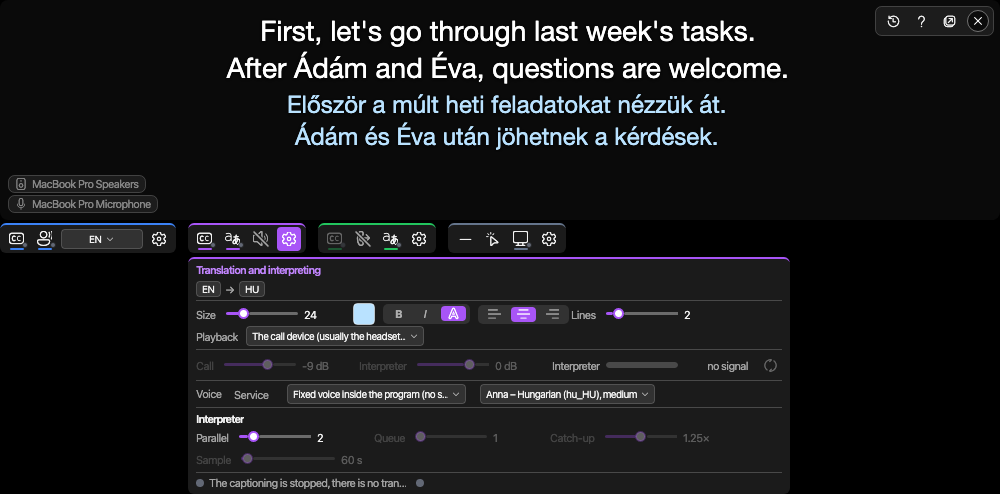
- The language pair badge (
EN → HUin the picture); the tooltip gives the full names. - The translation band's appearance, with the same controls as the spoken text's.
- Playback: where the interpreter speaks – the call device, the default playback device, or a specific device.
- Volumes: Call ducking while the interpreter speaks, and the Interpreter volume in your headphones; next to them the interpreter's level meter and the button that relearns the voice (for another speaker). With the interpreter off they are faint, but can be set in advance.
- Voice row: the Service toggle (when off, the program's own built-in voice speaks), the voice mode (the speaker's cloned voice, the service's voice, the voice inside the program) and the voice picker.
- Interpreter row: the number of sentences translated at once (Parallel), those waiting to be spoken (Queue), the catch-up pace (Catch-up) and the voice sample refresh (Sample).
- At the bottom the translation and interpreter dots with their text.
The interpreting settings are covered in the Translation and Interpreting and your own voice sample chapters.
Outgoing direction
The green section belongs to your own speech, which in a call the other party hears in their own language. The strip's translation icon switches the outgoing translation: when off, your speech is still captioned, but the other party hears your own voice without the interpreter – for example when you both speak the same language.
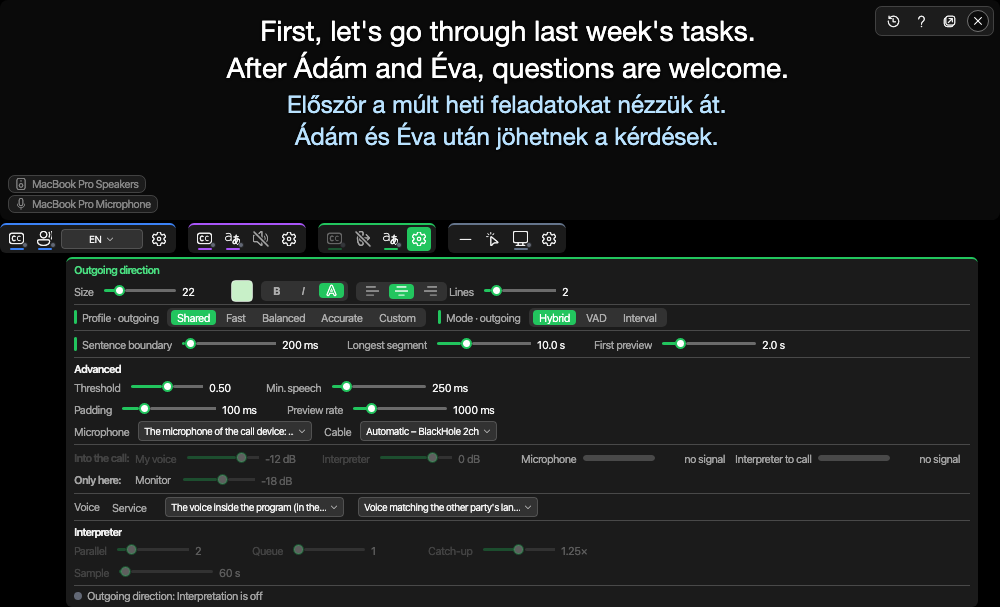
- The outgoing caption band's appearance.
- Segmentation with a fifth profile: Shared means the outgoing direction follows the incoming segmentation; any other profile or slider detaches it. The labels say so too: "Profile · outgoing".
- Microphone and Cable: which microphone your voice comes from, and which virtual cable carries it into the call.
- Into the call: your own voice and the interpreter's volume – this is what the other party hears. Only here: the Monitor in your own headphones, with its toggle. The two are independent: the monitor changes nothing of what the other side hears.
- Two level meters: Microphone and Interpreter to call.
- Voice and Interpreter rows: the same as on the Translation and interpreting panel, but for the outgoing direction; here your own saved voice sample can also be chosen as a voice mode.
- At the bottom the outgoing direction's dot with its text.
The open panel decides the direction: on the Incoming audio panel you set the incoming direction's segmentation, on the Outgoing direction panel the outgoing one's. Setting up the outgoing direction is covered in the In calls: virtual cable and the outgoing direction chapter.
Caption window
The slate grey section belongs to the caption window itself. On its icon strip:
- hiding the caption window: hides the whole window; captioning, translation and interpreting keep running. To bring it back, use the Show the captions item of the tray (menu bar) menu or the hotkey (
Ctrl+Alt+Lby default); - click-through: when on, the caption band does not catch the mouse (see below);
- exclusion from screen sharing: when on, the caption window does not appear in shared screens and screenshots. If the system cannot apply it, a warning dot appears on the button, and the tooltip says so: the window IS visible then;
- the gear.
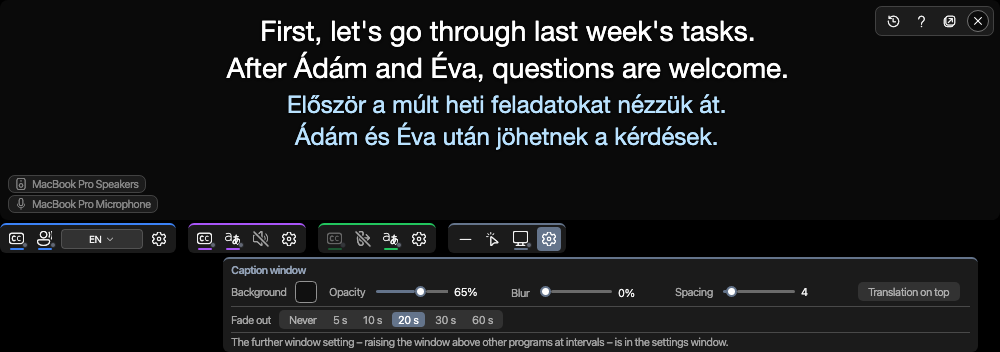
- Background and Opacity: the opacity adjusts the background, not the text – the captions stay readable over a dark picture too.
- Blur (macOS only): how strongly the content behind the caption band is blurred. On Windows the slider is disabled, and its tooltip says why.
- Spacing: the room between the bands.
- Translation on top: the translation band goes above the spoken text's band (the outgoing band always stays at the bottom).
- Fade out: after how many seconds the caption lines disappear – Never, 5, 10, 20, 30 or 60 s.
The same can be set on the Appearance tab of the settings window – both write the same setting. More: Appearance and screen sharing.
Click-through applies to the caption band only. When it is on, the mouse passes through the captions to the program below, and the window cannot be moved or resized from the band. The toolbar stays clickable, though: move the mouse to the bottom of the band and hold it there for a moment, the toolbar comes up, and the same button turns click-through off. The icon strip in the top right corner does not come up under click-through. The setting is kept and applies at the next start too; it can also be turned off with the hotkey (Ctrl+Alt+K by default), the Click-through item of the menu, or on the Appearance tab.
The top right corner and the audio devices
A small icon strip slides in in the top right corner: recordings (clock), help (question mark), the settings window (window) and quit (×). It appears together with the bottom icon strips, and also when you move the mouse straight into the top right corner.
In the bottom left corner two small labels stand: the speaker on top, the microphone below – what the program actually uses, not simply the setting. A dimmed label is not in use right now (its direction is off, or the device disappeared); if the configured device is not on the computer, "(not found)" follows its name. The label's tooltip explains where the sound goes.
What the sections' dots and warning marks mean is explained in the Status dots, tray and menu bar menu, hotkeys chapter.