
Recordings and export
Recording the sessions, and the Recordings window: finding, copying and exporting earlier captions as text, SRT or CSV.
LiveCaption can save the text and the translation of every session, so that you can look back at it, search it and export it later – for meeting notes, say, or a subtitle file for a lecture. Recording is controlled on the Recordings tab of the settings window; the recordings themselves are shown in the separate Recordings window.
What goes into a recording
- Every start is a separate recording. Each time captioning starts, a new file begins, named after the start time.
- The final form of the sentences. The preview text that still flickers is left out; only the closed sentence goes in – so the recording is a complete transcript even with translation turned off.
- The translation and its state. Every sentence has its translation next to it; if a translation was skipped or failed, the recording marks that too.
- The header: the start time, the caption source, the languages and the recognition model.
- Two recordings with the outgoing direction. If the outgoing direction (your own speech translated for the other party) is on, your speech goes into a separate file with the language pair reversed – so the sentences of the two directions do not mix.
The audio itself is not recorded, only the text.
The Recordings tab in the settings window
Open the settings window from the menu (the tray icon on Windows, the menu bar icon on macOS) or with the window icon in the top right corner of the caption window, then choose the Recordings tab in the list on the left.
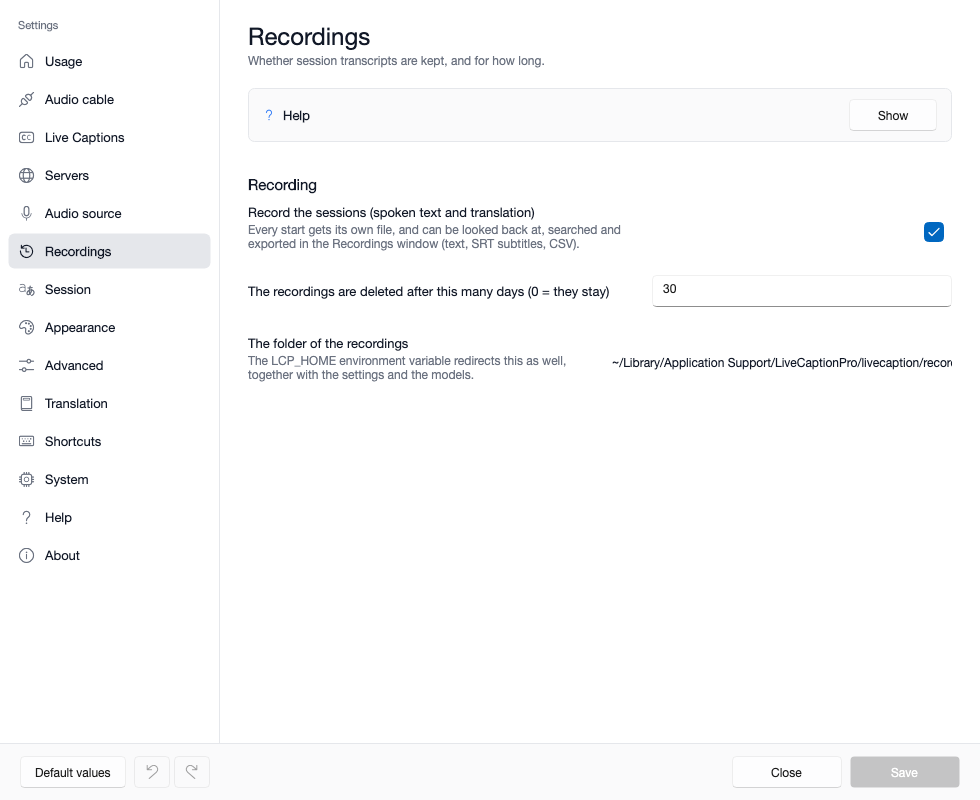
| Field | What it means | When to change it |
|---|---|---|
| Record the sessions (spoken text and translation) | when on, every start gets its own recording; on by default | turn it off if you do not want the text of your conversations to stay on the machine |
| The recordings are deleted after this many days (0 = they stay) | automatic cleanup of old recordings; the default is 30 days | raise it if you need to look further back; lower it if space is short |
| The folder of the recordings | where the files go – for information only, it cannot be edited here | if you want to know where the files are (see below) |
The change takes effect with the Save button. Turning recording off does not delete the recordings you already have.
The Recordings window
The Recordings window opens in two ways:
- with the clock icon in the top right corner of the caption window (the icon strip appears when you move the mouse over the caption window);
- with the Recordings… item of the menu (the right-click menu of the tray icon on Windows, the menu of the menu bar icon on macOS).
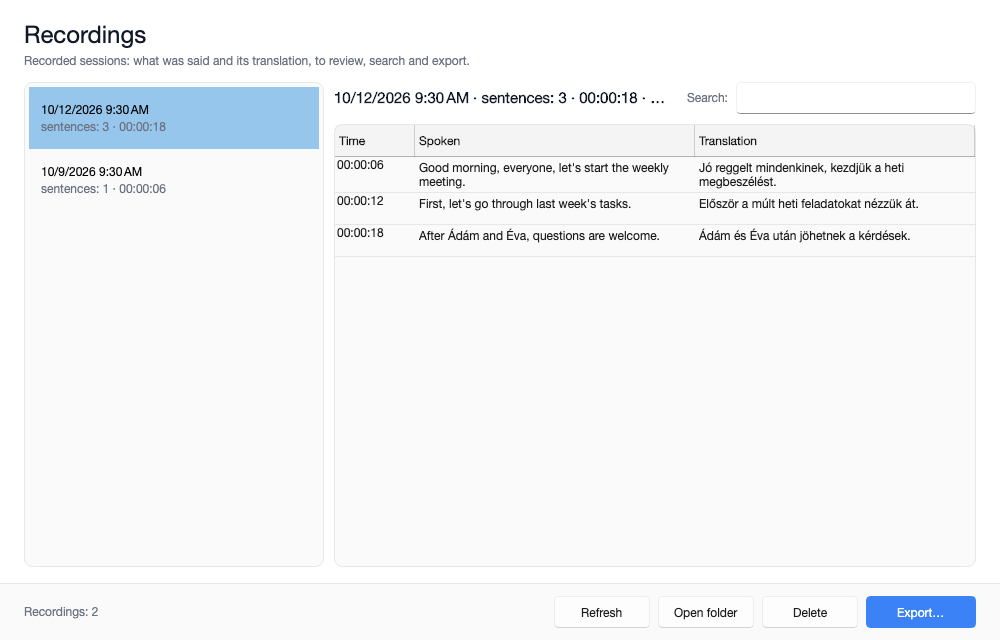
The parts of the window:
- The list on the left: the recordings, newest first, each with its start time, number of sentences and length.
- The table on the right: the sentences of the selected recording in three columns – Time (from the start of the recording), Spoken and Translation. Above the table, one line sums up the recording: start, number of sentences, length, source and languages.
- The actions at the bottom: Refresh (reads the list again, for example to pick up new sentences of a running session), Open folder, Delete and Export…. On the left, the status line tells how many recordings there are and how the last action went.
While the Recordings window is open, the caption window steps aside by default and comes back when you close it; captioning keeps running in the meantime. If you want to see the captions even then, turn this off on the System tab of the settings window.
Searching and copying
As you type in the Search box, the table narrows down at once: only the sentences whose original or translation contains the text remain. The search works within the selected recording; pick another recording in the list on the left.
The selected rows of the table can be copied to the clipboard together with the column headers, separated by tabs – pasted into a spreadsheet, they fall into columns.
Exporting
The Export… button saves the selected recording to a file. It asks for the format first, then for the place and name of the file.
| Format | What it contains | What it is good for |
|---|---|---|
| Text (bilingual) | every sentence with a timestamp, the original with the translation under it | notes, minutes, passing it on |
| Subtitles – spoken (SRT) | a standard subtitle file with the spoken text | subtitles for a recorded video in the original language |
| Subtitles – translation (SRT) | a standard subtitle file with the translation | subtitles for a recorded video in the translation's language |
| Spreadsheet (CSV) | one row per sentence: time, original, translation and the translation's state | spreadsheets, automated processing |
Good to know:
- The CSV column headers and status words are fixed; they do not follow the interface language, because they are meant for automated processing. The file starts with a byte order mark (BOM), so that Excel reads accented letters correctly.
- The SRT timing is relative to the start of the recording. If you started a video together with the recording, the subtitles line up with it; if not, use the player's subtitle offset to align them.
- The status line confirms a successful export with the file's name.
Deleting
The Delete button removes the selected recording for good – it asks for confirmation first. If deleting fails (for example because another program holds the file open), the status line says so, and the log tells why.
The files on disk
The recordings go into the livecaption/recordings subfolder of the data folder; both the Recordings tab and the System tab show the exact path.
| System | Default location |
|---|---|
| Windows | %LOCALAPPDATA%\LiveCaptionPro\livecaption\recordings |
| macOS | ~/Library/Application Support/LiveCaptionPro/livecaption/recordings |
If the LCP_HOME environment variable is set, the data folder – and with it the recordings, the settings and the downloaded voice models – moves there.
The files are named after the start date and time, with the .jsonl extension; the outgoing direction's recording gets a _kimeno ending. The format is one self-contained entry per line, so a file can be read in a text editor, and the recording of an interrupted session (a power cut, a crash) is not damaged: whatever was finished stays.
When something is wrong
| Symptom | Cause and what to do |
|---|---|
| The list is empty: "There is no recording yet." | Recording is turned off, or no session has run yet. Turn it on on the Recordings tab of the settings window, and start captioning. |
| An earlier recording is missing | It was older than the retention period, and the cleanup deleted it. If you need to keep recordings longer, raise the number of days or set it to 0. |
| The last sentences of the running session do not show | The list does not refresh on its own: press Refresh. |
| The translation column shows a note in brackets | The translation of that sentence was skipped or failed; the recording marks it instead of leaving it empty. |
| Accented letters are wrong in the CSV | An old spreadsheet program that ignores the byte order mark: import the file as UTF-8. |
Where next
- The interface and log language, and saving the settings: Language, logs and saving settings
- The outgoing direction, which produces the second recording: Translation
- Subtitling video folders afterwards, from files: Appendix: the file clients