
Session, Advanced, System, About
The other tabs of the settings window: the recognition model and segmentation, the measured advanced values, the resolved environment, and About.
This chapter walks through four tabs of the settings window: Session holds the recognition model and how speech is split into sentences, Advanced the measured values that rarely need changing, System the behaviour of the whole program and its environment, and About shows the version and the licences. What the segmentation values do to the captions is explained in the Segmentation and accuracy chapter; this one covers the fields of the tabs.
The Session tab
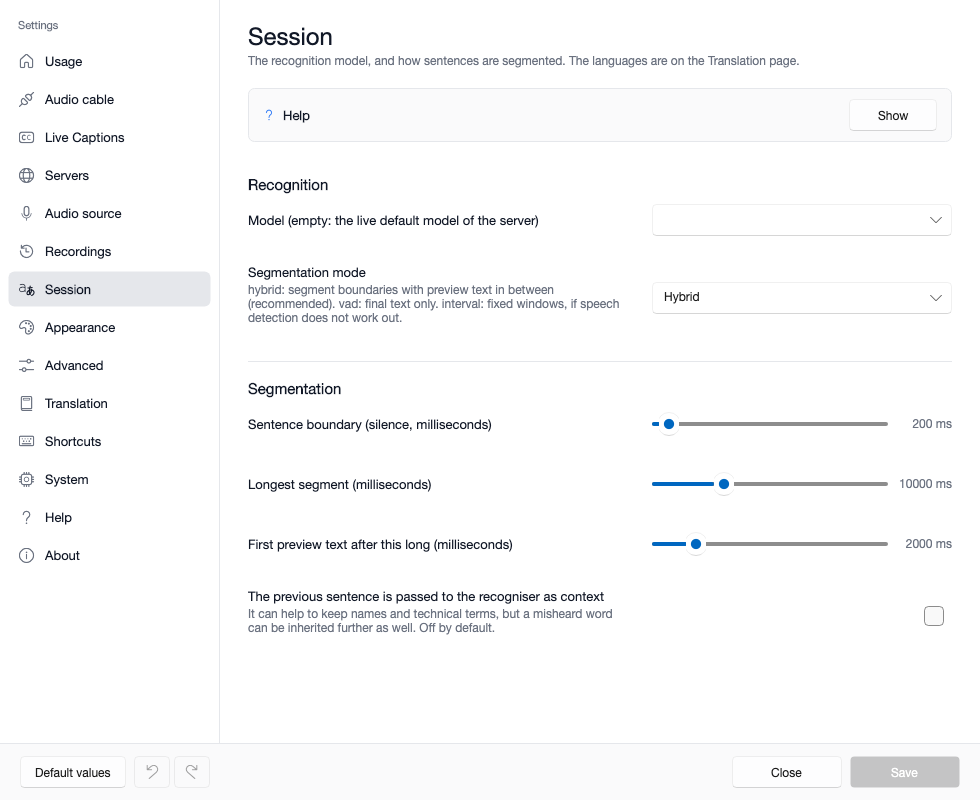
The Recognition section:
| Field | What it means | When to change it |
|---|---|---|
| Model (empty: the live default model of the server) | the Whisper model of the speech recognition; when empty, the caption server decides. The list also includes the compressed (quantised) variants, such as large-v3-turbo-q5_0: they need less video memory, in exchange for a hair less accuracy |
on a small graphics card a quantised model is a good choice; otherwise leave it empty |
| Segmentation mode | Hybrid: sentence boundaries with preview text in between (recommended); VAD: final text only, once the segment has closed; Interval: fixed time windows, bypassing speech detection | VAD if the flickering preview bothers you; Interval if speech detection does not work out on an audio source |
The Segmentation section:
| Field | What it means | When to change it |
|---|---|---|
| Sentence boundary (silence, milliseconds) | after this much silence the sentence closes and goes to translation | shorter sentences, faster translation: a smaller value; more context: a larger one |
| Longest segment (milliseconds) | after this much speech the sentence closes even without a pause | with a speaker who talks long without pausing |
| First preview text after this long (milliseconds) | after this much speech the first preview text appears, then it refreshes every second | if the preview comes too early or too late |
| The previous sentence is passed to the recogniser as context | the recogniser gets the previous sentence: it can help keep names and technical terms, but a misheard word can be inherited too | off by default; worth trying at a lecture full of technical terms |
Good to know:
- The three timing values can also be picked as a profile on the caption window's Incoming audio and Outgoing direction panels: Fast (for chat), Balanced (the default) and Accurate (for lectures). If the three values match no profile, the picker shows "Custom".
- The sliders can also be moved on the caption window during a running session, without a restart.
- If the outgoing direction has its own segmentation (switched on the Translation tab), the values here apply to the incoming direction only, and the tab says so in a highlighted row.
- If the captions come from the system's own Live Captions (Windows Live Captions on Windows, macOS Live Captions on macOS), the segmentation controls are disabled: there the system splits speech into sentences.
The Advanced tab
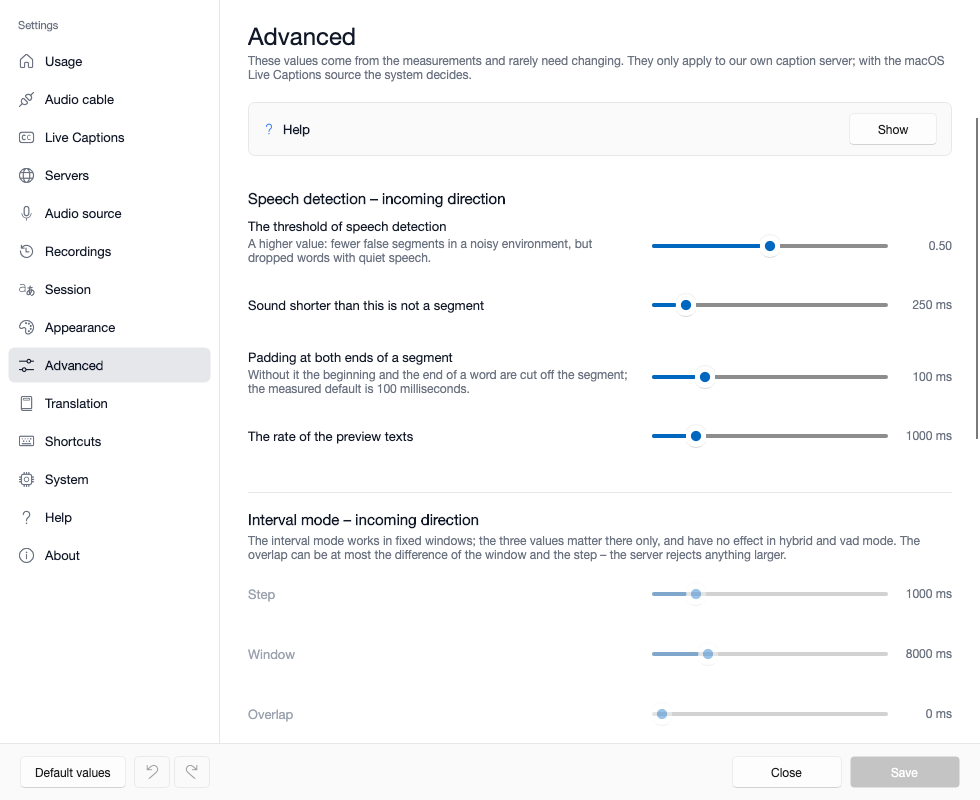
These values were measured at a real lecture, and they rarely need changing. They only apply with your own caption server; with the system's Live Captions the system decides. The tab is split by direction: the two upper sections (Speech detection – incoming direction, Interval mode – incoming direction) belong to the incoming direction, the third, Outgoing direction (own segmentation), to the outgoing one.
| Field | What it means | When to change it |
|---|---|---|
| The threshold of speech detection | how strong a signal counts as speech; a higher value gives fewer false segments in noise, but words can be lost with quiet speech | raise it in a noisy call, lower it with a quiet speaker |
| Sound shorter than this is not a segment | filters out short noises and coughs | if short words get lost, lower it |
| Padding at both ends of a segment | this much is kept before and after the segment, so the start and end of a word are not cut off; the measured default is 100 milliseconds | if the beginnings or ends of words are clipped |
| The rate of the preview texts | how often the preview text refreshes within a sentence | if the flicker bothers you, make it sparser |
| Step, Window, Overlap | the fixed windows of the interval mode: this often (step), a piece this long (window), with this much overlap | they only matter in Interval mode; in Hybrid and VAD mode they are greyed out |
Good to know:
- A bad threshold or padding does not cause an error message but clipped words or missing sentences. If you see that, look for the cause here.
- The overlap can be at most the window minus the step; the program keeps it there, because the server rejects a larger one.
- The outgoing direction's values take the incoming values of the moment its own segmentation is switched on, and are independent from then on. The "Advanced" row of the caption window's Outgoing direction panel sets the same values; the Shared profile takes the outgoing direction back to the shared values.
- The Default values button at the bottom of the window resets these to the measured defaults too.
The System tab
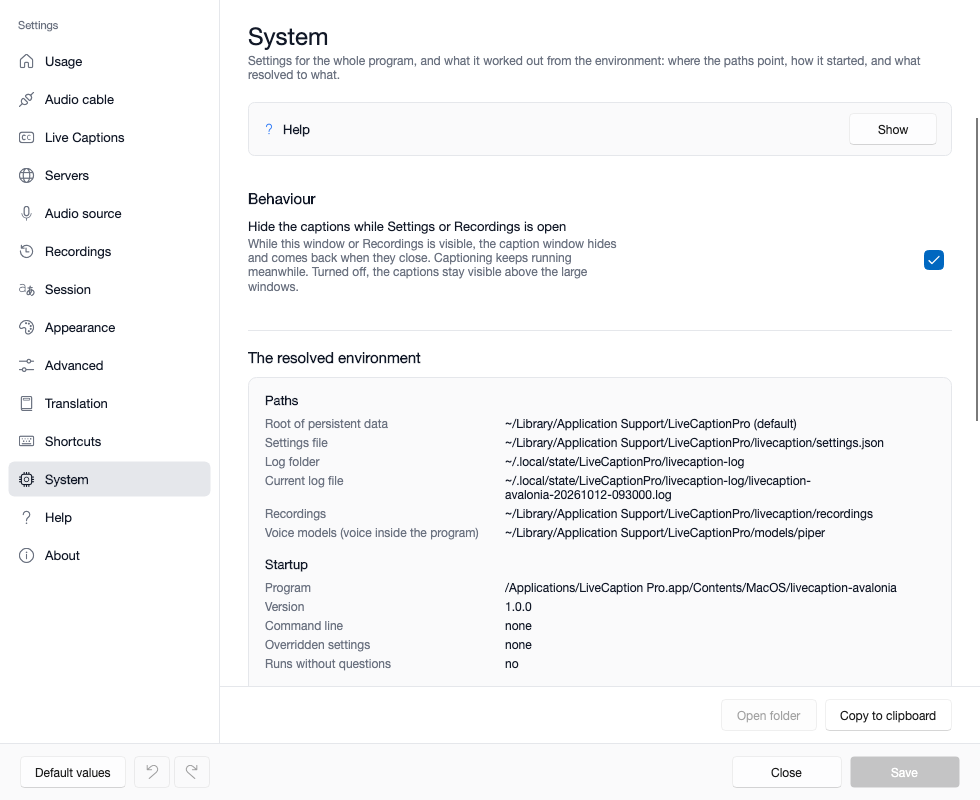
The single field of the Behaviour section:
| Field | What it means | When to change it |
|---|---|---|
| Hide the captions while Settings or Recordings is open | while the settings window or the Recordings window is visible, the caption window steps aside and comes back when they close; captioning keeps running meanwhile | turn it off if you want to watch the captions change while you adjust the settings |
The resolved environment shows what the program worked out from its surroundings – the most important tab when troubleshooting or reporting a problem.
| Group | What it tells |
|---|---|
| Paths | the root of the persistent data (and whether the LCP_HOME environment variable set it), the settings file, the log folder and the current log file, the recordings, the voice models |
| Startup | the program's location and version, the command line, the overridden settings, and whether it runs without questions |
| Servers | the resolved address of the three servers, and whether they are needed at all with today's settings |
| Audio devices | what the "automatic" choices resolved to: the cables, the microphone, the interpreter's playback device |
| Machine | machine name, operating system, runtime, interface language |
There are two buttons at the bottom of the tab:
- Open folder: opens the selected row's path in the file manager (File Explorer on Windows, Finder on macOS).
- Copy to clipboard: puts the whole table on the clipboard as text, for a problem report. The translator key goes in masked (
***), so the text can be passed on safely.
Good to know:
- The table refreshes when you switch tabs: what changed meanwhile (a server started, a device plugged in) shows the next time you open the tab.
- The Overridden settings come from the command line or a configuration file: they can be changed on the interface, but they do not go into the saved file, and at the next start the command line applies again.
- If a server is "not needed with today's settings", the program does not even try to connect to it – for example the translator with translation off.
- The Default values button does not affect this tab: there is nothing to reset here.
The About tab
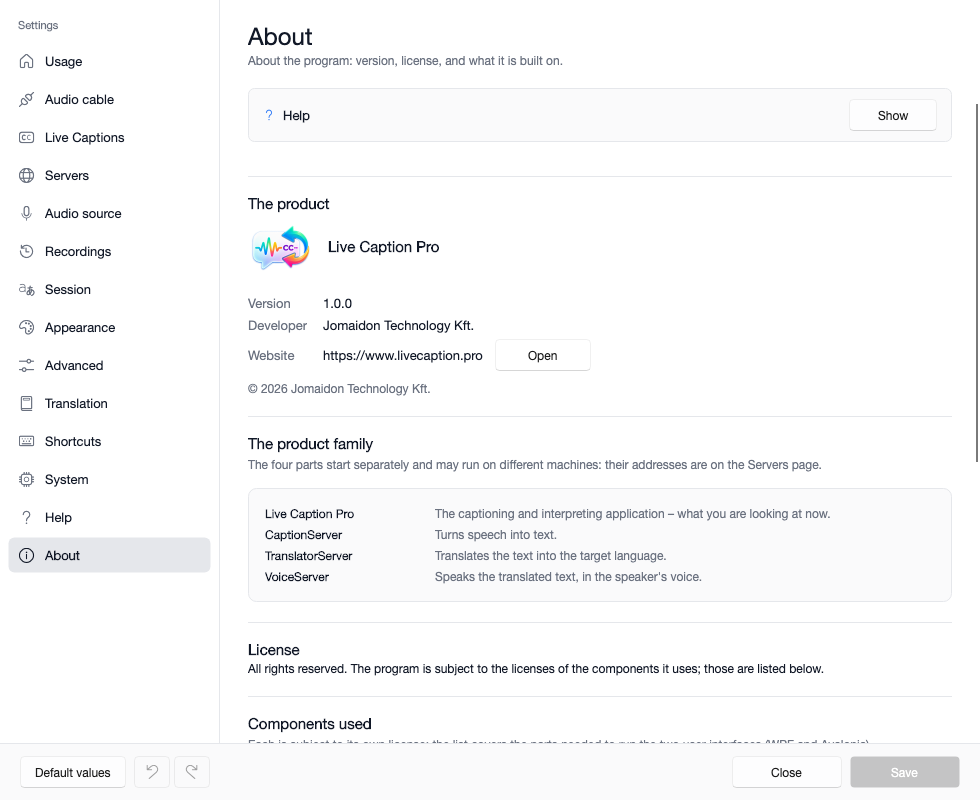
The sections of the tab:
- The product: the Version, the Developer and the Website; the Open button opens the product's website in the browser.
- The product family: the four parts and what each does.
- License: all rights to the program are reserved; the components used are subject to their own licences.
- Components used: the list with version and licence. It covers the parts needed by both user interfaces (WPF on Windows, Avalonia on macOS), so not all of them are used on a given machine.
| Member | What it does |
|---|---|
| Live Caption Pro | the captioning and interpreting app – this program |
| CaptionServer | the caption service: turns speech into text |
| TranslatorServer | the translator: translates the text into the target language |
| VoiceServer | the voice service: speaks the translated text, even in the speaker's voice |
The four parts start separately and can run on separate machines; you give their addresses on the Servers tab.
For a problem report, take the version from here, and the whole environment with the Copy to clipboard button of the System tab.
About voice cloning. The model that imitates the speaker's voice (XTTS-v2) is under a non-commercial licence, and cloning needs your conversation partner's voice: use it only with their knowledge.
Where next
- How segmentation affects the captions: Segmentation and accuracy
- The servers' addresses and keys: First start and connecting to the servers
- The logs and the settings file: Language, logs and saving settings