
In calls: virtual cable, outgoing direction
Interpreting in calls: the Usage tab's modes, the virtual audio cable (VB-CABLE, BlackHole), setting up the call app and the outgoing direction.
In a call, LiveCaption can work in two directions. In the incoming direction it captions the other party's voice, translates it and, if you ask, interprets it into your headphones. In the outgoing direction it translates your speech into the other party's language and feeds it into the call through a virtual microphone: the other party hears the interpreter, ideally in your voice. This chapter describes how to put the audio path together for this.
What you use it for: the Usage tab
On the Usage tab of the settings window, the What do you want to do? picker says what you use the app for – and the tab sets up the audio path from that: what the app listens to, where it plays, and what to choose as speaker and microphone in the call app.
| Mode (in the UI) | What it does | What it needs |
|---|---|---|
| Call – both directions through the call app | captions, translates and interprets the other party's voice; carries your speech into the call in the other party's language | two virtual cables: one brings the call in, the other carries the interpreter out |
| Call – incoming direction only | captions, translates and interprets the other party's voice; you speak in your own voice | one virtual cable |
| The machine's audio (video, talk) | captions and translates whatever plays on the speaker | nothing: loopback listens to the speaker output |
| My microphone (practice) | captions and translates your own speech, and with interpreting speaks it back in a foreign language | headphones |
The mode fills in the fields of the Audio source tab and of the outgoing part of the Translation tab. If you change something there by hand, the mode switches to "Custom"; the Apply again button re-applies the mode.
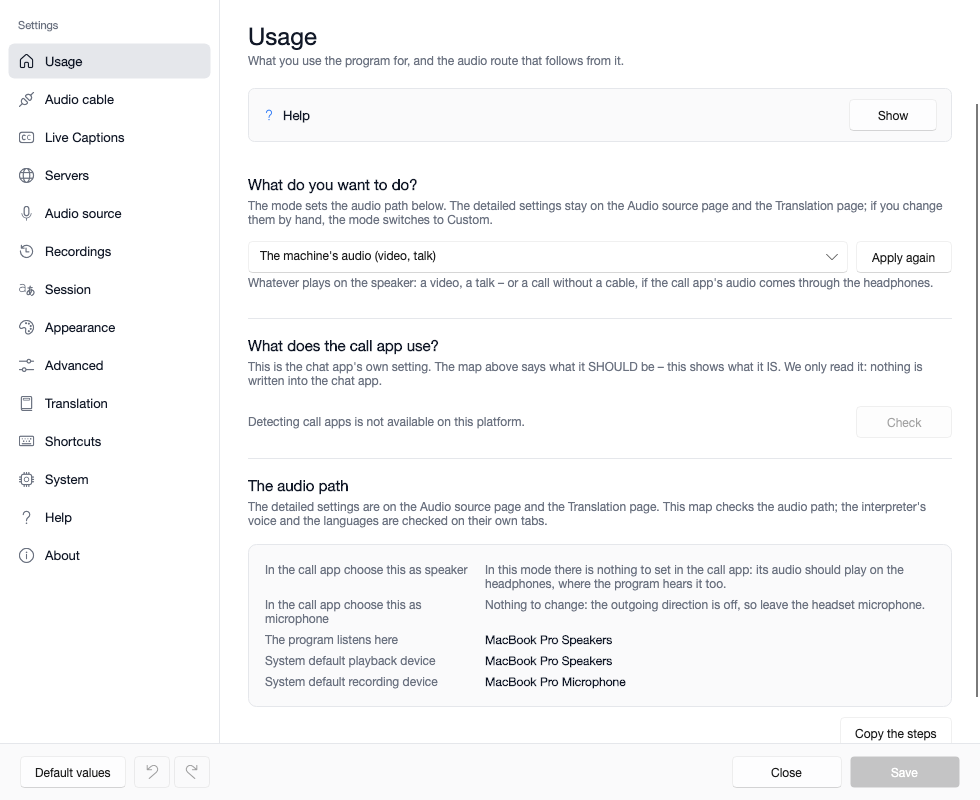
The audio path map
Below the mode, The audio path section lists, with actual device names, what to set where: what to choose as speaker and microphone in the call app, where the app listens, and which are the system's default playback and recording devices. If a virtual cable has become one of the defaults, you notice it here – the headphones should remain the default device. The steps can also be copied to the clipboard.
What does the call app use? (Windows only)
On Windows, the section below the map reads back what is actually set in the call app and compares it with the map: ✓ matches, ✗ differs, ? cannot be checked. The app knows ten chat apps (Teams new and classic, Zoom, Webex, Discord, Slack, Skype, Signal, WhatsApp, Viber). Teams' setting can be read even without a call; for the others, press the Check button during a call. The app only reads: it writes nothing into the call app. On macOS this check is not available.
The virtual audio cable
A virtual audio cable is an audio device whose output is wired to its input: whatever one program plays to the cable, another program hears from the cable as a microphone – inside the machine, with no physical cable. The Audio cable tab of the settings window shows what is installed today, and draws the path of the two directions.
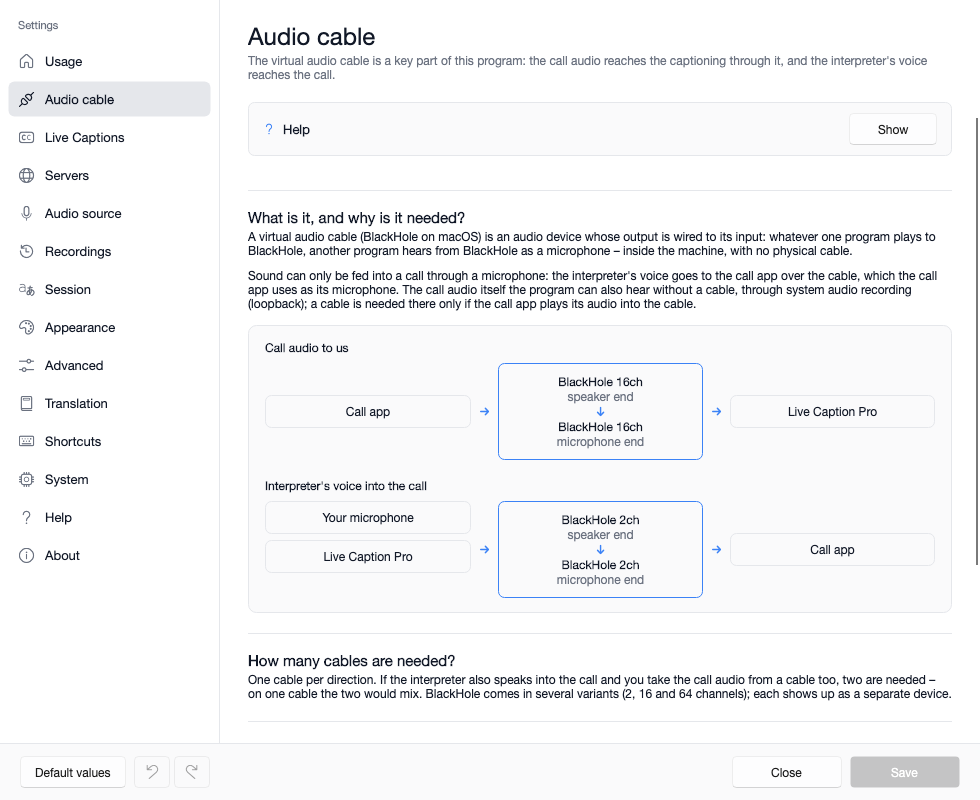
What the cable is for:
- Always for the outgoing direction: sound can only be fed into a call through a microphone. The interpreter's voice goes to the cable, and the call app uses the cable as its microphone.
- For the incoming direction on Windows: loopback does not always see the call app's audio (measured with Teams); the cable's capture end does hear it. The app mixes the call audio with the interpreter's onto the headphones, lowering the call while the interpreter speaks. On macOS the app can also hear the call audio without a cable, through system audio recording; a cable is only needed there if the call app plays its audio into the cable.
| Use | On Windows | On macOS |
|---|---|---|
| incoming direction only | one cable: VB-CABLE | one cable, for example BlackHole 16ch |
| both directions | two cables with fixed roles: VB-CABLE and VB-Audio's A+B package | two cables: BlackHole 2ch for the outgoing, BlackHole 16ch for the incoming direction |
On one cable the two directions would mix, so each direction needs its own. On macOS, if the call app's audio plays on the headphones, the incoming direction also works without a cable: choose The machine's audio (video, talk) mode. No cable is needed for the machine's audio or for the microphone mode. The app assigns which cable belongs to which direction by itself: in the pickers on the Audio source tab, the Automatic item shows the name of the resolved cable.
On Windows: VB-CABLE
The VB-Audio cables are donationware; the installer package must be downloaded by hand from the vendor's site (the Audio cable tab's Vendor's site button takes you there) and placed in the folder that the tab's The vbcable folder button opens. Then the tab's Install button starts the installer with administrator rights. The installer makes the cable the default device – the app sets it back to the headphones; you can check it on the Usage tab's map. Uninstall also needs the installer package, and the vendor says a restart is needed afterwards.
On macOS: BlackHole
BlackHole is a free, open-source product of Existential Audio; LiveCaption does not install it. In Terminal it is installed like this (the second command is only needed if you also take the call audio from a cable):
brew install blackhole-2ch
brew install blackhole-16ch
After installing, restart the Mac – the new audio device only appears after a restart – then press Refresh on the Audio source tab. BlackHole is a single device whose "speaker" and "microphone" ends carry the same name.
Setting up the call app
In the audio settings of the call app (Teams, Zoom and the others), choose these – the Usage tab's map shows the exact names found on your machine:
| In the call app | On Windows | On macOS |
|---|---|---|
| Microphone (outgoing direction) | CABLE Output |
BlackHole 2ch |
| Speaker (incoming direction with a cable) | CABLE-A Input |
BlackHole 16ch; for an incoming direction without a cable, the headphones |
| Secondary ringer | the headphones | the headphones |
The headphones should remain the system's default device and the interpreter's playback device. Leave the secondary ringer on the headphones: without the app running, the cable is silent, so if the call app's speaker is the cable and LiveCaption is not running, you would hear neither the call nor the ringing.
A detailed, step-by-step description for a Teams call: the A Teams call with interpreting in both directions guide.
The outgoing direction
The outgoing direction captions your speech, translates it, and speaks it in the other party's language onto a virtual cable. It is turned on at the bottom of the settings window's Translation tab, in the Outgoing interpretation section, with the Translate my speech for the other party switch; while running, with the caption window's green Outgoing direction icon row or the Ctrl+Alt+O hotkey (on macOS Control+Option+O).
- The first time you turn it on, the app asks once, and once per run it asks you again to confirm that you are using headphones. If the cable, the microphone, the language pair or the speech service is not in order, the switch flips back and tells you why.
- When you turn it off, the app warns you to set the call app's microphone back to the headset's – the app cannot do this itself, and until then the other party hears nothing.
| Field | What it means |
|---|---|
| Virtual audio cable, Microphone | where your voice and the interpreter's go together, and where your own voice comes from; the cables' capture ends are deliberately left out of the microphone list |
| Translate the outgoing direction | when off, the outgoing direction keeps running and your speech is captioned, but the other party hears your own voice without an interpreter – for example when you speak the same language |
| Use the speech service for the outgoing direction | when off, the outgoing interpreter uses the voice inside the program; the incoming one is unchanged |
| The voice of the interpreter | a live clone from your speech, your saved own sample, a voice of the speech service, or the voice inside the program in the other party's language |
| Volume of the interpreter in the call, The level of your own voice while the interpreter speaks | what the other party hears: the interpreter's level, and how much your voice is lowered while the interpreter speaks |
| Hear the interpreter in your headphones | quiet feedback so you know the translation is working; headphones only, off by default |
| This many sentences are translated at once, The outgoing interpreter's pacing | the outgoing direction's own values, independent of the incoming ones |
Your saved own sample is the best choice: the interpreter speaks in your voice from the very first word. The recording steps are in the Interpreting and your own voice sample chapter.
The other party's language
If The other party's language field is left empty, the app decides: the language recognised in the incoming direction, then the first non-own language of the candidate list, finally a common fallback. The tab shows the current assumption (for example "You: hu → the other party: en"). The language is decided when you turn it on and does not change during the call; if the other party speaks another language after all, a warning sign appears on the Outgoing direction icon row.
Good to know
- The call audio in your ears is about 0.2 seconds behind the direct path (the buffers of the cable and the mixer); not noticeable in conversation.
- The audio path belongs to the settings, not to the session: the call keeps playing during a pause, a server outage and reconnection. Only quitting, switching the source or losing the device tears it down.
- On macOS the built-in cable installer, the call app check and lowering other programs are not available; the settings window disables these and tells you why.
If something is wrong
| Symptom | Likely cause | What to do |
|---|---|---|
| you cannot hear the call | LiveCaption is not running while the call app's speaker is the cable | start the app, or set the call app's speaker to the headphones |
| the other party hears nothing | the outgoing direction is off, but the call app's microphone is still the cable | turn the outgoing direction on, or set the call app's microphone back |
| "There is no virtual cable on this machine" | the cable is not installed, or on macOS the Mac was not restarted since installing | install the cable (on Windows on the Audio cable tab, on macOS in Terminal: brew install blackhole-2ch); on macOS restart the Mac and refresh the device list |
| "There is only one usable cable" | both directions need a cable, but there is only one | install a second cable, or assign the existing one by hand to the direction you need |
| the outgoing switch flips back | the cable, the microphone, the language pair or the speech service is not in order | the pop-up message names the reason |
| a cable became the system's default speaker | the cable's installer did it, or it was changed by hand | check it on the Usage tab's map and set it back to the headphones (on macOS: System Settings › Sound › Output) |
Where next
- Caption sources and the speech language – setting the recorded audio by hand