
Caption sources and the speech language
Where the captions come from (the Whisper server or the system's Live Captions), what the app listens to, and how to set the speech language.
Before a caption can appear, the app needs answers to two questions: who transcribes the speech (the caption source) and which audio to listen to (the recorded audio). A third setting, the speech language, decides what language the recogniser should expect. This chapter covers all three.
The caption source
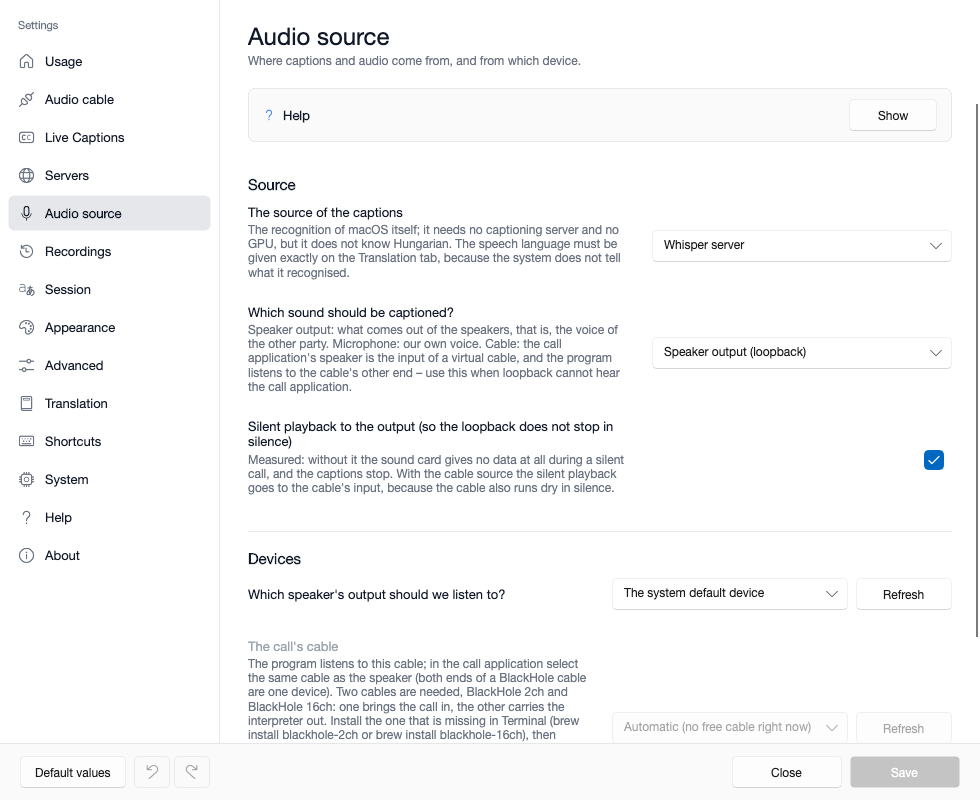
On the Audio source tab of the settings window, in the Source section, the The source of the captions field selects who recognises the speech.
| Source | What it does | When to choose it |
|---|---|---|
| Whisper server (default) | your own caption server transcribes the recorded audio with the Whisper model | you want an accurate transcript with a choice of model and tunable segmentation; it needs a running caption server and a graphics card – on your machine or on the network |
| Windows Live Captions (Windows only) | reads the text of Windows' built-in speech recognition | there is no server and no graphics card; in return, recognition quality and sentence boundaries are up to Windows |
| macOS Live Captions (macOS only) | reads the text of the built-in macOS Live Captions feature | foreign-language incoming speech without a server; macOS does not recognise Hungarian |
The system's Live Captions can be chosen even when the caption server is not running – translation, however, still needs a reachable translator.
Which audio is captioned
On the same tab, the Which sound should be captioned? field says what the app listens to. The mode on the Usage tab (see the In calls: virtual cable, outgoing direction chapter) fills this in by itself; if you change it here by hand, the mode switches to "Custom".
| Choice | What the app hears | When you need it |
|---|---|---|
| Speaker output (loopback) (default) | whatever plays on the speakers or headphones: the other party's voice, a video, a talk | following a foreign-language video, talk or call |
| Microphone | your own microphone | captions or translation of your own speech; with interpreting, headphones only |
| Call audio over a virtual cable | the call app's audio, which it plays into a virtual audio cable | when the call cannot be heard from the speaker output (on Windows, Teams audio is typically like this) |
Loopback means the app "listens back" to the sound going to the speakers before it plays – without a microphone, inside the machine. The app excludes its own sound (the interpreter's) from this, so the interpreter's voice never ends up back in the captions.
The device
In the Devices section you choose which speaker output or which microphone the app listens to. The Automatic item shows which device it resolves to right now; if the list is out of date, the Refresh button reads it again. With a cable source, The call's cable field selects the cable.
Silent playback
The Silent playback to the output switch is on by default, and it is best left that way. Loopback only delivers data while something is actually playing on the device: in a silent call not a single audio sample arrives, and the captions stop. Silent playback sends an inaudible, continuous sound to the same device so the audio stream does not run dry. With a cable source it goes to the cable's input, because a cable also runs dry in silence.
On macOS: microphone and system audio permission
On macOS, recording the microphone and the system audio requires permission. The system asks on the first start; if you declined, you can grant it later under System Settings → Privacy & Security (Microphone, and the system audio recording entry). If the app is started from a script in Terminal, the terminal app receives the permission. With system audio permission denied, loopback delivers nothing but silence: if no captions come while something is playing on the machine, check this first.
The system's Live Captions as a source
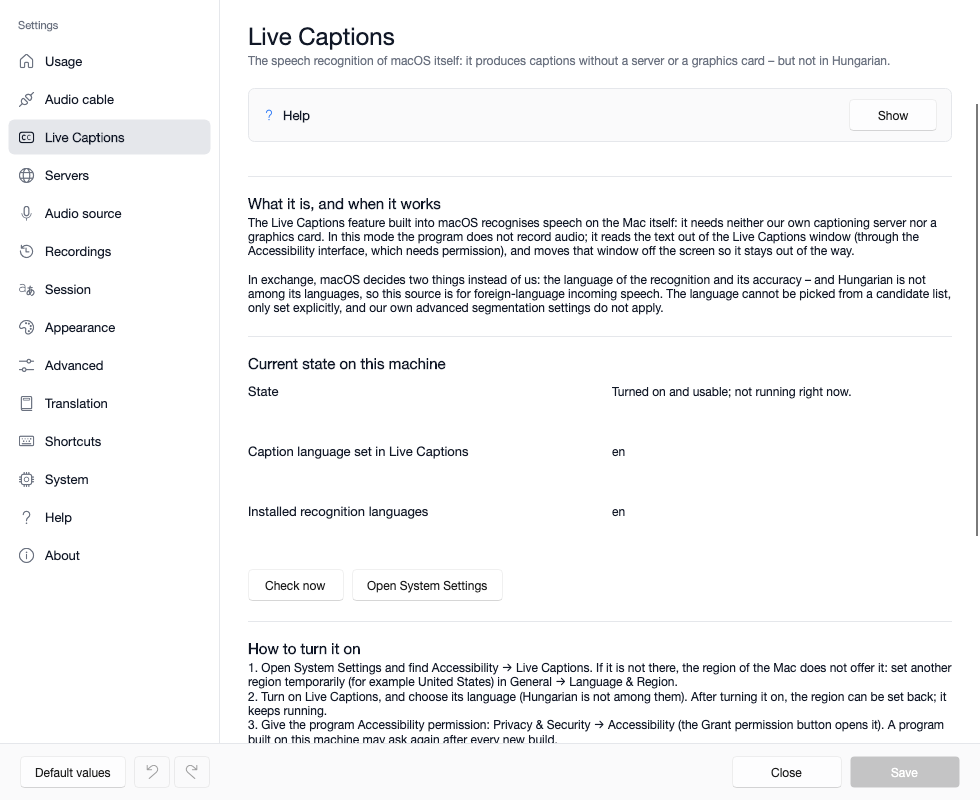
The Live Captions tab of the settings window shows whether the system's recognition is available on this machine, whether it is turned on and running, which language is set in it, and which recognition languages are installed. The Check now button asks for a fresh answer. If the feature is proven to be missing, the source cannot be chosen – neither in the settings window nor in the caption window.
On Windows
The app starts Windows Live Captions itself (asking first if it is not running), hides its window – recognition keeps running – and restores it on exit. If it was already open, the app attaches to it. The recognition language is set in Windows Settings (Accessibility → Captions), where the language pack is also downloaded; the tab's Open Settings button takes you there. The Windows setting and the app's speech language should match.
On macOS
- Hungarian is not among its languages: macOS Live Captions recognises English, French, German, Spanish, Japanese, Korean, Chinese and Cantonese. This source is therefore meant for foreign-language incoming speech.
- With a Hungarian region it cannot even be turned on: it does not appear on the Accessibility page of System Settings. Temporarily set another region (for example United States) under General → Language & Region, turn Live Captions on, then switch the region back – the feature keeps working.
- The app needs Accessibility permission (Privacy & Security → Accessibility). On the first start the app offers it and waits two minutes; the tab's Grant permission button opens it too.
- The app does not turn Live Captions on: if it is not running, it opens the right page of System Settings (Open System Settings) and waits two minutes for it to start.
- In silence the Live Captions window disappears and comes back with speech; the app waits it out. If no captions appear even with speech, the window was probably hidden from its own menu: the menu's Keep on Screen item brings it back.
True on both systems
- The speech language must be set exactly, because the system does not say what it recognised. A candidate list or automatic detection cannot be chosen with this source.
- The system does not signal when a sentence is final, so the sentence boundary comes from punctuation: a sentence becomes final (and goes to translation) once newer text follows it, or after the caption has not changed for 1.2 seconds. The preview text shows immediately in the meantime.
- The segmentation controls (mode, profile, timings) are disabled, because the system schedules recognition. The audio device settings are left untouched, so when you switch back to the Whisper server everything continues where it left off.
The speech language
The speech language – what the recogniser will hear – is on the Translation tab of the settings window, in the Languages section (The language of the speech), and it can also be switched with the language picker on the caption window's Incoming audio icon row.
| Setting | What it means | When it fits |
|---|---|---|
| Fixed language (for example English) | the recogniser expects this one language | when you know for sure what language is spoken; required with the system's Live Captions |
Candidate list (for example hu,en, shown as "Auto – hu,en" in the picker) |
the server recognises which of the listed languages is spoken, then keeps it | a bilingual situation, such as a call that switches between Hungarian and English |
| Automatic detection (all languages) | the server chooses among all known languages | when the language is not known in advance; the least reliable choice |
A wrong language setting causes more than spelling mistakes: Whisper then often translates the speech into the configured language instead of transcribing it. If the captions look oddly "translated", check the speech language first.
The app remembers the last candidate list. The Auto item of the caption window's language picker brings that list back with one click – even if you switched to a fixed language or to the system's Live Captions source in the meantime. A different candidate list is chosen on the Translation tab.
Switching while running
On the caption window's Incoming audio panel (the gear of the blue icon row) the source can be switched while running: in the Source row between Whisper and the system's Live Captions, and with the Audio source and Audio device pickers for the recorded audio and the device. At the top of the panel the Incoming audio level meter shows whether a signal arrives; "no signal" means the app is not getting any audio. The panel is covered in detail in the The caption window and the toolbar chapter.
If something is wrong
| Symptom | Likely cause | What to do |
|---|---|---|
| the level meter shows "no signal" although something is playing | wrong device, or on macOS missing system audio permission | pick the right device in the Devices section (Refresh); on macOS check the permission |
| the call audio never reaches the captions | loopback cannot see the call app's audio | a cable source is needed – see the chapter on calls |
| the captions are in a different language from what was said | wrong speech language | set the correct language or a candidate list |
| the Live Captions source cannot be chosen | the feature is not installed or not turned on | turn it on following the state and steps on the Live Captions tab |
| on macOS no Hungarian captions come with the Live Captions source | macOS Live Captions does not know Hungarian | choose the Whisper server for Hungarian speech |
Where next
- Segmentation and accuracy – how audio becomes sentences
- Translation – the target language and the translator
- Captions without a graphics card, step by step: the Captions without a GPU guide.