
The built-in help
Where the help is inside the app – the tabs' Help panel and the Help tab –, how to open it, and what each tab's help covers.
LiveCaption brings its own help with it, in the interface language. It works without internet, and it always matches the version that is running. It comes in two forms: as a Help panel at the top of every settings tab, and as a separate Help tab of the settings window.
The Help panel of the tabs
At the top of every tab of the settings window, below the tab's title, there is a collapsible Help strip. The Show button at its right end opens it, the Hide button collapses it; the F1 key does the same.
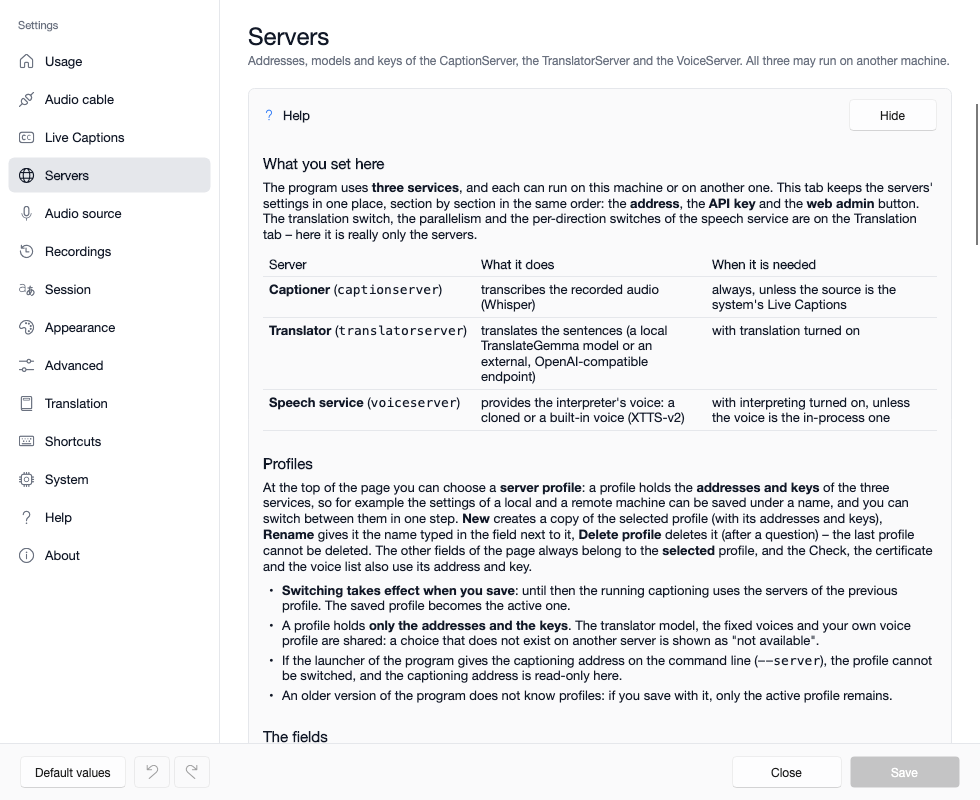
The panel covers the tab's own topic, always in the same order:
- What you set here – the purpose of the tab in a sentence or two;
- The fields – a table: what a field means and when it is worth changing;
- Things to know – the pitfalls and the links to other tabs;
- Where to go next – the related tabs.
Whatever you open stays open after the program restarts, separately for each tab – so the help of the tabs you look at often stays at hand, and the others take no room.
The Help tab
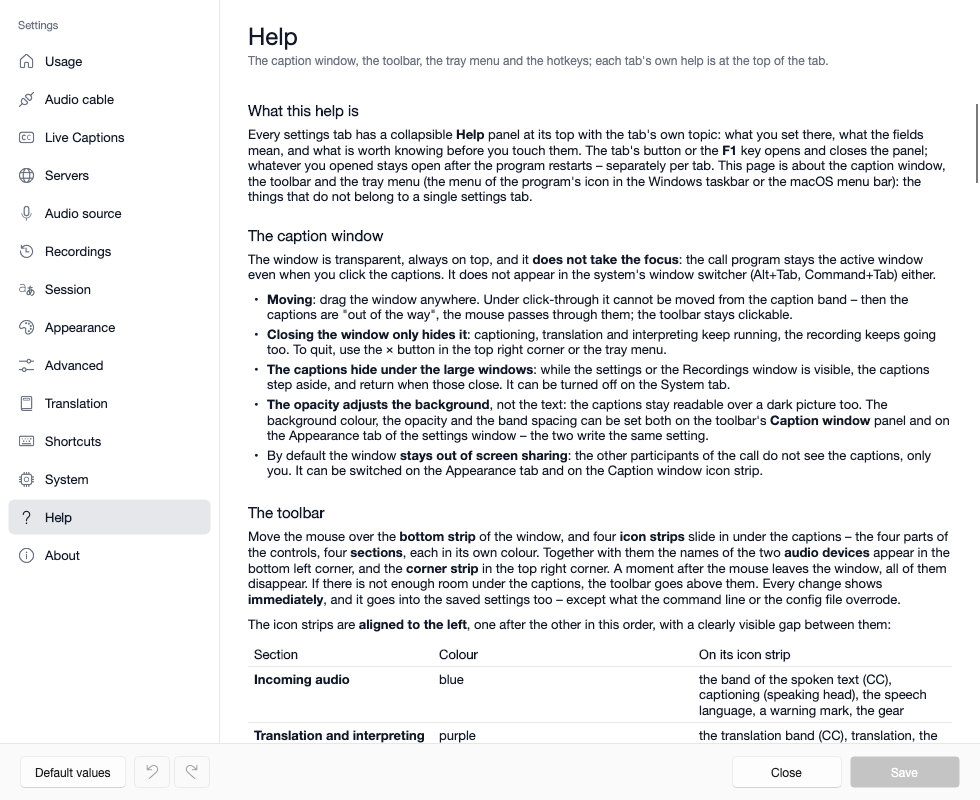
In the list on the left of the settings window, the Help tab covers what does not belong to a single settings tab:
- the caption window: moving, hiding, stepping aside under the large windows, opacity, screen sharing;
- the toolbar: the four sections (Incoming audio, Translation and interpreting, Outgoing direction, Caption window), the icons and the panels, the speech language, the top right corner strip, the audio devices in use;
- the status dots: what green, grey, amber and red mean;
- the menu: the difference between hiding and stopping;
- the default hotkeys;
- at the end, the list of topics: a short index of the tabs' help.
You can reach the Help tab in three ways:
- with the question mark icon in the top right corner of the caption window;
- with the Help… item of the menu (the tray icon on Windows, the menu bar icon on macOS);
- from the list on the left of the settings window.
What each tab's help covers
| Tab | The help's topic |
|---|---|
| Usage | what you use the program for, and which audio route follows from it |
| Audio cable | the virtual audio cable: what it is, when it is needed, how to install it |
| Live Captions | the system's own speech recognition as a caption source |
| Servers | the address and key of the three servers, the server profiles, the check |
| Audio source | what the program listens to, and from which device |
| Recordings | recording the sessions and keeping them |
| Session | the recognition model and splitting speech into sentences |
| Appearance | language, bands, fonts, colours, the caption window's behaviour |
| Advanced | measured fine-tuning, per direction |
| Translation | the language pair, the interpreter's voice, the outgoing direction |
| Shortcuts | setting the key combinations |
| System | the resolved environment, for a problem report |
| About | the version, the product family and the licences |
This manual walks through the same topics in more depth, step by step; the built-in help is the quick version at hand, right where you are changing the setting.
Good to know
- The help speaks the interface language, and switches with it. If a tab has no help in that language, the panel says so ("There is no help for this tab in this language.").
- The help covers both systems: it uses "tray menu" for the menu of the Windows tray icon and of the macOS menu bar icon alike (the Help tab says so at its start), and where the two systems differ, it names both – Explorer and Finder, the Alt+Tab and Command+Tab window switchers, and that on macOS the
Altkey of the hotkeys is Option andWinis Command. - Neither the help nor the manual replaces the tooltips: every icon and disabled switch of the interface says in its own tooltip what it does, or why it cannot be switched.
Where next
- The caption window and the toolbar: Caption window and toolbar
- The status dots, menus and hotkeys: Status dots, menus and hotkeys
- Common problems by symptom: Troubleshooting