What the product looks like: the caption band over a call, the caption window with its toolbar and settings panels, every tab of the settings window, the Recordings window and the web administration of the services. Every caption says how the picture was made.
Click a picture for the large version.
The caption window
The caption window: the first picture is a drawn illustration (both the call window and the band are drawn); the others are the program's real caption window with its toolbar and settings panels, rendered by machine with sample text.
Live Caption Pro
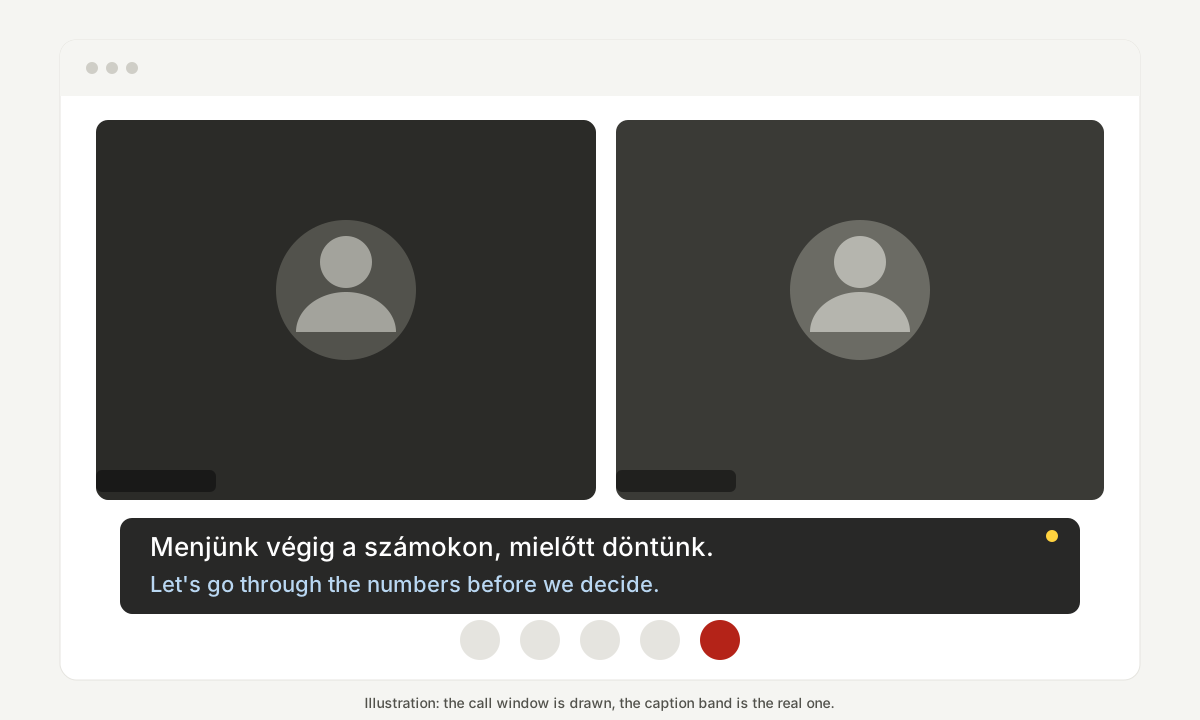
How it sits over a call. Both the call window and the band are drawn; the band follows the look of the program's caption band. Illustration.
Live Caption Pro
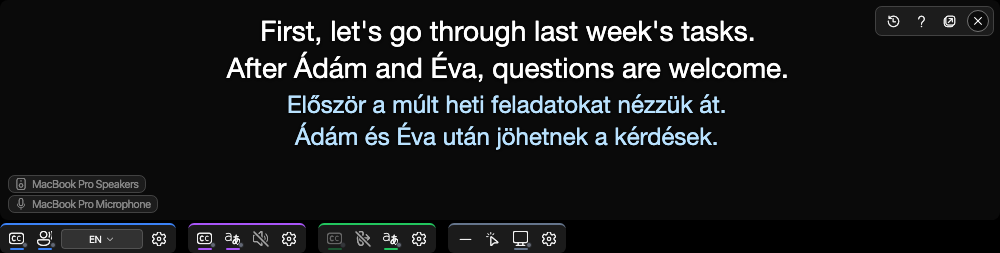
The toolbar slides in under the band on hover; each coloured group switches one direction, and its gear opens that group's settings panel. Rendered by machine from the macOS client's interface, with sample text.
Live Caption Pro
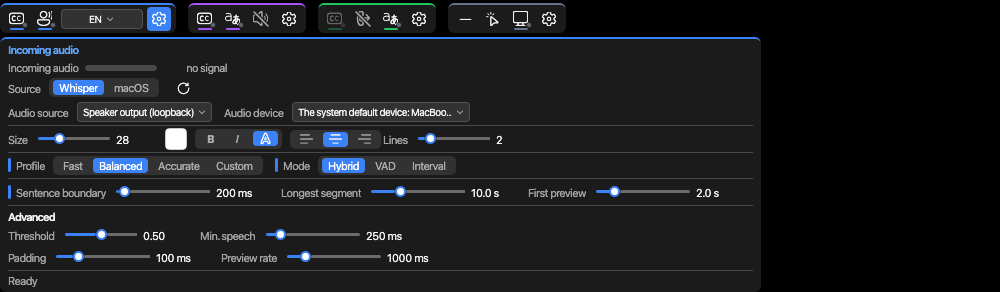
The incoming panel: where the audio comes from, which engine transcribes it, and how the caption is split. Rendered by machine from the macOS client's interface, with sample text.
Live Caption Pro
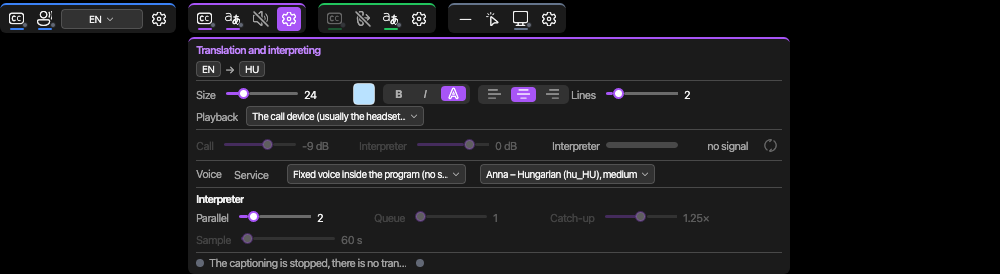
The translation panel: the target language, the interpreter's voice and its pace. Rendered by machine from the macOS client's interface, with sample text.
Live Caption Pro
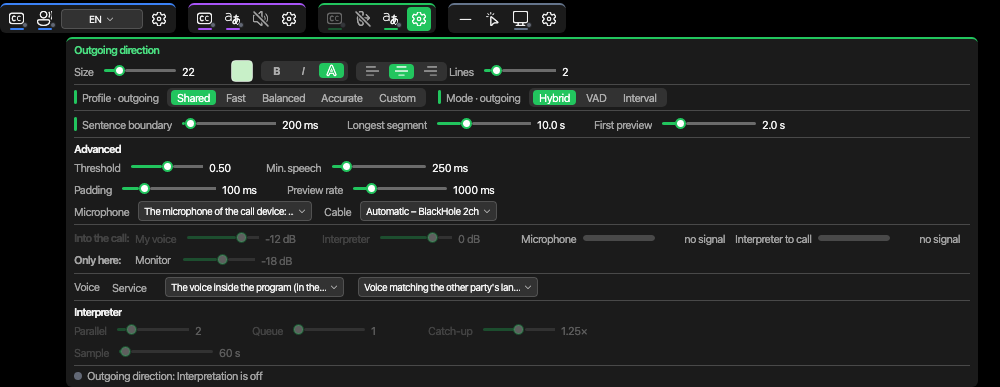
The outgoing panel: your own speech is captioned and translated too, and the interpreter's voice goes into the call. Rendered by machine from the macOS client's interface, with sample text.
Live Caption Pro
The window panel: the band's background and how old captions fade; the other window settings are in the settings window. Rendered by machine from the macOS client's interface, with sample text.
The settings window
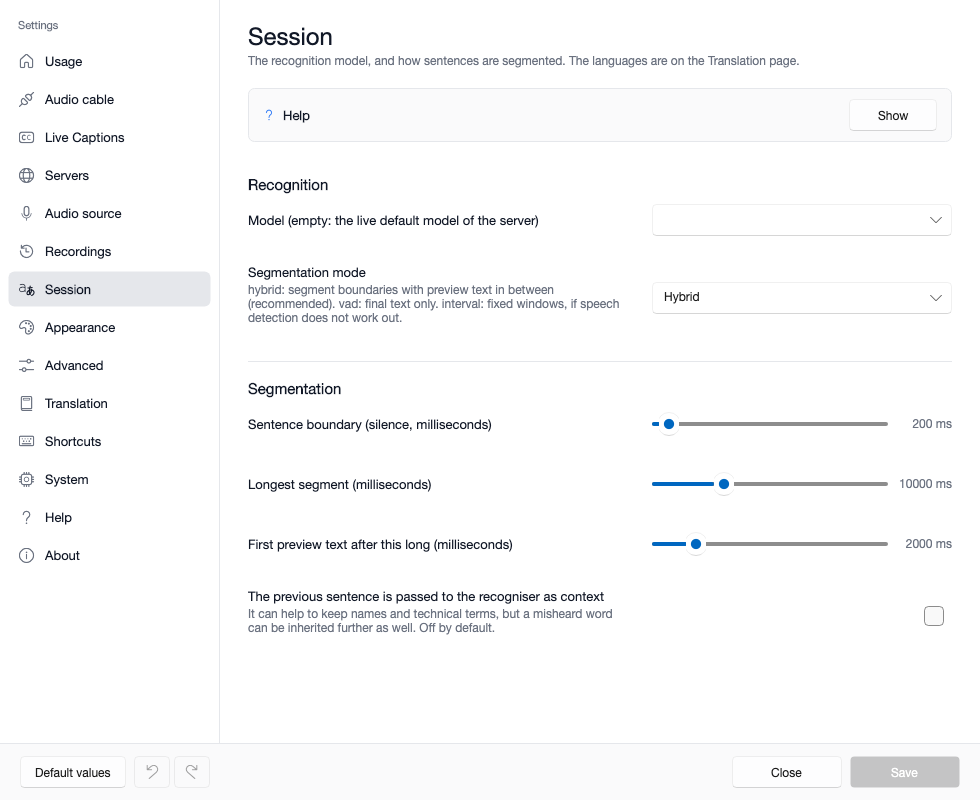
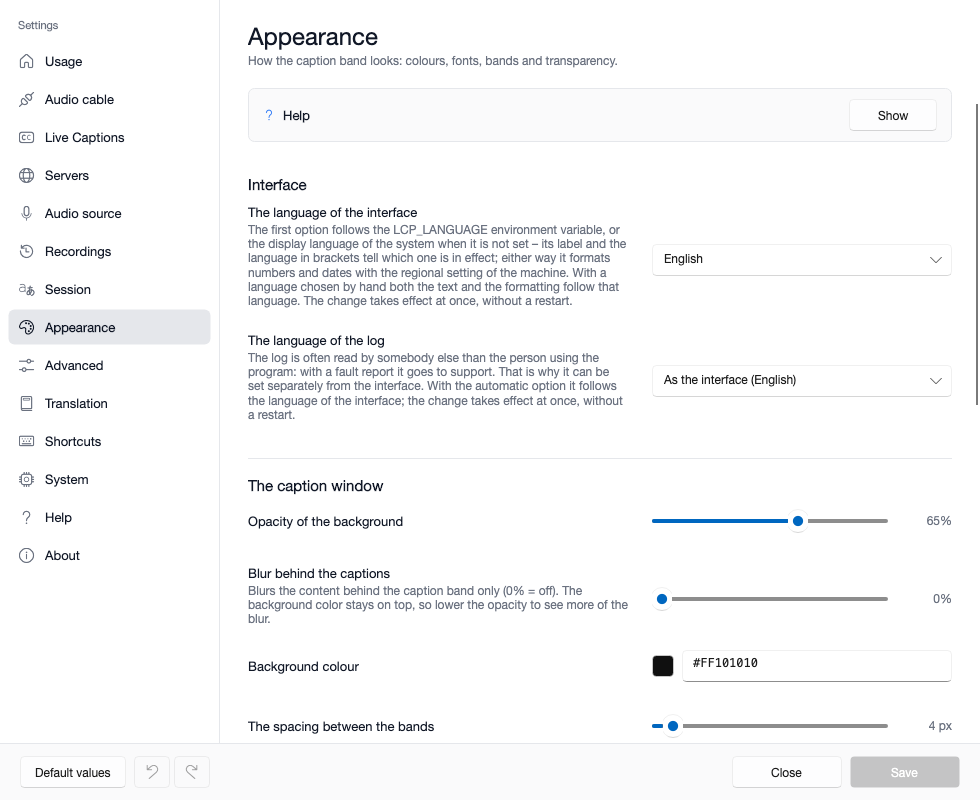
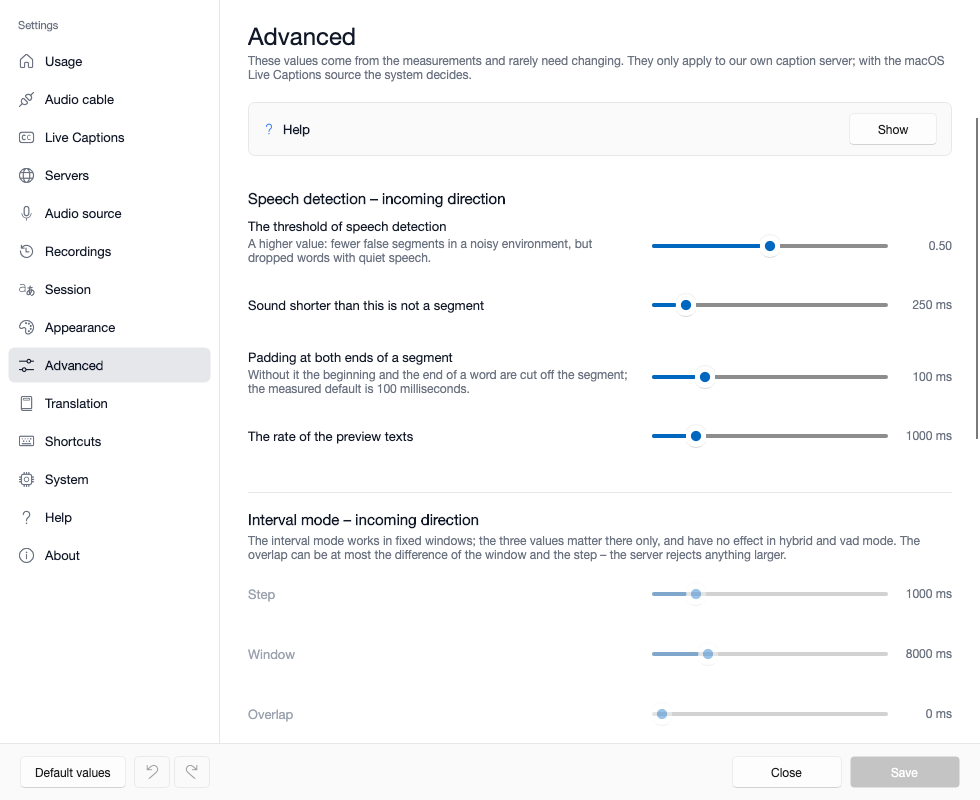
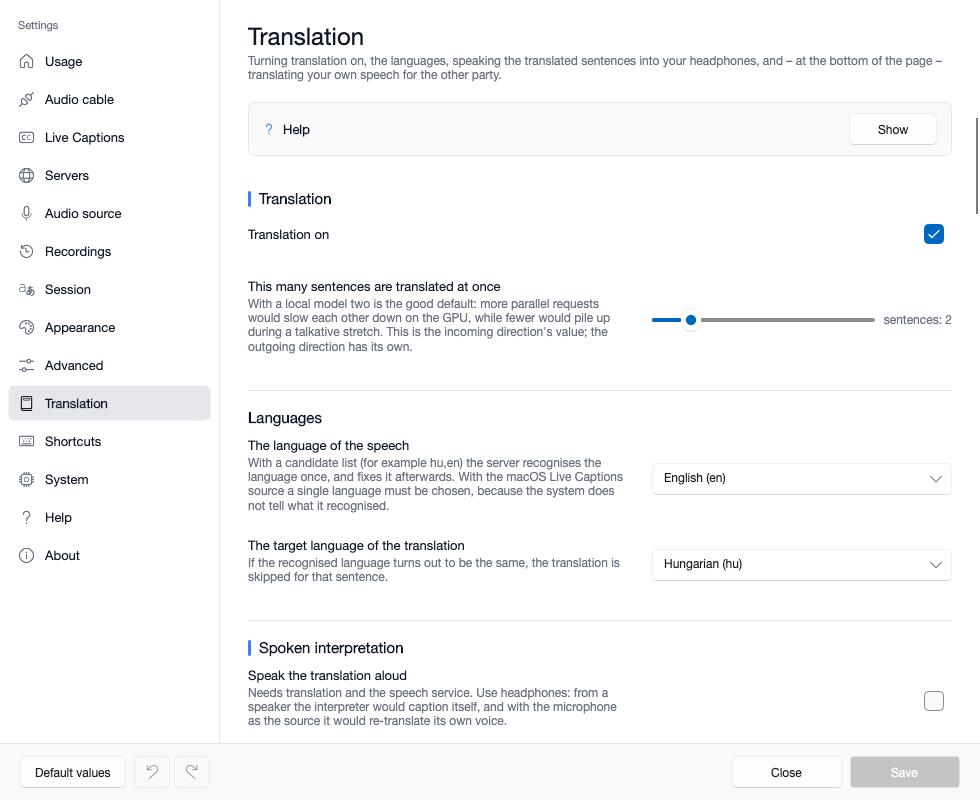
The settings window and the Recordings window: the program's real windows, rendered by machine from the macOS client's interface, with test data.
Live Caption Pro
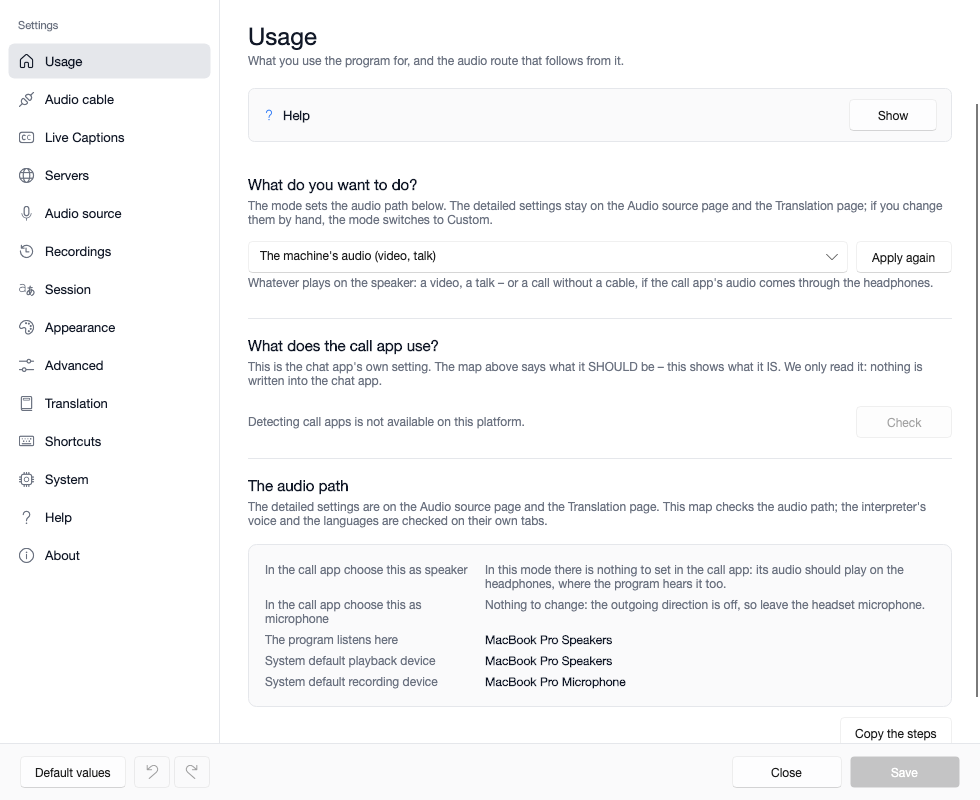
The Usage tab: one choice sets the audio path for the whole session; the table shows where the program listens. Rendered by machine from the macOS client's interface, with sample text.
Live Caption Pro
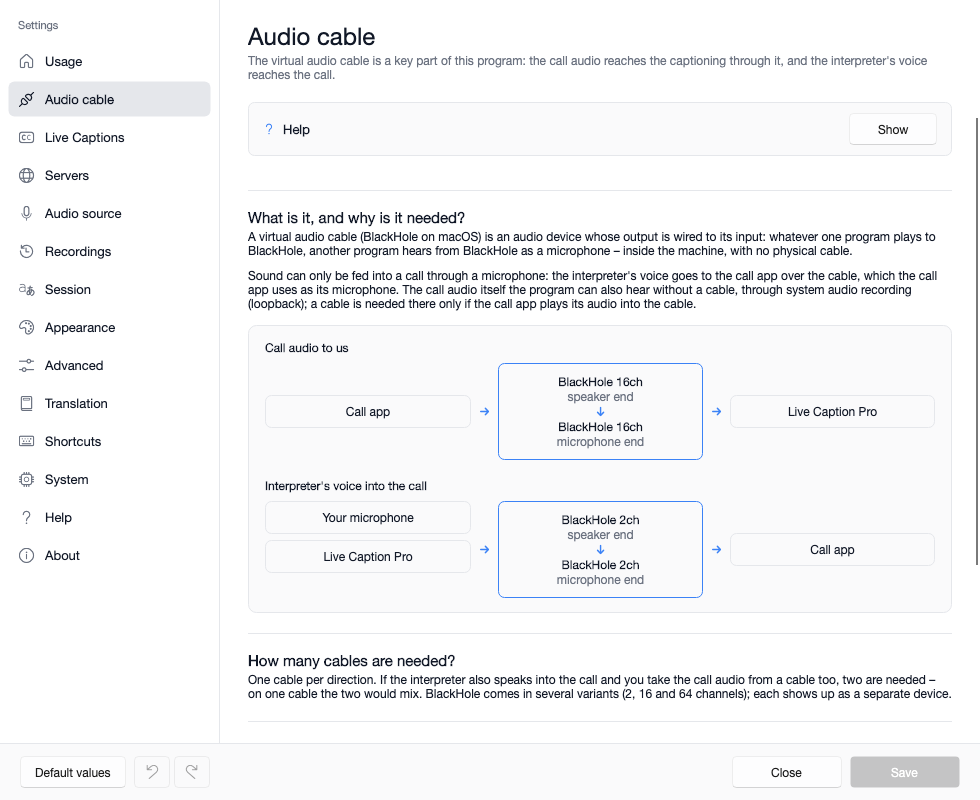
The Audio cable tab: the interpreter's voice reaches the call over a cable; the program hears the call's audio without one too, through system audio capture (loopback) – a cable is only needed if the calling app plays to it. On macOS the cable is BlackHole. Rendered by machine from the macOS client's interface, with sample text.
Live Caption Pro
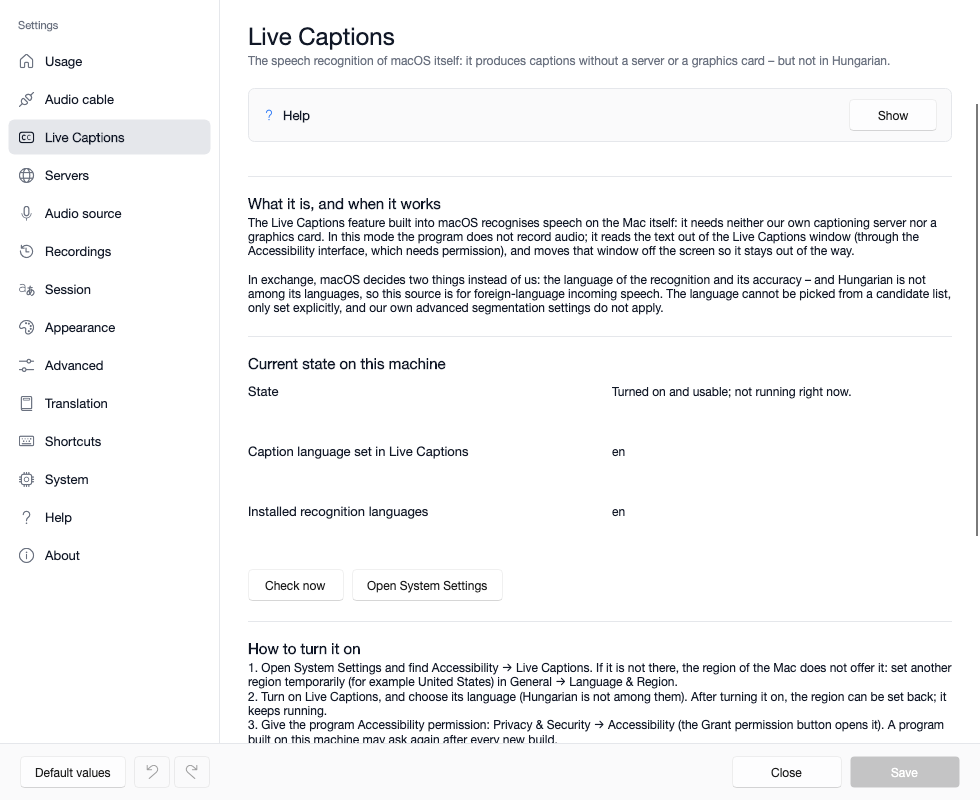
The Live Captions tab: macOS's own recognition gives captions without a server or a graphics card – but not in Hungarian. Rendered by machine from the macOS client's interface, with sample text.
Live Caption Pro
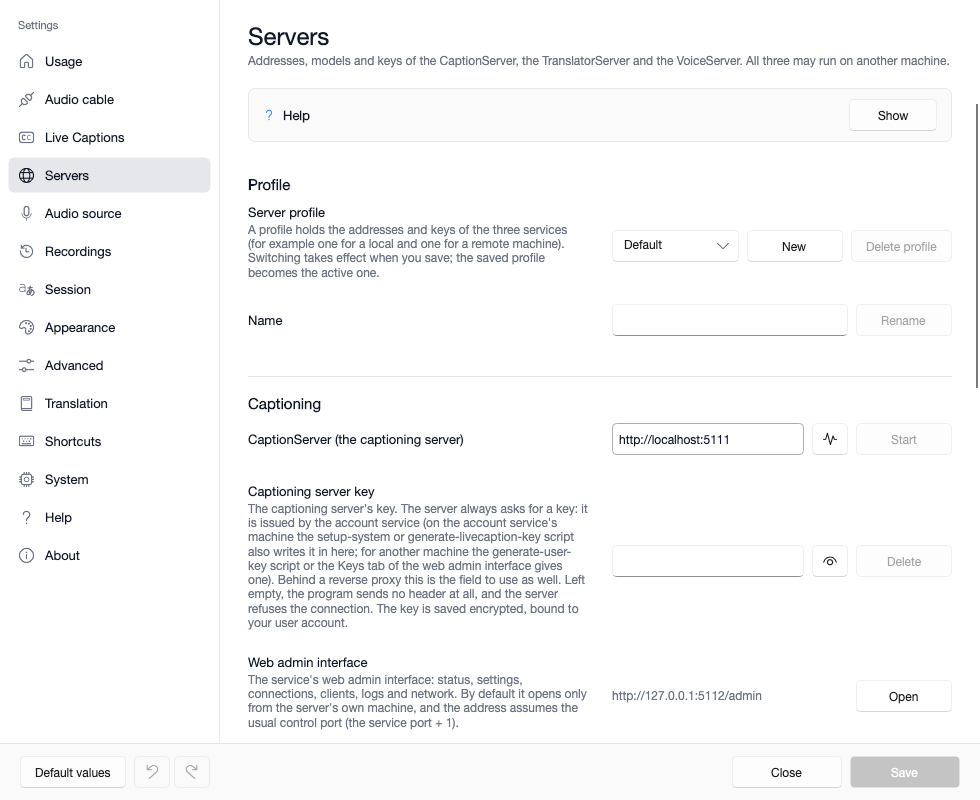
The Servers tab: an address and a key per service, saved in profiles; a local service can be started from here. Rendered by machine from the macOS client's interface, with sample text.
Live Caption Pro
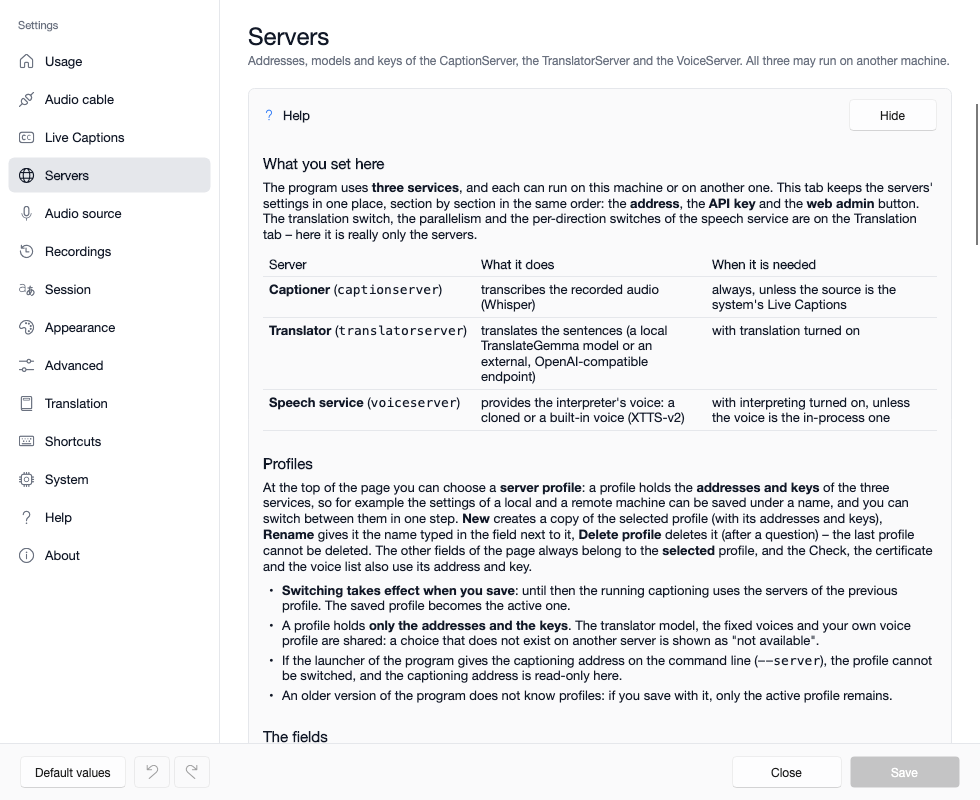
The Help panel: the top of every tab explains that tab's own topic, right above the fields. Rendered by machine from the macOS client's interface, with sample text.
Live Caption Pro
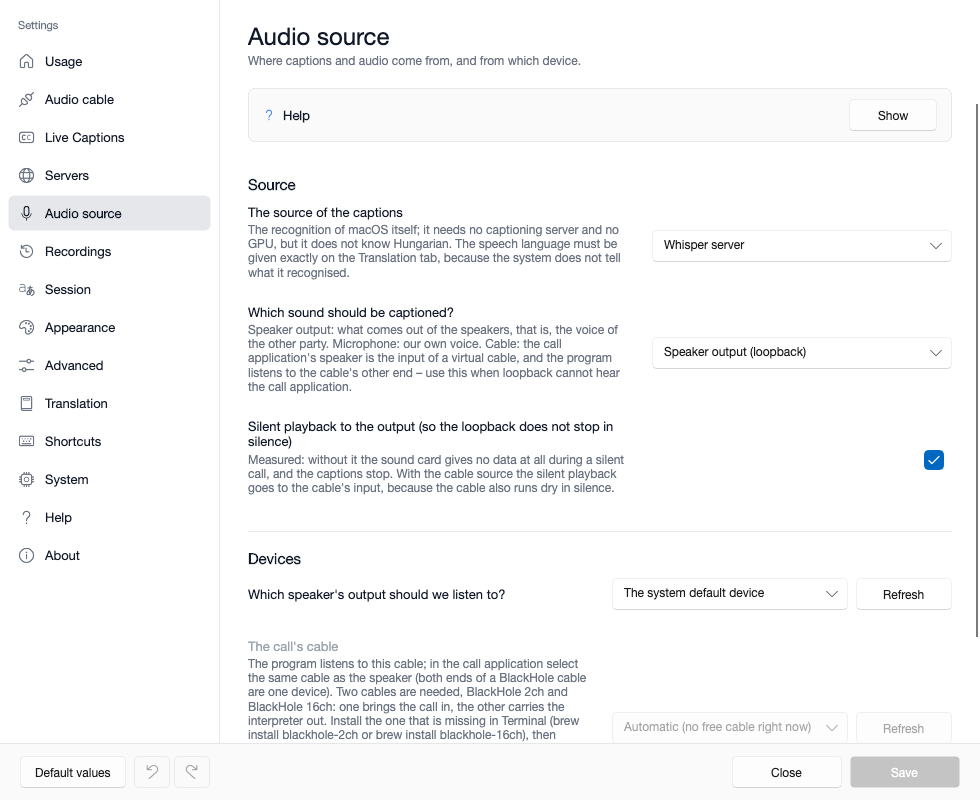
The Audio source tab: where the captions and the audio come from – the speaker output, the microphone or the audio cable. Rendered by machine from the macOS client's interface, with sample text.
Live Caption Pro
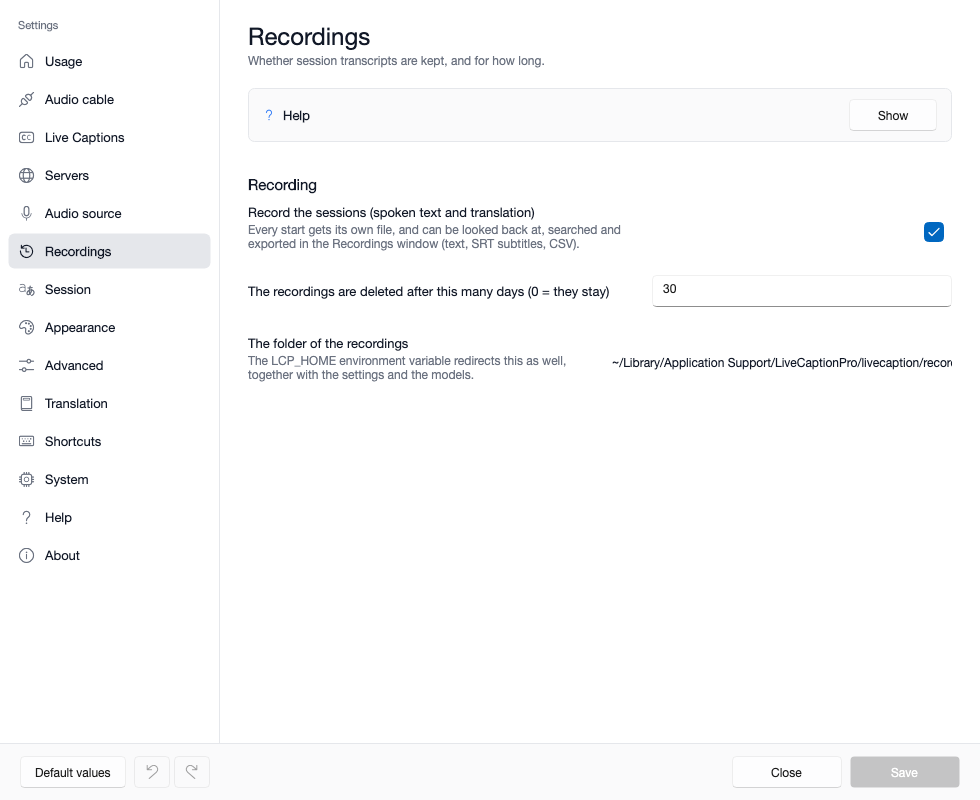
The Recordings tab: this is where recording is switched on, and where you set how long recordings are kept. Rendered by machine from the macOS client's interface, with sample text.
Live Caption Pro
The Session tab: the recognition model, and how speech is split into sentences. Rendered by machine from the macOS client's interface, with sample text.
Live Caption Pro
The Appearance tab: the interface language and the look of the caption band – colours, fonts, bands and transparency. Rendered by machine from the macOS client's interface, with sample text.
Live Caption Pro
The Advanced tab: fine-tuning speech detection and the three values of the interval mode, per direction. Rendered by machine from the macOS client's interface, with sample text.
Live Caption Pro
The Translation tab: the speech and target languages, and the interpreter that speaks the translation into your headphones. Rendered by machine from the macOS client's interface, with sample text.
Live Caption Pro
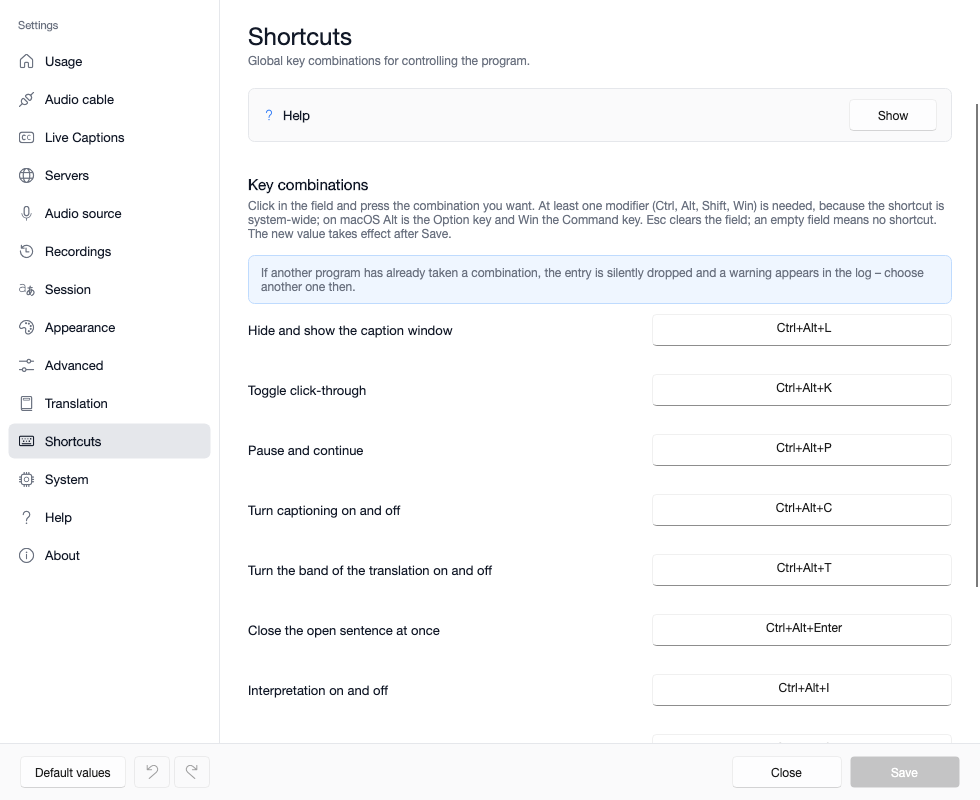
The Shortcuts tab: one field per action with the recorded combination. Rendered by machine from the macOS client's interface, with sample text.
Live Caption Pro
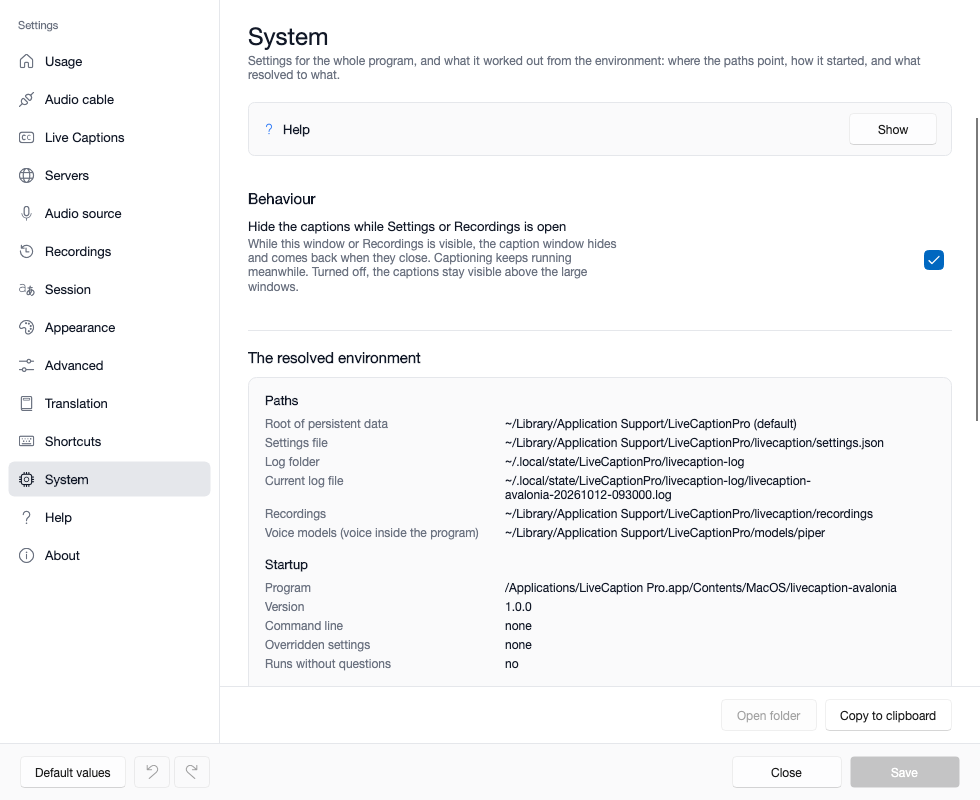
The System tab: how the program behaves, and which folder holds what – it can be copied to the clipboard for a fault report. Rendered by machine from the macOS client's interface, with sample text.
Live Caption Pro
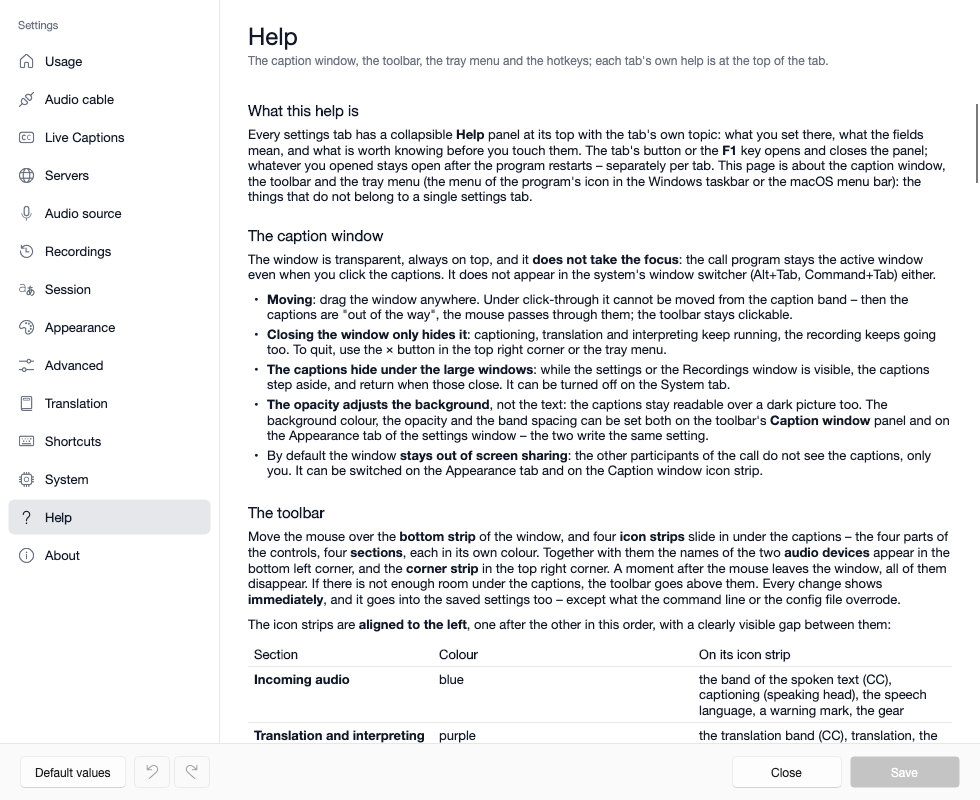
The Help tab: how to use the program, in one place inside the settings window. Rendered by machine from the macOS client's interface, with sample text.
Live Caption Pro
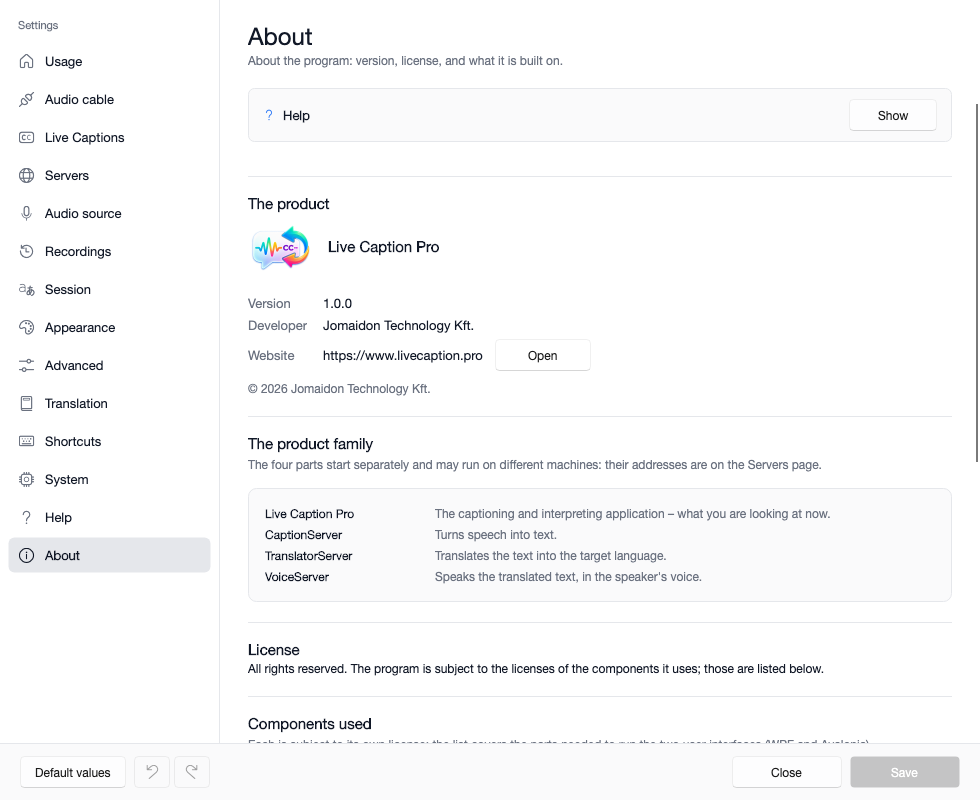
The About tab: which release is running, and who makes the program. Rendered by machine from the macOS client's interface, with sample text.
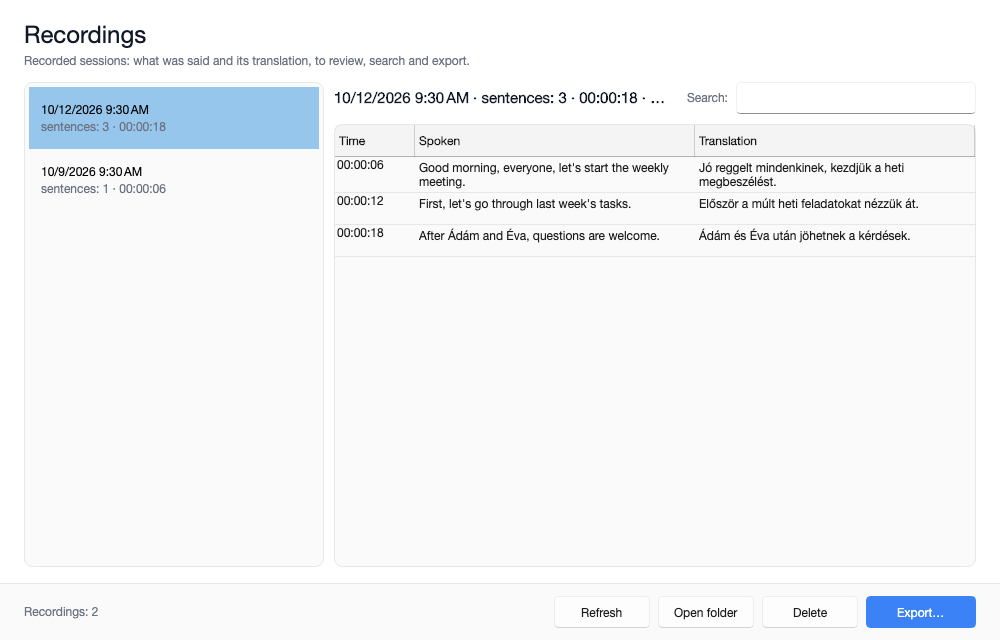
Recordings
The settings window and the Recordings window: the program's real windows, rendered by machine from the macOS client's interface, with test data.
Live Caption Pro
Recordings: a recorded session can be reviewed, searched and exported as subtitles afterwards. Rendered by machine from the macOS client's interface, with sample text.
Web administration
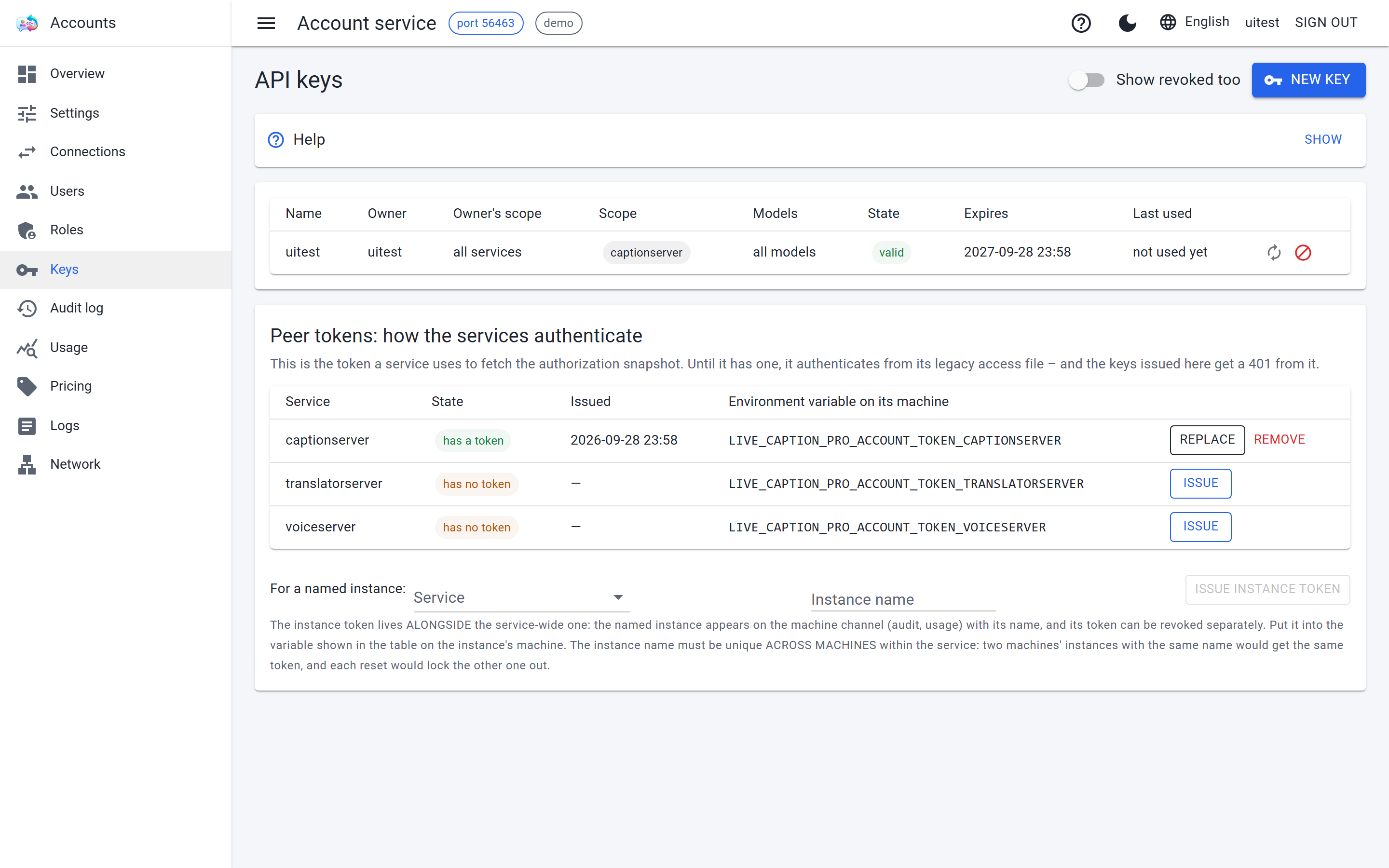
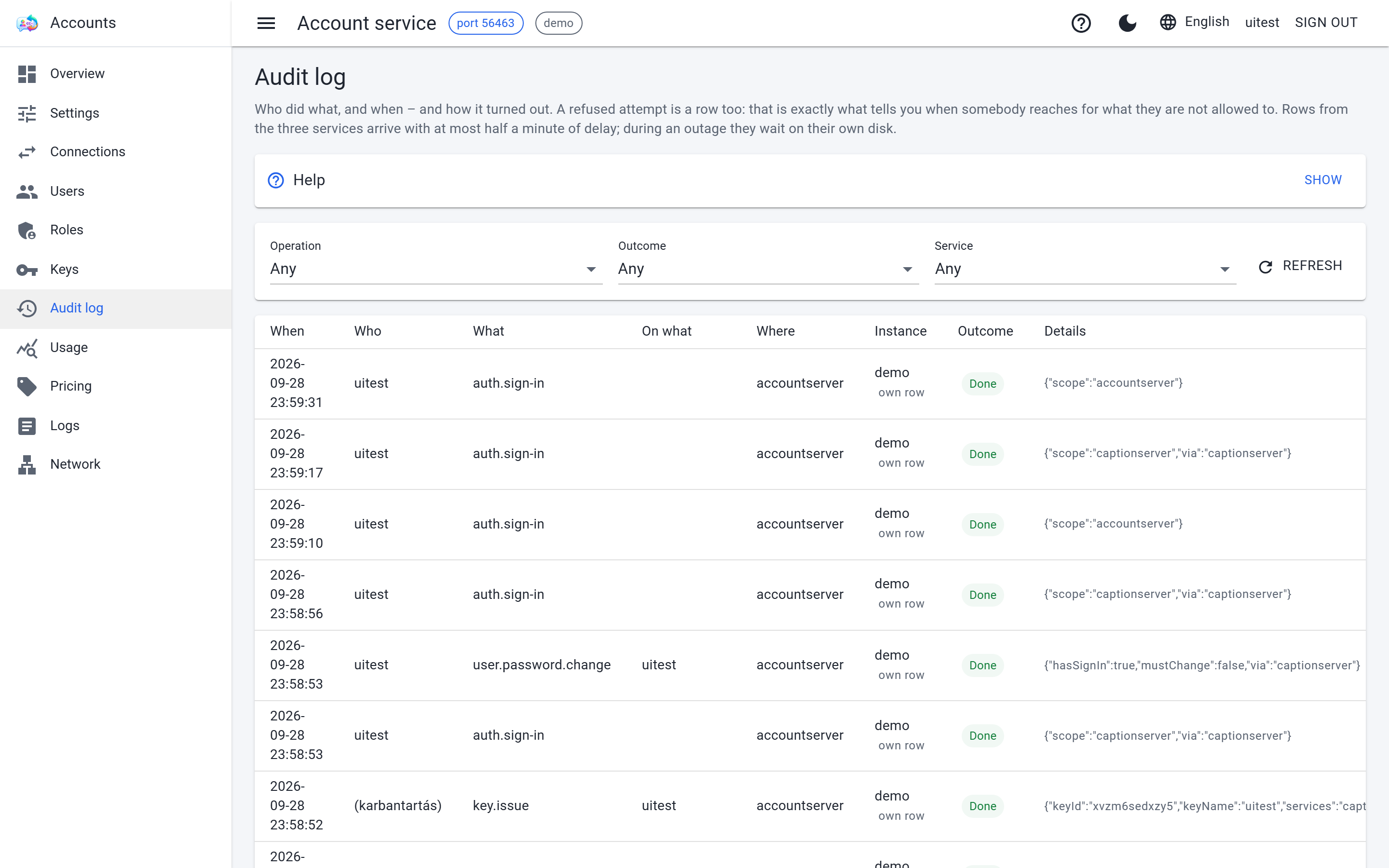
Web administration: a test environment with a stand-in engine, so the hardware and model data are not real.
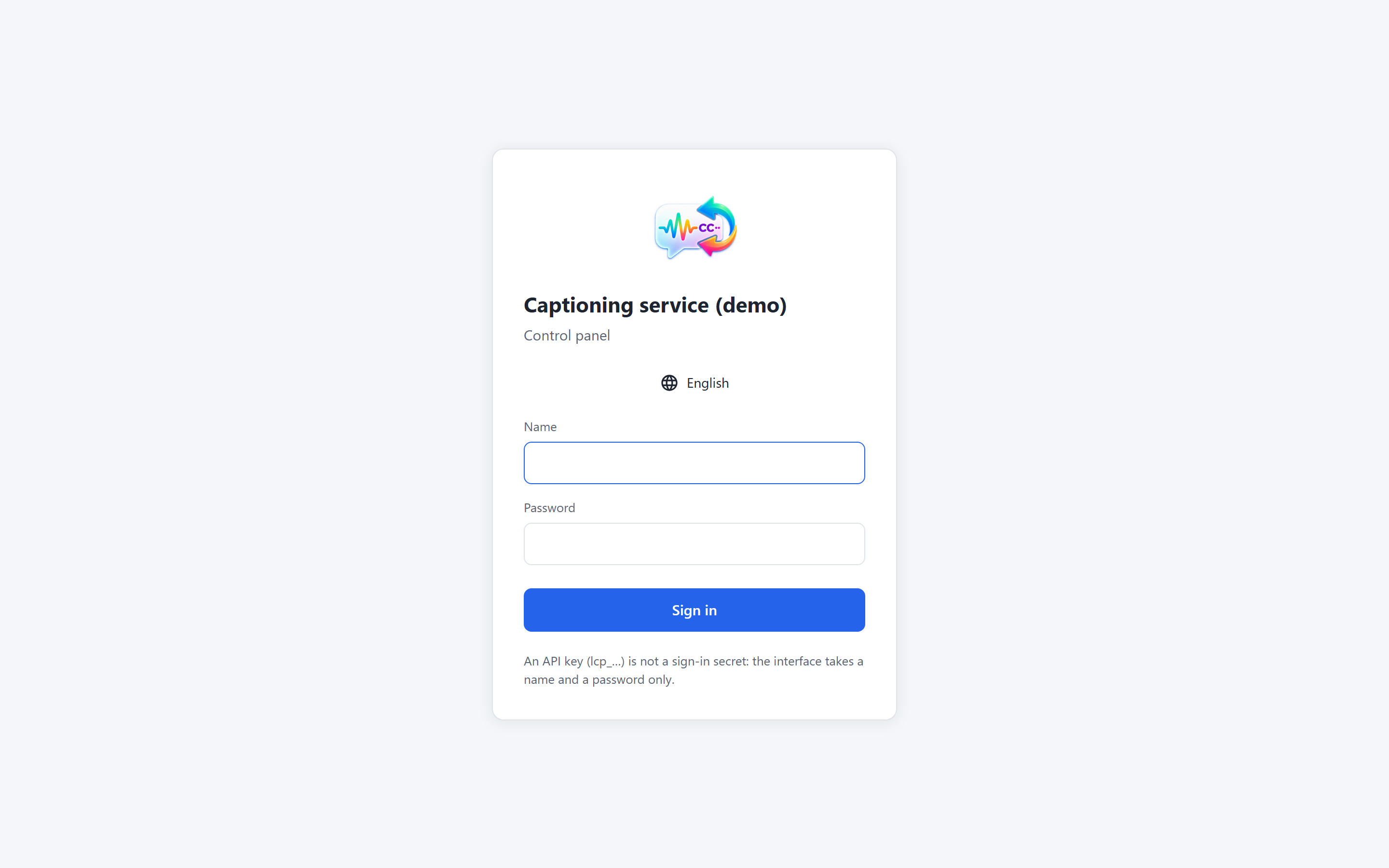
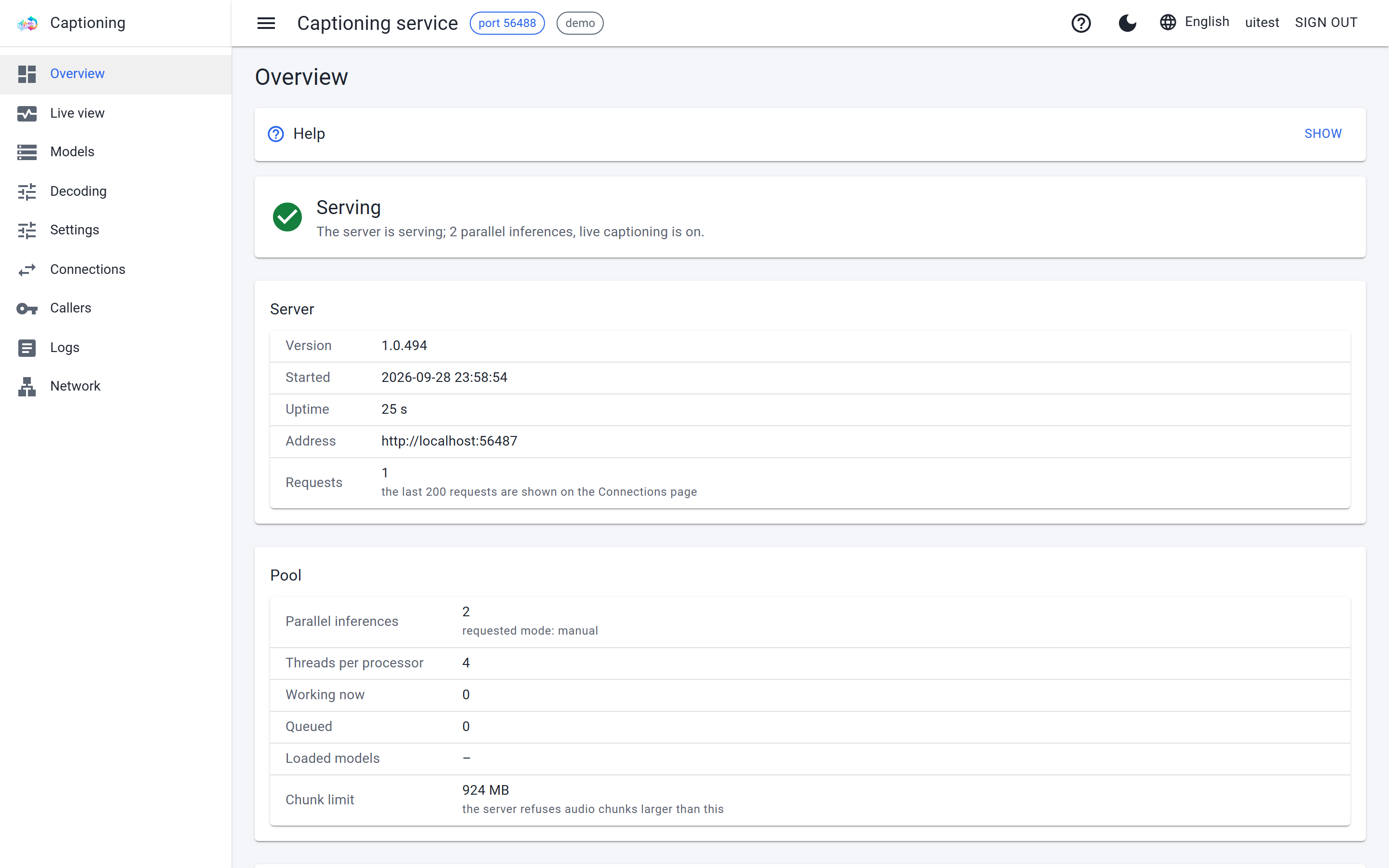
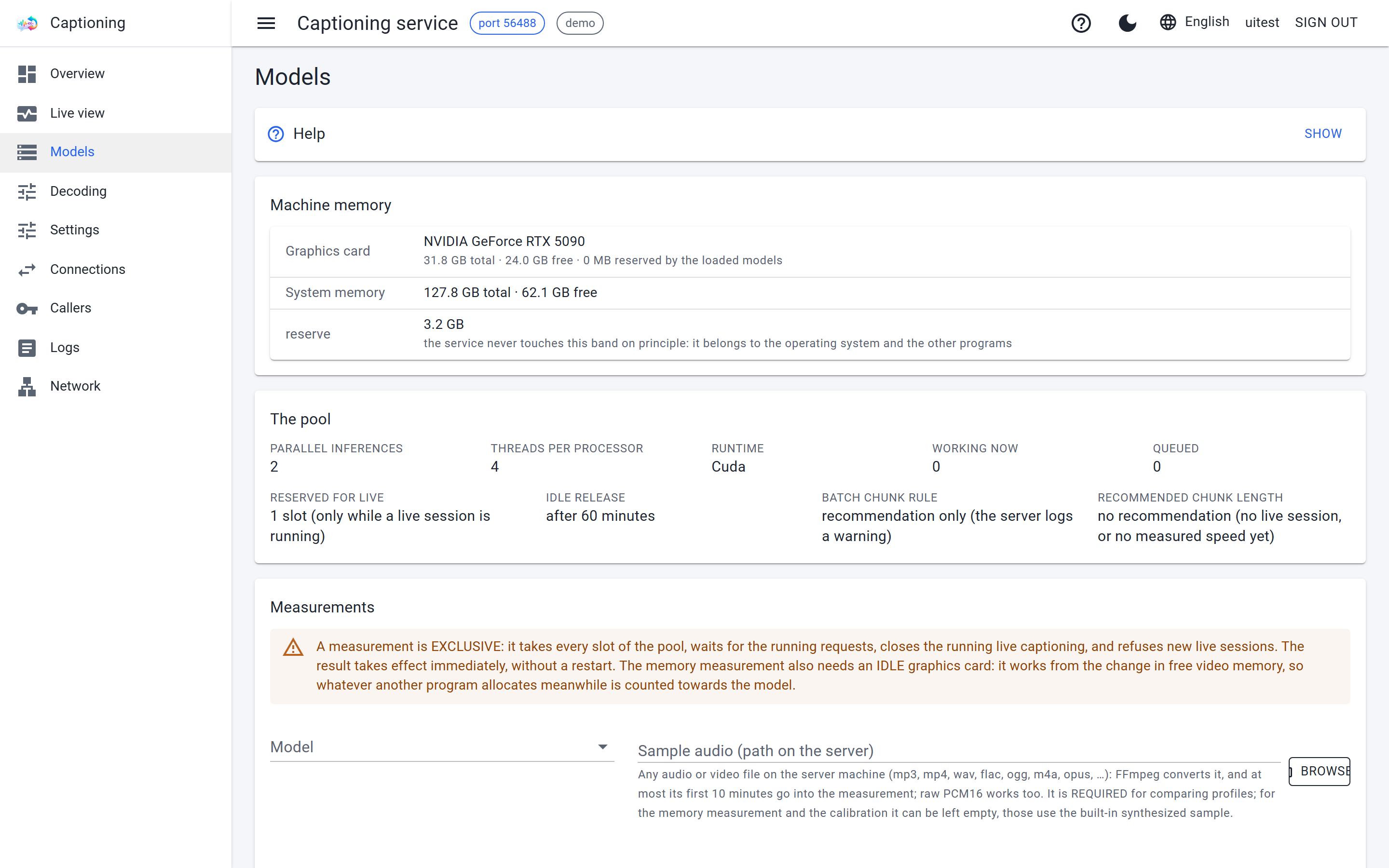
CaptionServer /admin
The login page: the same for all four services. Test environment, stand-in engine.
CaptionServer /admin
The caption server's overview page. Test environment, stand-in engine.
CaptionServer /admin
The Models page: which models fit the card, and which are loaded. Test environment, stand-in engine.
CaptionServer /admin
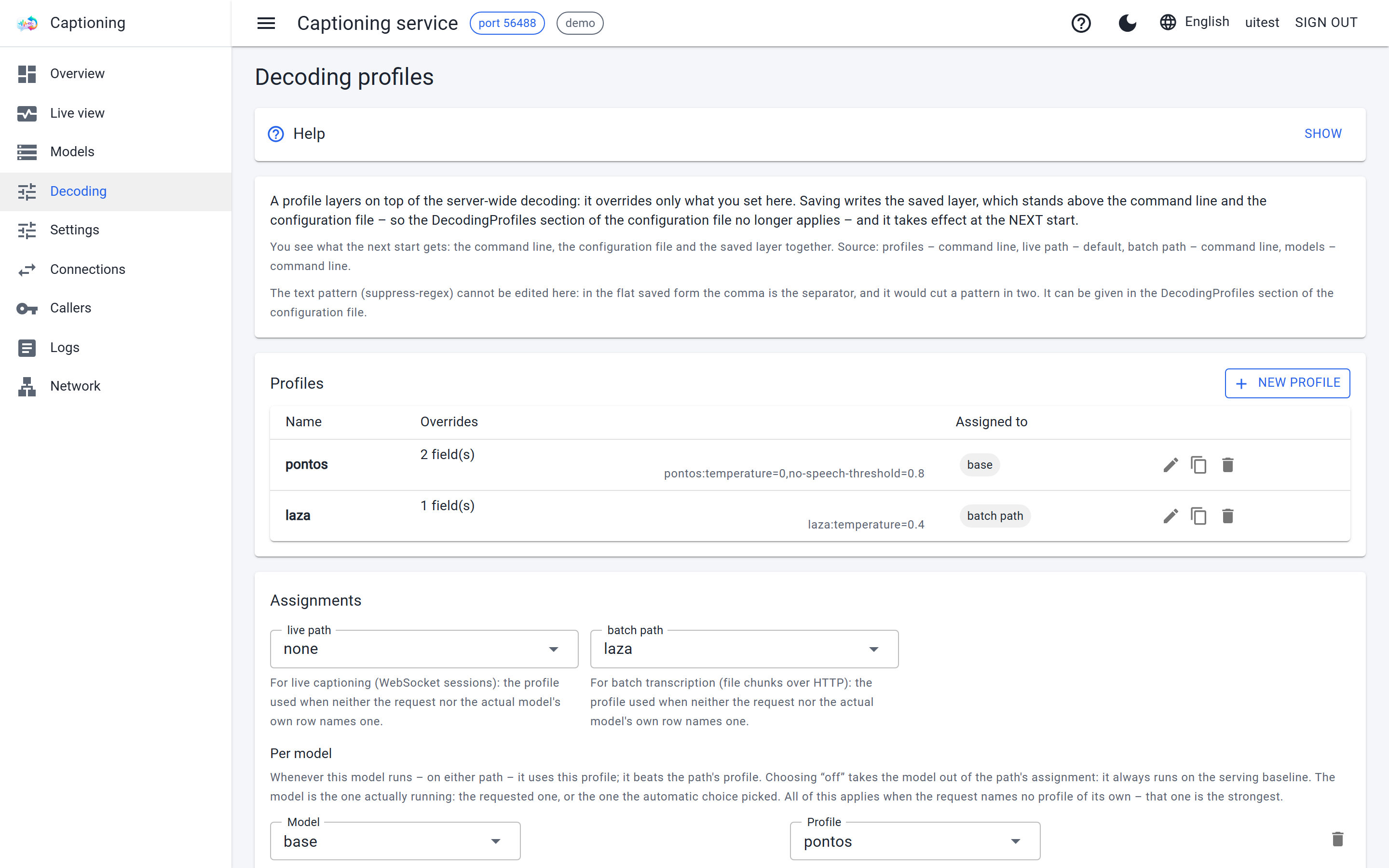
The Decoding page: the decoding settings, each one optional. Test environment, stand-in engine.
CaptionServer /admin
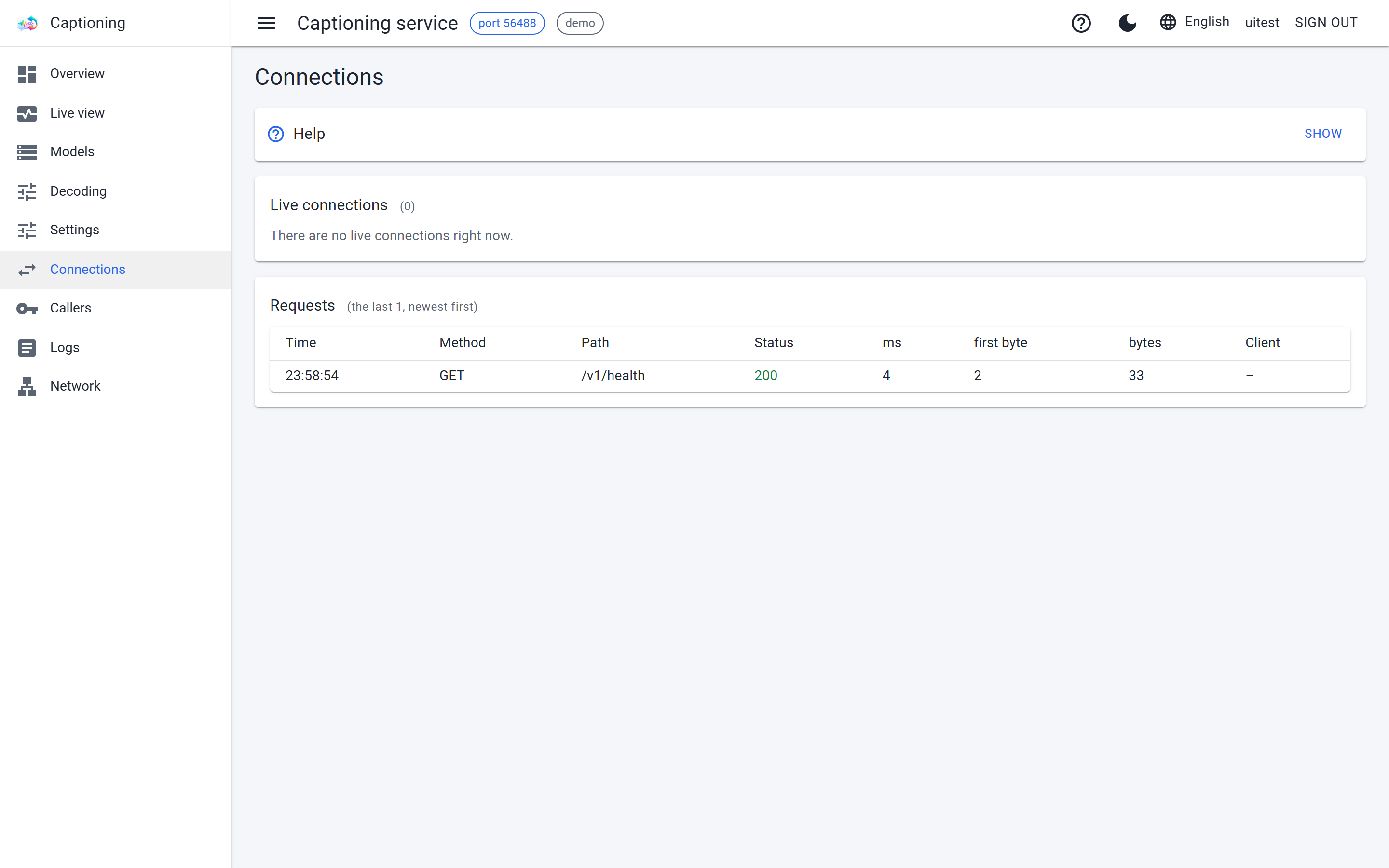
The Connections page: who called, when, and how long it took. Test environment, stand-in engine.
CaptionServer /admin
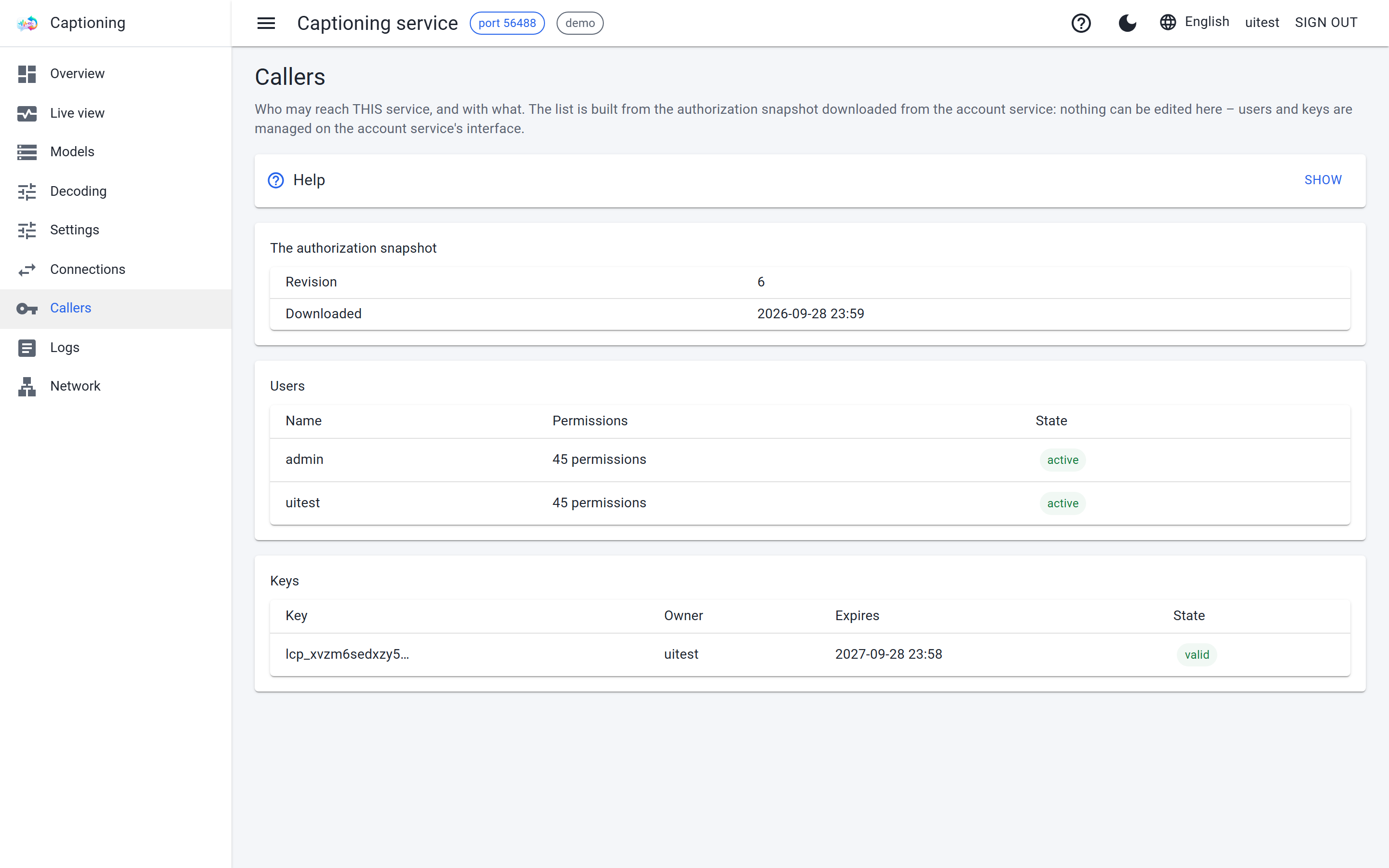
The Callers page: read-only; users and keys are managed in the account service. Test environment, stand-in engine.
TranslatorServer /admin
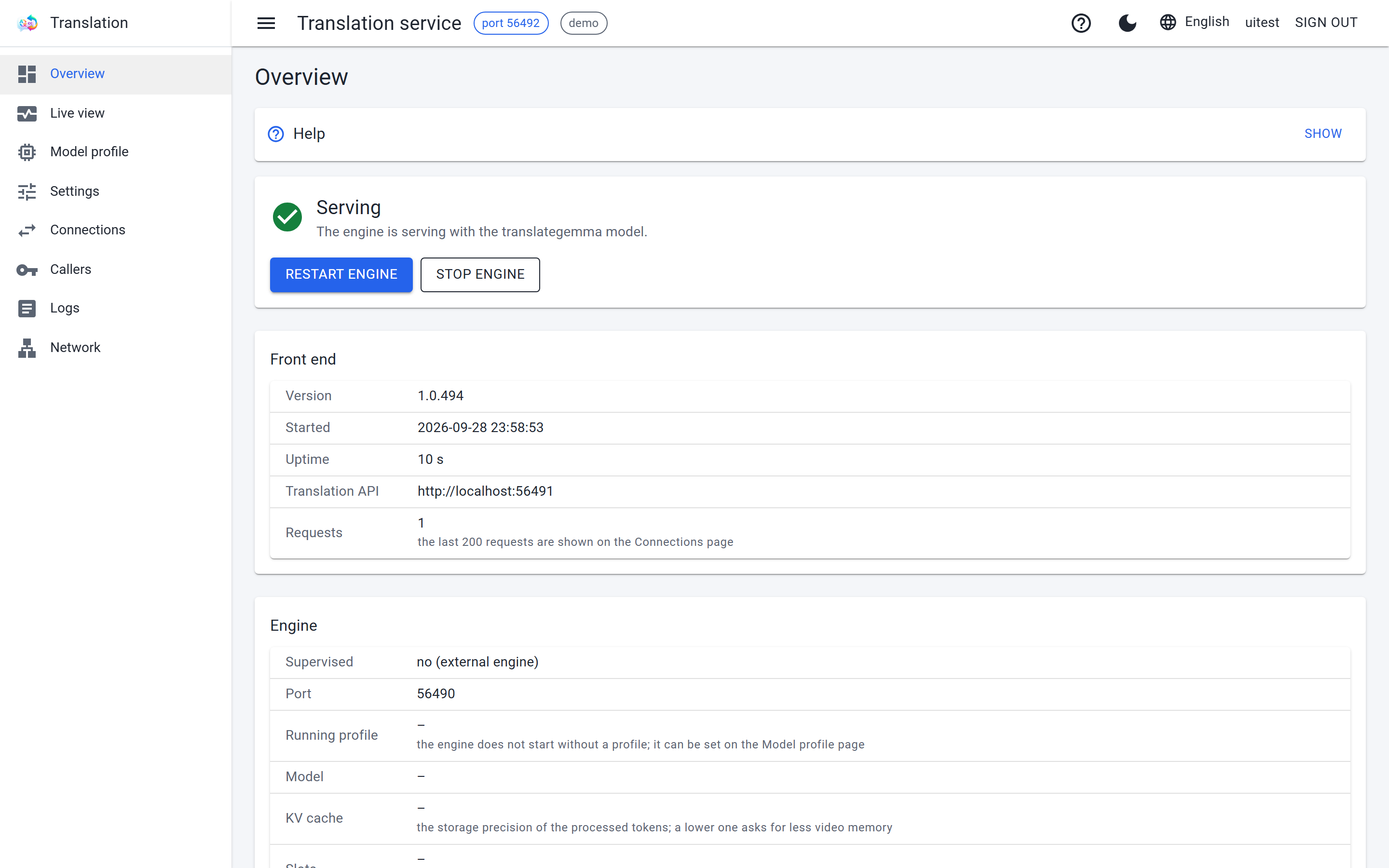
The translator's overview page. Test environment, stand-in engine.
TranslatorServer /admin
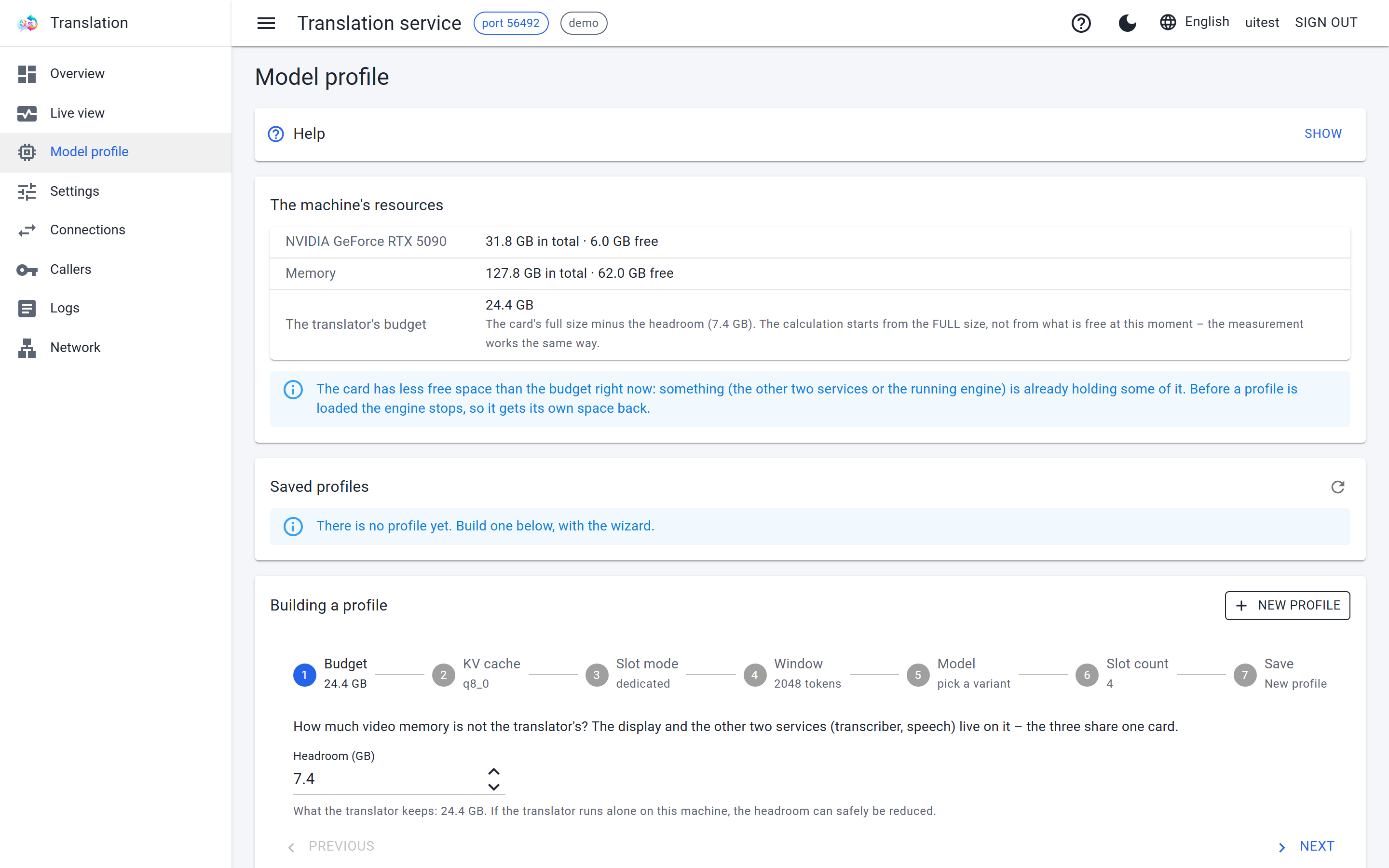
The Model profile page: a profile only starts if it provably fits the card. Test environment, stand-in engine.
VoiceServer /admin
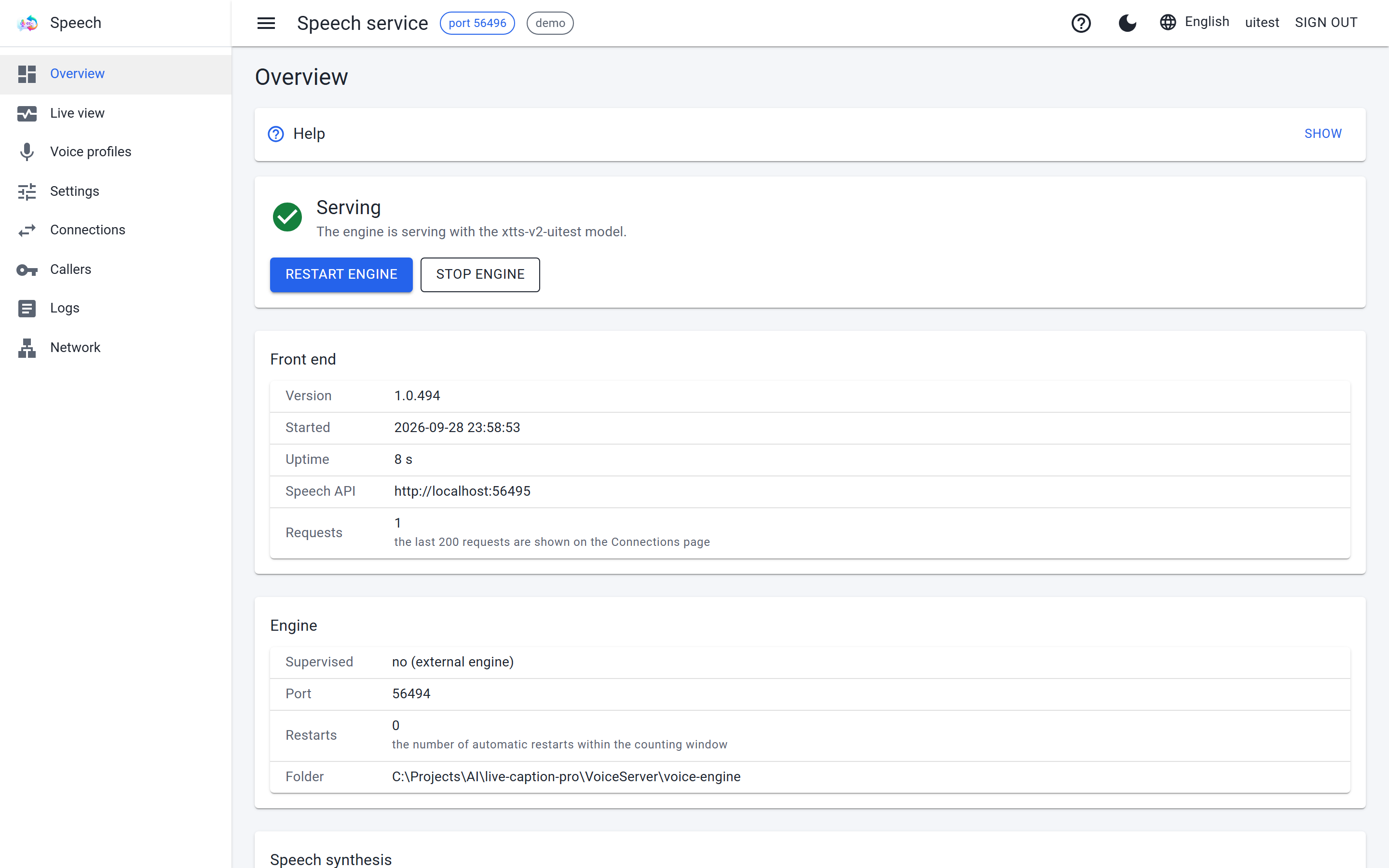
The voice service's overview page. Test environment, stand-in engine.
VoiceServer /admin
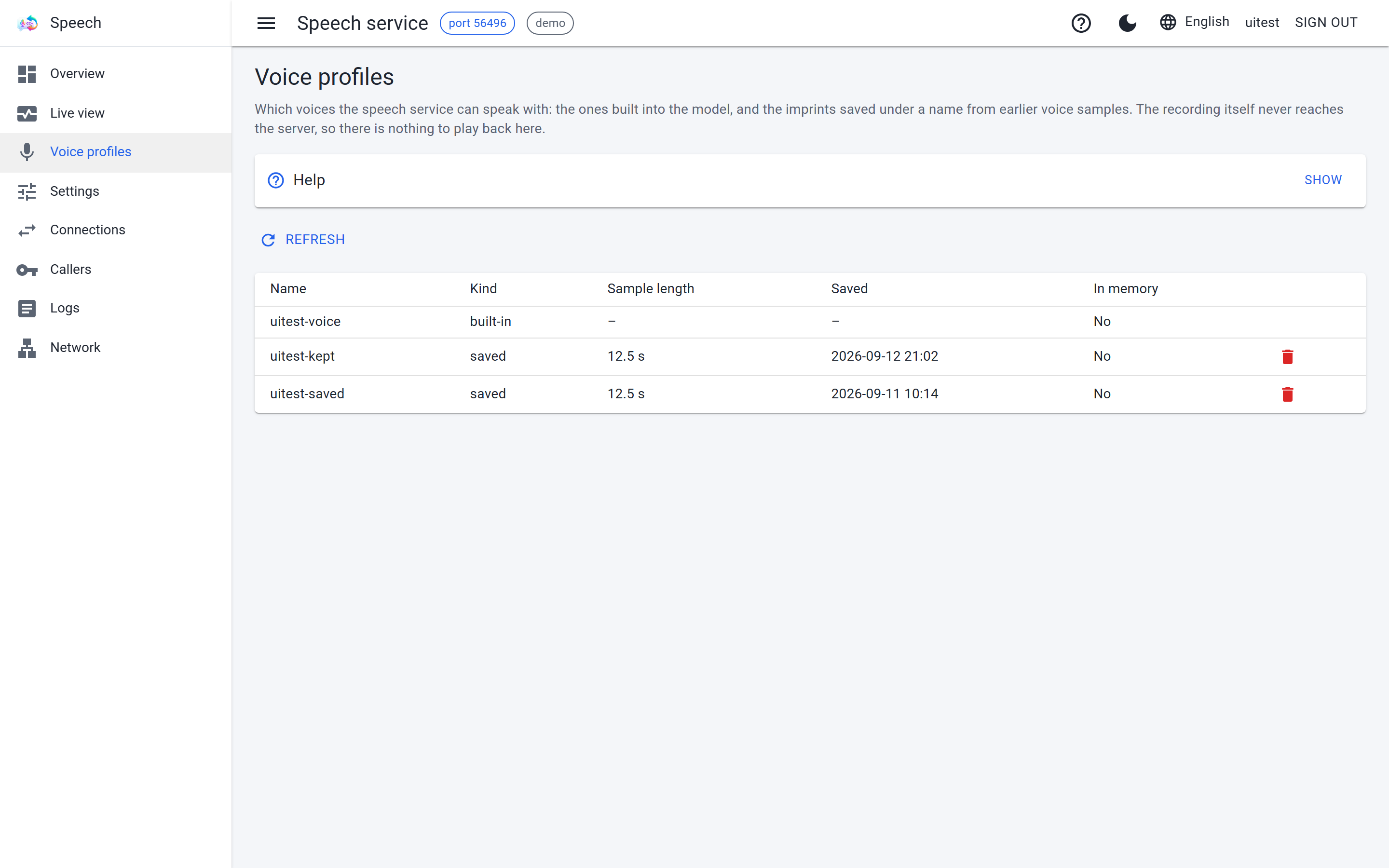
The Voices page: the built-in voices; cloned profiles come on top. Test environment, stand-in engine.
AccountServer /admin
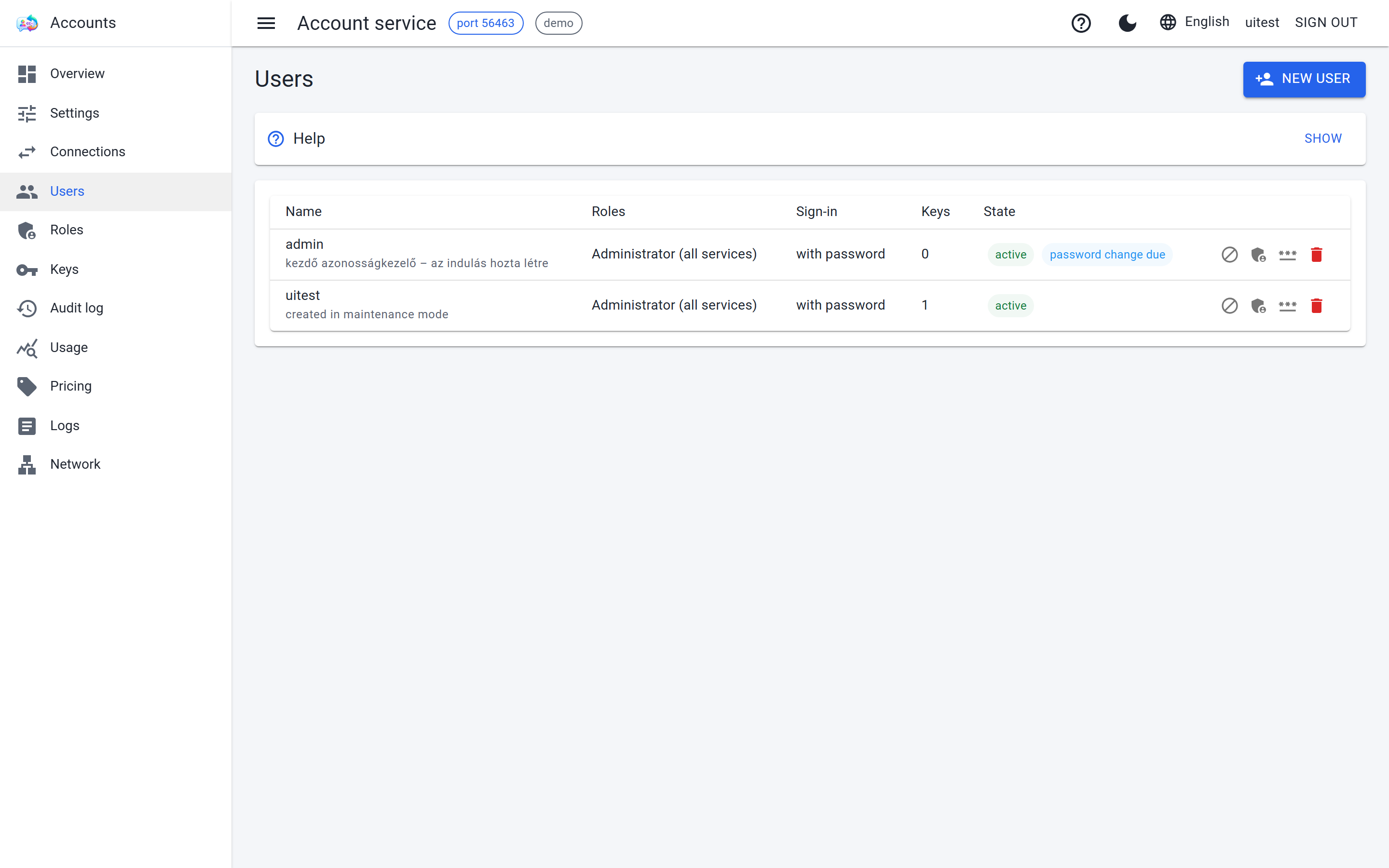
The Users page: roles and passwords live here, for all services. Test environment, stand-in engine.
AccountServer /admin
The Keys page: a key is shown once, at creation. Test environment, stand-in engine.
AccountServer /admin
The Audit page: every change to users, roles and keys. Test environment, stand-in engine.
Light and dark theme
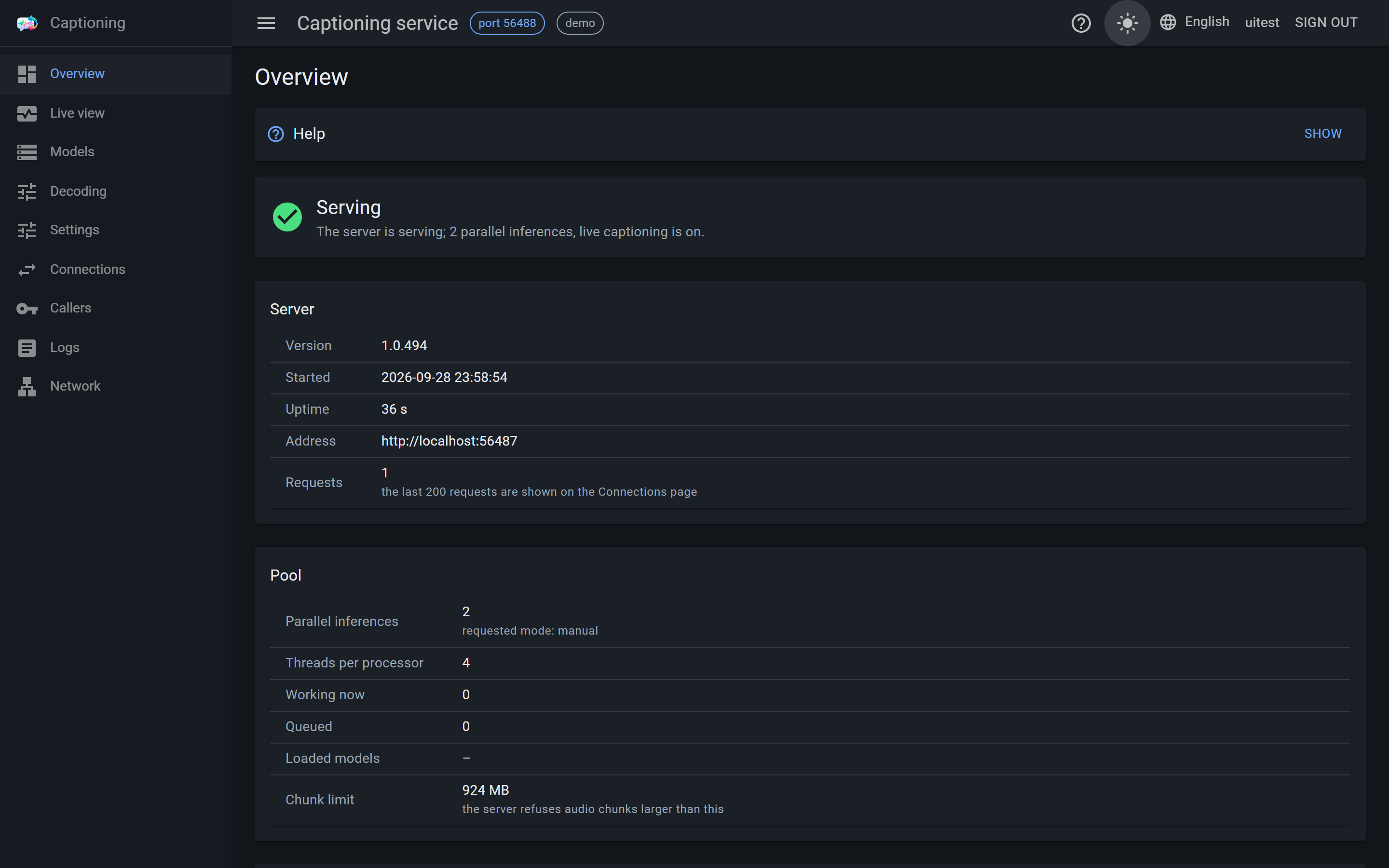
Web administration: a test environment with a stand-in engine, so the hardware and model data are not real.
CaptionServer /admin
The dark theme: the same pages, chosen per browser. Test environment, stand-in engine.
Hiba történt az oldal futtatásakor. / An error occurred while running the page.
Újratöltés / Reload🗙