
Status dots, tray and menu bar menu, hotkeys
What the status dots and warning marks mean, what the tray and menu bar menu holds, and how to set the hotkeys.
While working you rarely have time to open the settings window. This chapter is about what tells you at a glance whether everything is fine (the status dots), and about what lets you control the program without touching the caption window (the menu and the hotkeys).
The status dots
A small dot in the bottom right corner of three switches shows the state while the switch is on: the translation's, the spoken interpreter's and outgoing interpreting's. Each pulses on its own work – the outgoing dot, for example, only while the outgoing interpreter is working. While the toolbar is hidden, the translation dot shows in the bottom right corner of the window, so you can follow it without the toolbar.
| Colour | Meaning | What to do |
|---|---|---|
| green | working (pulses while busy) | nothing |
| grey | turned off, or captioning is stopped | if that is not intended, turn it on |
| amber | lag, a one-off error, a skipped sentence, or the chain is being built (the model is loading) | it usually settles by itself; if it stays amber, look at the server |
| red | the service is unavailable, or fails repeatedly | check the server's address and key on the Servers tab |
The dot's text can be read in the footer of the section's settings panel, and in its tooltip. If the translator or the interpreter drops out while running, captioning goes on without it and the dot signals – no error dialog opens, so that nothing gets in the way during speech.
On the captioning icon (the speaking head on the Incoming audio strip) an amber dot signals trouble with the session: a failed or reconnecting connection, more than two seconds of lag, lost audio, or the outgoing direction stopped while captioning goes on.
The warning mark (triangle) stays while its cause lasts, and its tooltip gives the details:
- on the Incoming audio strip, when the system's recogniser (with the Live Captions source) does not know the configured language, or when handing a setting over to the running session failed;
- on the Outgoing direction strip, when the other party speaks a different language than the one the outgoing interpreter settled on when it was switched on.
A warning dot on the exclusion-from-screen-sharing button means the system could not apply the exclusion: the caption window is visible in the shared picture then.
The tray and menu bar menu
The program's icon sits in the notification area of the taskbar on Windows, and in the menu bar on macOS.
- On Windows a right-click opens the menu; a double-click on the icon hides and brings back the caption window.
- On macOS a click on the icon opens the menu. The program has no Dock icon and no application menu: quit from the menu bar menu or with the caption window's
×button.
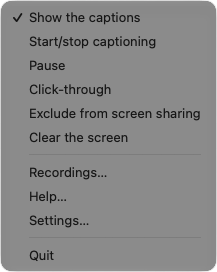
| Menu item | What it does |
|---|---|
| Show the captions | hides or brings back the caption window; checkable, so you see at a glance whether it is hidden |
| Start/stop captioning | switches the whole incoming chain (see below) |
| Pause | stops captioning temporarily |
| Click-through | the caption band lets the mouse through; checkable |
| Exclude from screen sharing | the caption window does not appear in the shared picture; checkable, and if the system could not apply it, its label says so |
| Clear the screen | clears the visible captions |
| Recordings… | opens the Recordings window |
| Settings… | opens the settings window |
| Help… | opens the built-in help |
| Quit | closes the program |
Hiding, pausing and stopping are three different things.
- Hiding only pauses the display: captioning, translation and interpreting keep running, and the recording goes on too.
- Pause is temporary and is not saved. While paused, the outgoing direction keeps carrying your voice into the call.
- Stopping captioning turns off the whole incoming chain, and it goes into the settings too: the program sends no audio to the caption server, and it stays off at the next start too.
When you turn click-through on, the program tells you in a notification how to turn it off: from the toolbar, with the hotkey, with the Click-through item of the menu, or in the settings window. The same notification appears when the program starts with click-through on.
Hotkeys
The hotkeys are global: they work even when the caption window is not focused – from the call program, from under a video. Ten actions have a combination; each can be changed or turned off on the Shortcuts tab of the settings window.
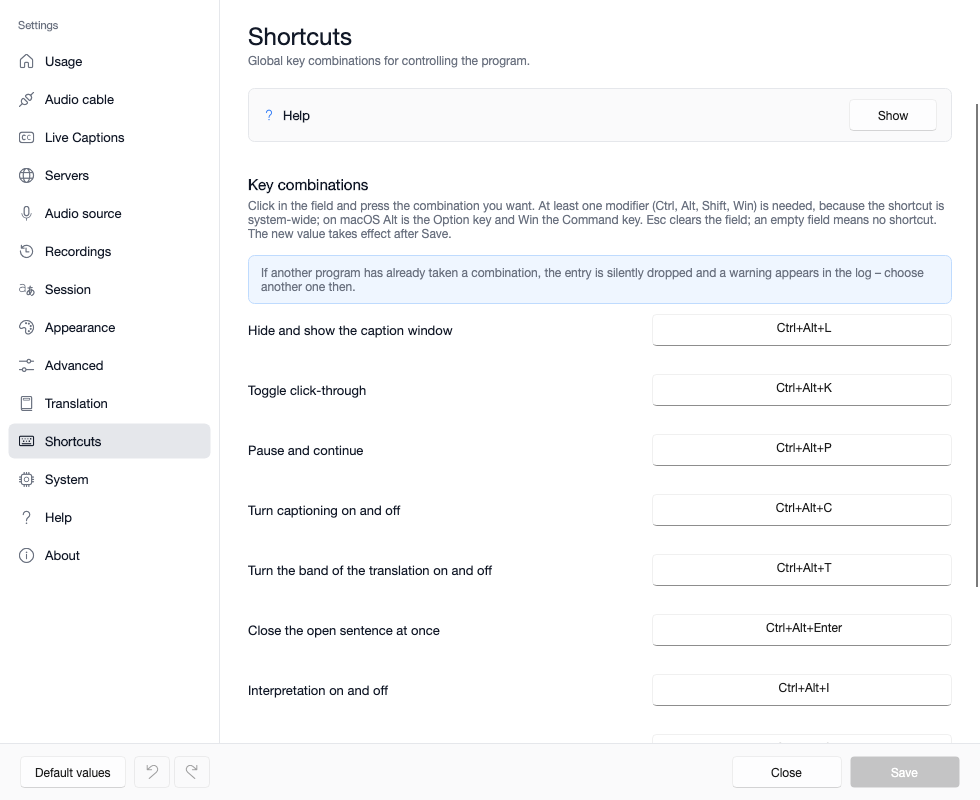
| Action (on the tab) | Default |
|---|---|
| Hide and show the caption window | Ctrl+Alt+L |
| Toggle click-through | Ctrl+Alt+K |
| Pause and continue | Ctrl+Alt+P |
| Turn captioning on and off | Ctrl+Alt+C |
| Turn the band of the translation on and off | Ctrl+Alt+T |
| Close the open sentence at once | Ctrl+Alt+Enter |
| Interpretation on and off | Ctrl+Alt+I |
| The outgoing direction on and off | Ctrl+Alt+O |
| The outgoing caption band on and off | Ctrl+Alt+U |
| Relearn the interpreter's voice | Ctrl+Alt+V |
Changing one. Click into the field and press the combination you want: the pressed keys are recorded, so it cannot be mistyped. At least one modifier key is needed, because the hotkey applies to the whole system. Esc clears the field; an empty field means no hotkey. The new value takes effect after Save.
On macOS the same combinations apply, with the Mac's keys: Ctrl is Control, Alt is Option, Win is Command. The default Ctrl+Alt+L is therefore Control+Option+L on macOS. For a combination made only with Option (or Option and Shift) the tab warns you: on macOS Option types a letter, so that letter would be missing in every other program – add Control or Command to the combination.
Good to know:
- If a combination is already taken by another program, the registration silently fails and appears as a warning in the program's log – choose another one then. The other combinations keep working, and the caption window's tooltips do not promise the combination that could not be registered.
- Closing the open sentence helps when the speaker talks long without a pause, and you do not want to wait for the end of the sentence for the translation.
- Relearning the interpreter's voice is needed when another speaker comes – for example after switching to another video. It only makes sense with the cloned voice.
- In the settings window F1 opens and closes the tab's help; it is not global, it only lives in that window.
Where next
- Caption sources and the speech language
- If the dots stay red: Troubleshooting