
Appearance and screen sharing
The caption band's background, fonts and colours, the order of the bands, and how the caption window behaves in screen sharing and with click-through.
This chapter is about how the captions look and how the caption window behaves among the other windows: the background, the fonts and colours, the order of the bands, fading lines, exclusion from screen sharing, click-through, and raising the window back on top. All of it is on the Appearance tab of the settings window; the parts you change often are also on the caption window's toolbar.
Where to set it
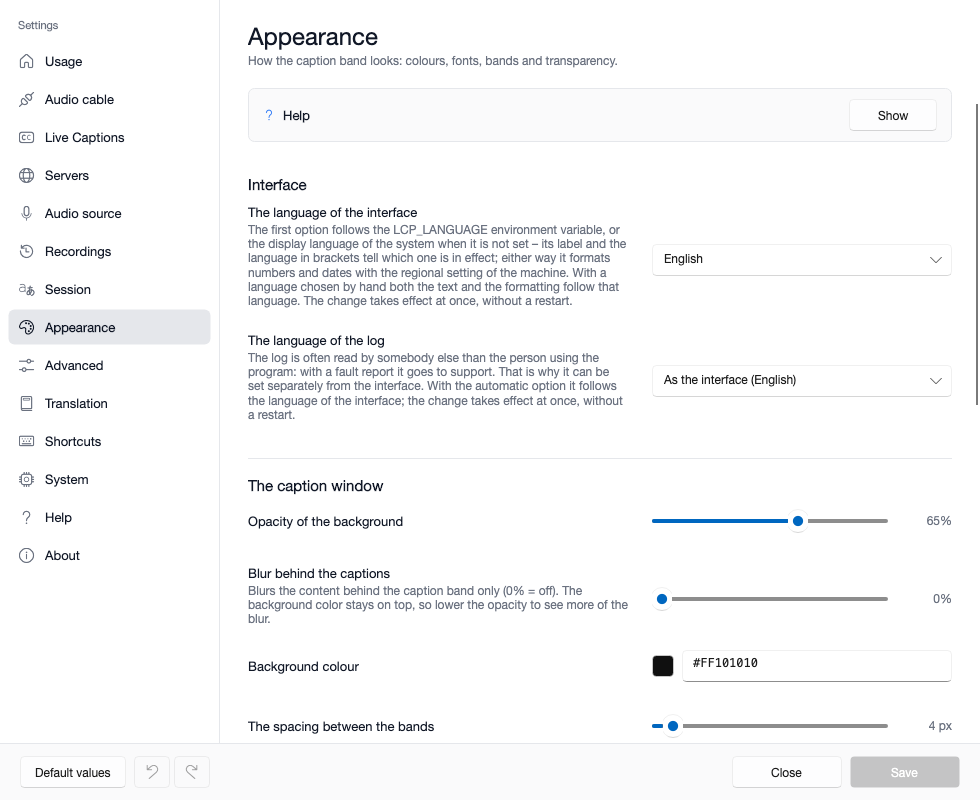
The Appearance tab has every appearance setting. After Save the change takes effect immediately, without a restart.
Most of them can also be set on the caption window itself, instantly and without saving: move the mouse over the bottom strip of the caption window, and click the gear of the right section on the icon strips that appear.
| What | Where on the caption window |
|---|---|
| background colour and opacity, blur, band spacing, translation on top, fading lines | the panel of the slate grey Caption window section |
| the appearance of the spoken text band | the panel of the blue Incoming audio section |
| the appearance of the translation band | the panel of the purple Translation and interpreting section |
| the appearance of the outgoing caption band | the panel of the green Outgoing direction section |
Both places write the same setting and follow each other: what changes on the caption window also shows in a settings window left open, so Save does not write the old value back. Only the font and an exact, custom fade time are set in the settings window alone.
The The language of the interface and The language of the log fields at the top of the tab are covered in the Language, logs and saving settings chapter.
The caption window's background and layout
| Field | What it means | When to change it |
|---|---|---|
| Opacity of the background | how solid the caption band's background is, in per cent; it affects the background only, not the text | for readability over a dark or a light picture |
| Blur behind the captions | blurs what is behind the caption band (0% = off); the background colour stays on top, so a lower opacity shows more of the blur | when the captions sit over busy content; macOS only |
| Background colour | the band's background colour; the picker offers a palette, a saturation–lightness square and a hue strip, and the field also takes a hex code | when the black background does not suit the picture |
| The spacing between the bands | the space between the caption bands, in pixels | when the bands run together, or take too much room |
| The band of the translation should be on top | the translation goes above the spoken text; the outgoing band always stays at the bottom | if you mostly read the translation |
| Lines fade out after this many seconds (0 = they stay) | old lines fade out after this long | if the captions disturb the picture during pauses |
Blur is not available on Windows yet – there the system would blur the whole window, the toolbar area too –, so its slider is disabled, and its tooltip says why.
On the caption window's Caption window panel, the fade time is picked from preset values: Never, 5, 10, 20, 30 or 60 seconds. Any other value can only be set on the Appearance tab; then none of the panel's buttons is selected, and the row shows the saved value.
Fonts and colours of the caption bands
The caption window shows up to three bands: the spoken text, the translation and the outgoing captions (your own speech, when the outgoing direction is on). On the Appearance tab each has its own collapsible card, with the same rows:
- This band is visible – turns the band on and off;
- Font and Font size;
- the text Colour;
- Font style: bold, italic, outline – the outline keeps the letters readable over a light background too;
- Alignment: left, centre or right;
- This many lines are visible at once: the number of lines shown.
The order of the bands is fixed: of the spoken text and the translation, the one on top is whatever The band of the translation should be on top says, and the outgoing band is always at the bottom.
Tip. For a lecture or a video, a larger font and two or three lines read best; in a call, where the captions sit over the call app, a smaller size and one or two lines cover less.
Screen sharing
By default the caption window stays out of screen sharing and screenshots: the captions show on your own screen, but the other people in the call do not see them – even if you share your whole screen.
Exclusion can be switched in three places:
- the Exclude from screen sharing field of the Appearance tab;
- the switch on the slate grey Caption window icon strip of the caption window;
- the Exclude from screen sharing item of the menu (the tray icon on Windows, the menu bar icon on macOS); its tick shows whether it is on.
If you want the participants to see the captions too – in a demo, for example –, turn exclusion off.
| System | How it works |
|---|---|
| Windows | from the Windows 10 2004 release: the window does not appear in the shared picture; on an older system its area is blacked out at best, or the exclusion does not work |
| macOS | the system leaves the caption window out of sharing and screenshots |
If the system cannot apply the exclusion, a warning dot appears on the caption window's switch, its tooltip says that the window is visible in the shared picture, and the menu item says "failed" too. In that case, do not count on the captions staying hidden.
Click-through
If the captions sit over a button or an area you need to click, turn on click-through: the caption band then does not catch the mouse, and clicks go to the program underneath.
- The window cannot be moved or resized from the caption band meanwhile.
- The toolbar stays clickable: move the mouse to the bottom of the band and rest it there for a moment, the toolbar comes up, and the same button turns click-through off.
- The top right corner strip does not come up under click-through; its items are in the menu too.
- The setting is kept, and applies at the next start of the program as well; then the program tells you in a notification how to turn it off.
It can be switched in four places: the switch on the Caption window icon strip, the hotkey (by default Ctrl+Alt+K on Windows, Control+Option+K on macOS), the checkable Click-through item of the menu, or the Click-through field of the Appearance tab.
Staying on top of full-screen programs
The caption window always sits on top of the other windows. Some full-screen programs (presentations, games), however, pull themselves in front now and then. That is what the Raise above the other windows this often (0 = off) field is for: 3–5 seconds helps in that case. If you have no such problem, leave it at zero, because it is needless work.
When something is wrong
| Symptom | Cause and what to do |
|---|---|
| The captions show in the shared picture | Exclusion is off, or the system could not apply it (a warning dot on the switch). On Windows, releases older than 2004 do not support it. |
| The participants do not see the captions, though you want to show them | Exclusion is on by default: turn it off on the Caption window icon strip or in the menu. |
| The window cannot be moved, clicks go through it | Click-through is on. Turn it off with the hotkey, from the menu or from the toolbar. |
| The captions vanish behind a full-screen program | Set raising back on top to 3–5 seconds. |
| The blur slider is disabled | Blur is not available on Windows yet. |
| The captions are hard to read | Raise the background opacity, turn on the outline, or increase the font size. |
Where next
- The caption window and the toolbar in detail: Caption window and toolbar
- The hotkeys and the menus: Status dots, menus and hotkeys
- Hiding the captions under the large windows: Session, Advanced, System, About