
Keys and permissions for clients
Issuing keys for LiveCaption, scripts and other machines; the scope rule, rotation, and what the Callers and Connections pages show.
The caption service, the translator and the voice service always authenticate – this cannot be switched off. Every program that calls them – the LiveCaption app, the command-line clients, your own scripts – identifies itself with an API key. Keys are issued by the account service, and a key always belongs to a user: it may do as much as its owner. This chapter explains how a client gets a key and how to check that the service accepts it.
Which client gets which key
| Client | How it gets a key |
|---|---|
| LiveCaption on the machine where the account service runs | the generate-livecaption-key tool issues it and writes it straight into the app's settings |
| LiveCaption on another machine or for another user | the generate-user-key tool or the Keys page; the key is entered on the Servers page of LiveCaption's settings window |
| the command-line scripts (transcription, batch subtitling) | the generate-api-key tool; the scripts also ask for a key themselves |
| a program of your own | the Keys page, in the name of a user created for that purpose |
| the services themselves | not an API key but a peer token – see below |
LiveCaption stores the key encrypted and bound to the machine's user account: on Windows to the signed-in user, on macOS with a key held in the macOS Keychain. A key therefore cannot be moved to another machine by copying a settings file – every workstation gets its own key.
Issuing a key on the Keys page
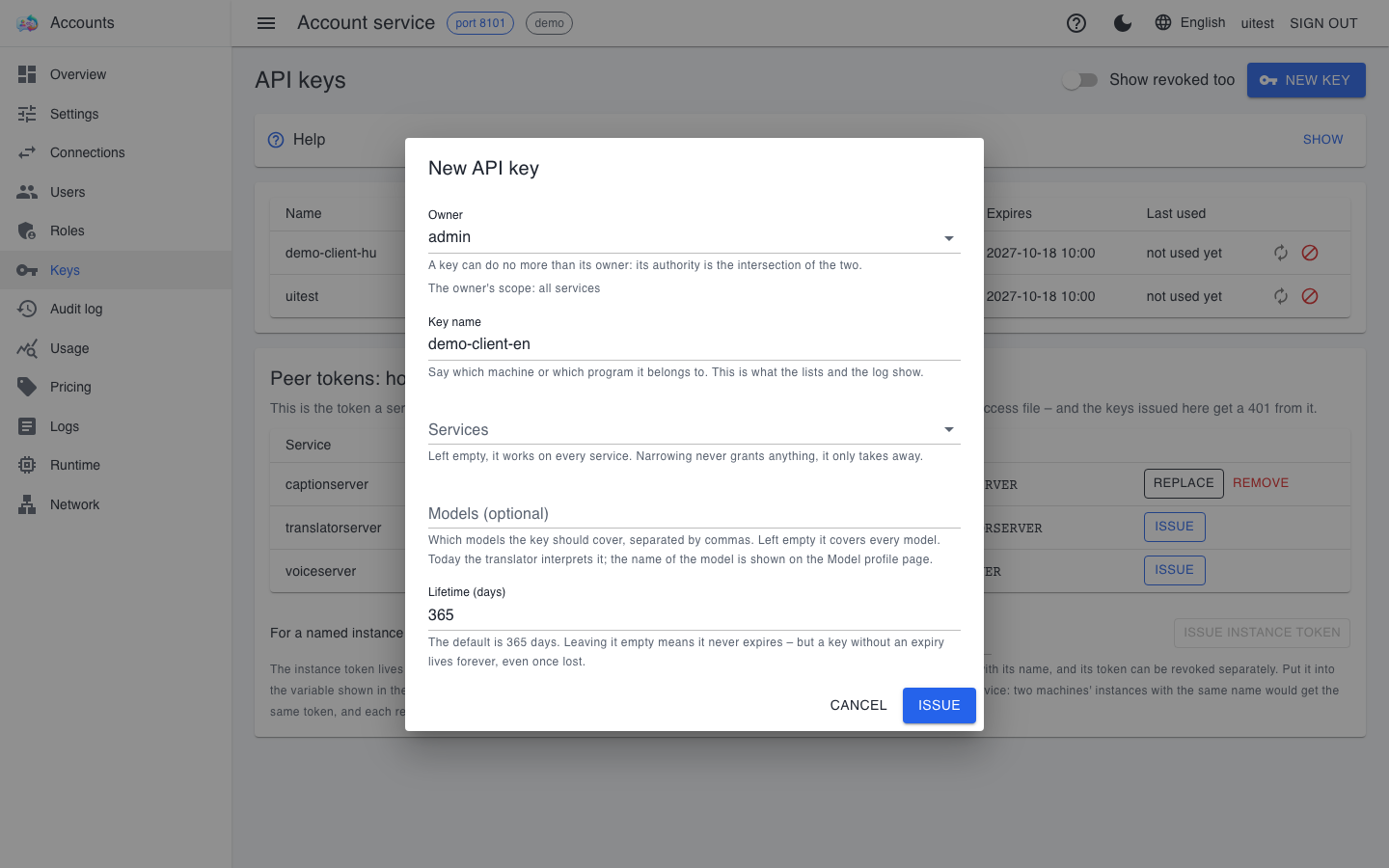
- Sign in to the account service's web interface and open the Keys page.
- Press the New key button at the top right.
- In the Owner field, choose on whose behalf the key works. The dialog shows the owner's scope below it: the key can never do more than that.
- Give the key a meaningful name in the Key name field – the name of the machine or program, for example. It appears in the lists and in the audit log.
- Leave the Services field empty if the key should work on all three services; if only on one, pick it. Narrowing never grants anything, it only takes away.
- The Models (optional) field can narrow the key to models as well, separated by commas; today the translator honours it.
- Lifetime (days) defaults to 365. Left empty, the key never expires – but a lost key without an expiry also lives forever.
- Press Issue.
After issuing, the dialog shows the full key exactly once. Copy it with the button next to the field and put it somewhere safe; the service stores only its hash, so it cannot be retrieved later – if it is lost, a new one must be issued. Only press Got it once you have the key.
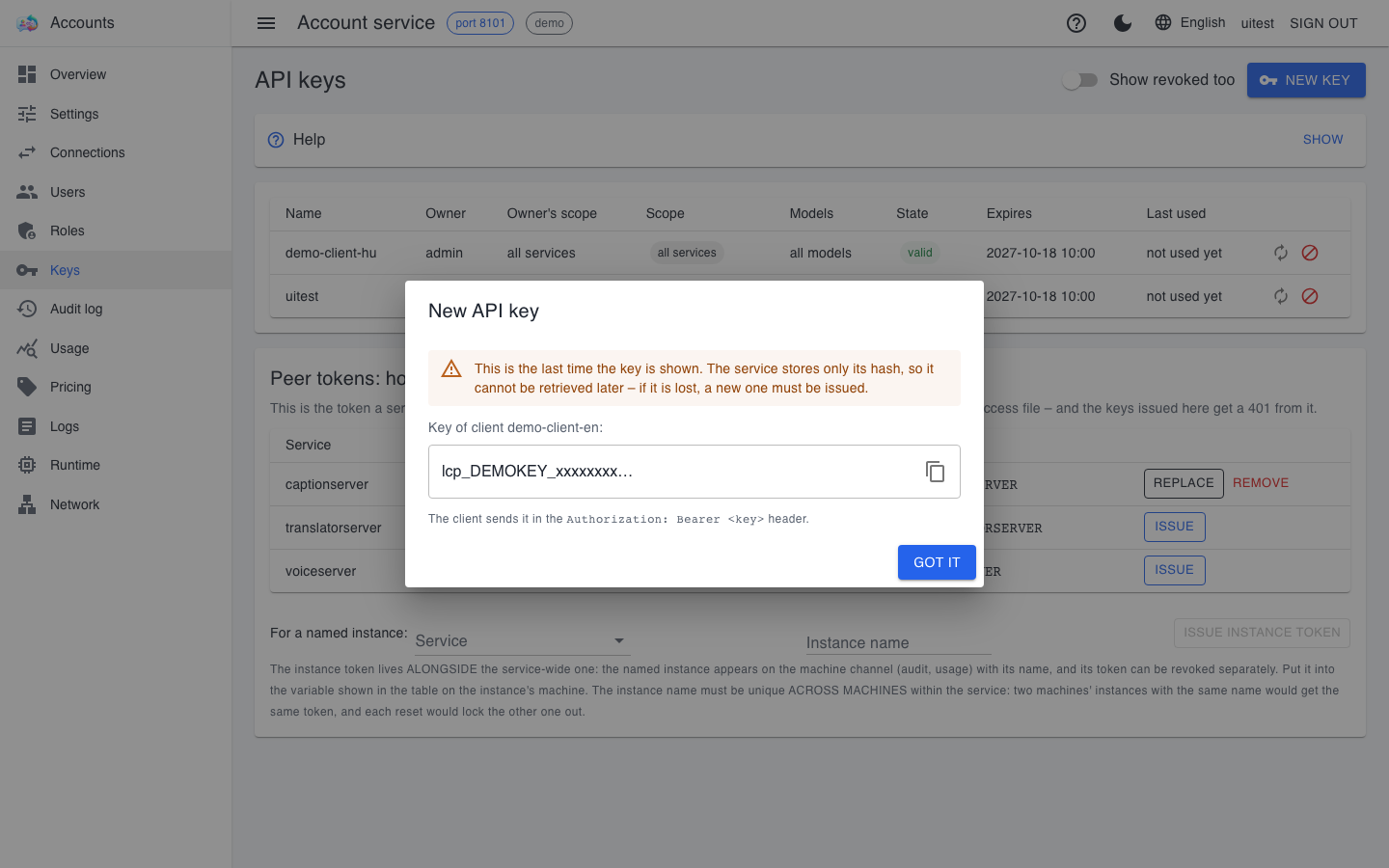
The key starts with the lcp_ prefix; the client sends it in the request's Authorization: Bearer header. The services accept it within half a minute: that is when they download the next authorization snapshot.
Entering the key in LiveCaption
The key goes on the Servers page of LiveCaption's settings window, next to the address of each of the three services. The check button next to the address asks the service and shows the result on the field's border, in green or red. The steps are in the First start chapter of the app manual.
A key in one step: the key tools
On the account service's machine, three tools shorten the process. They all sit in the repository root, with a .cmd launcher on Windows and a .command launcher on macOS and Linux:
# LiveCaption on this machine: issues the three keys and writes them into the app's settings
.\generate-livecaption-key.cmd
# another machine or user: account, AppUser role and three keys in one step
.\generate-user-key.cmd -UserName anna.kovacs -OutFile anna-kovacs-keys.txt
# the command-line scripts' own key, into a persistent environment variable
.\generate-api-key.cmd
- While
generate-livecaption-keyruns, LiveCaption must not be running: the running app keeps its settings in memory, and the tool does not write in that case. It only touches an existing key with the-Forceswitch. On macOS the system may ask for permission to use the keychain: a one-time Allow is the right answer, "Always Allow" is not. generate-user-keywrites the keys to the console and, on request, to a file only you can read; these are what you enter on the other machine's Servers page. Delete the file after handing it over.- The keys belong to a dedicated account (for example
livecaption-<machine>-<user>), so the access issued per machine can be revoked one by one.
The intersection of scope and permissions
What a key-borne request may do is the intersection of the owner's permissions and the key's scope:
- Empty scope: the key works on every service – as much as its owner may do.
- Narrowed to one service: it works only there; the other services treat it as an unknown key.
- A key never grants more than its owner has. If you remove a role from the owner, their keys narrow too; there is no need to revoke them separately.
The owner of LiveCaption's keys gets the AppUser role: with it the app may use the services and delete the trained voice profiles used for interpreting. This role gives no access to the services' pages. A key cannot sign in to the web interface – that is for passwords only.
Rotation, revocation, expiry
- Rotation (the circular arrows at the end of the row) issues a new key with the same name and scope, and gives the old one a grace period (7 days by default). During the overlap both work, so the machines can be switched over calmly. Rotating an expired key also yields a usable key.
- Revocation (the prohibition sign at the end of the row) is immediate, with no grace period. Use it when a key has leaked.
- Expiry is one year by default. It is worth rotating before expiry: rotation is not a sign of trouble but a good habit.
The services' peer tokens
The lower box of the Keys page holds the peer tokens. A service uses its peer token to fetch the authorization snapshot from the account service. As long as a service has no peer token, it gets no snapshot and rejects every key issued here with a 401 – the most common reason why a freshly issued key "does not work" on one of the services.
In a service's row, Issue creates a peer token, Replace issues a new one in its place (the old one is invalid immediately), and Remove deletes it. After issuing, one step remains that the browser cannot do: the secret must be put into the environment variable shown in the table (for example LCP_ACCOUNT_TOKEN_TRANSLATORSERVER) on the service's machine, and the service restarted. The dialog after issuing therefore also prints the command to copy. On one machine, the AccountServer\setup-account-peers tool puts all three peer tokens in place at once (-Tokens) and checks them (-Check).
Checking on the service side: the Callers page
The web interface of every engine service (caption service, translator, voice service) has a Callers page. It shows who may reach this service, and with what – built from exactly the authorization snapshot the service decides from. Nothing can be edited here: users and keys live in the account service.
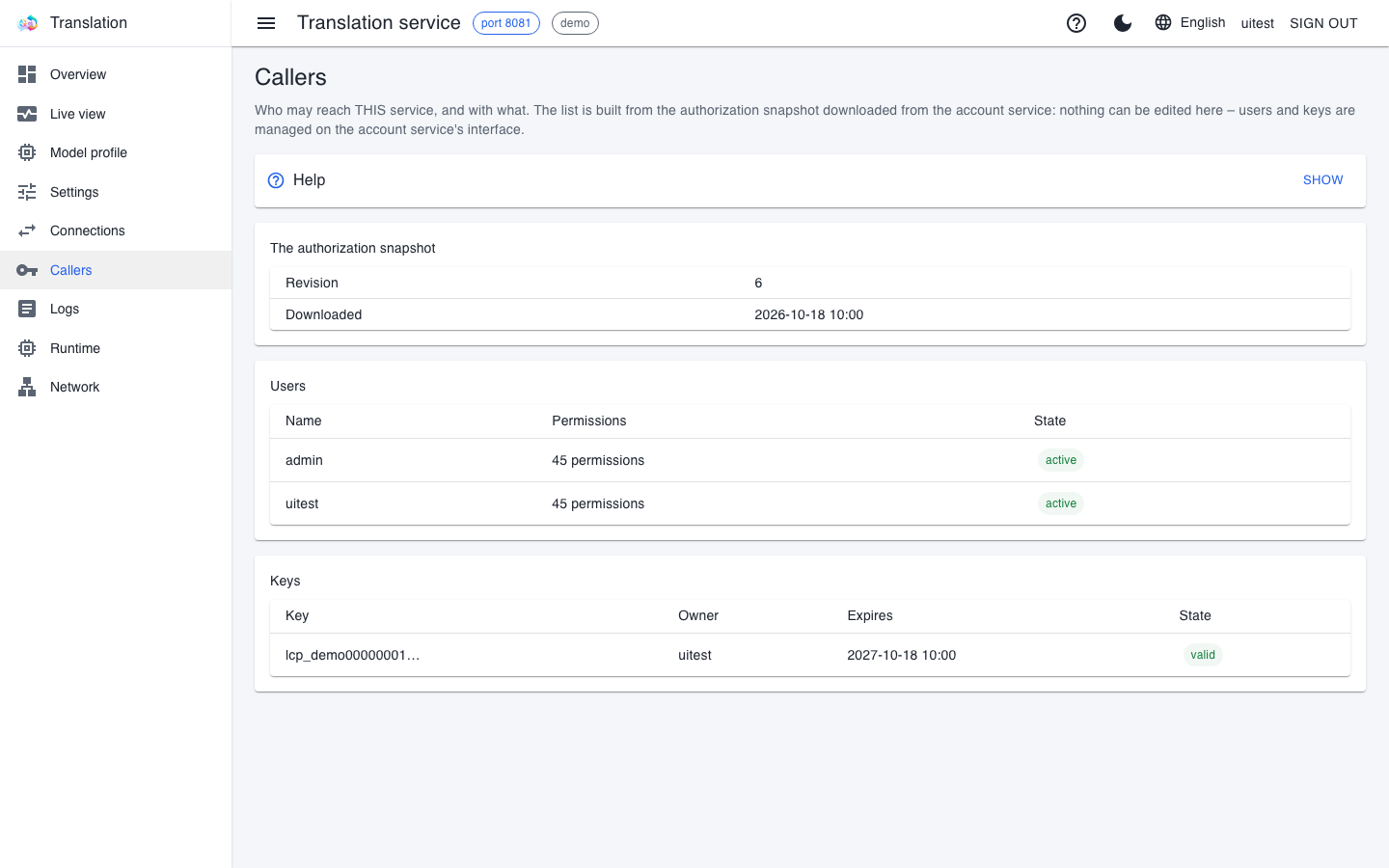
- Revision and Downloaded: the snapshot's sequence number and download time. If a fresh key is not visible yet, the next download (within half a minute) brings it.
- Users: who may reach this service, with how many permissions.
- Keys: the keys' public identifier, shortened, with the owner, the expiry and the state.
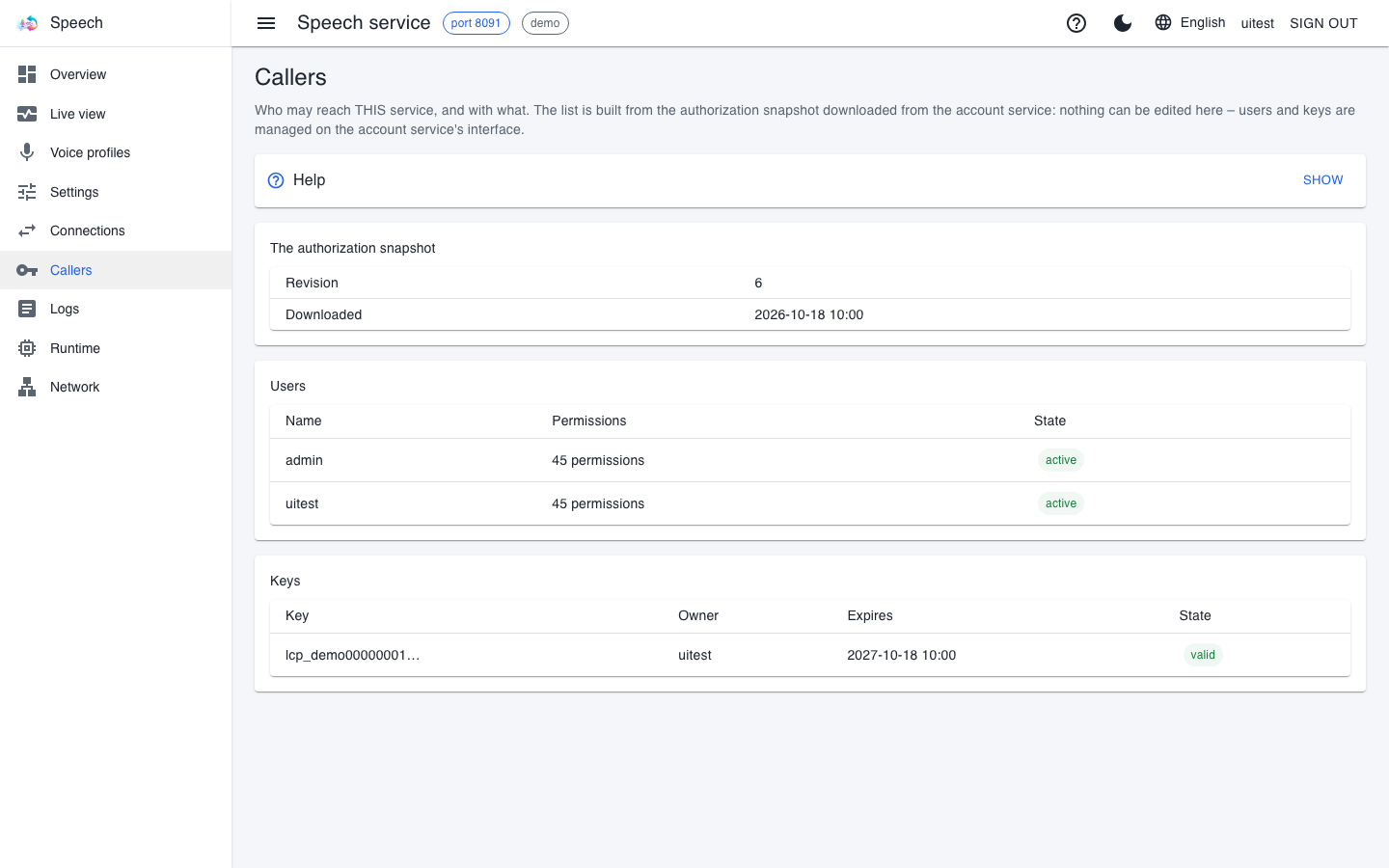
If the account service is unreachable, the service keeps working with the last valid snapshot, and the page says when it took the snapshot from its local copy. If the snapshot is older than 24 hours, a red bar warns: key-borne traffic still flows, but on the interface every action requiring elevation is refused.
Who uses it: the Connections page
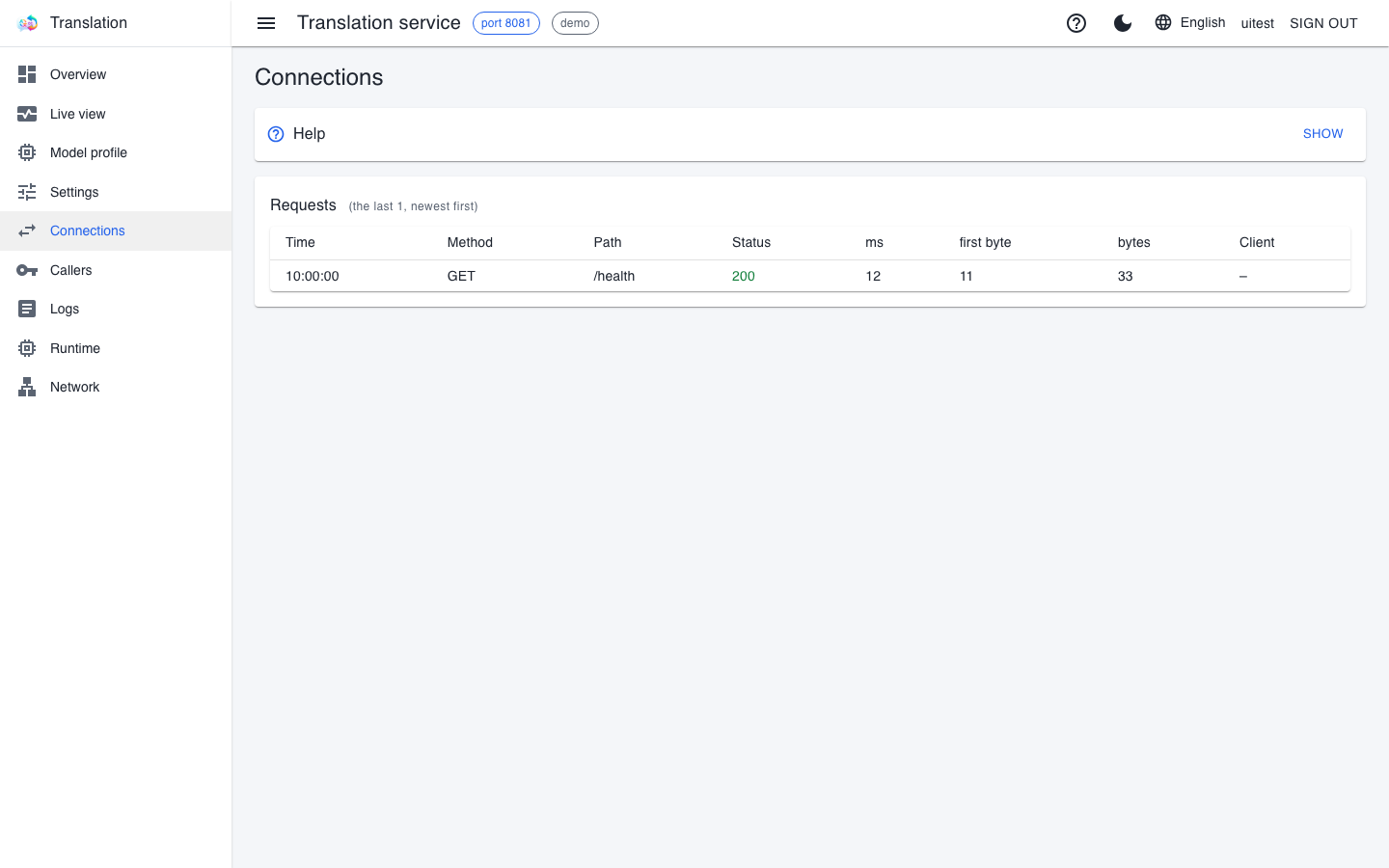
The Connections page shows the service's last 200 requests, newest first: the time, the method and the path, the response code, the timings, the size and the client, which is the key's name. This is the easiest place to see whether a client's key reaches the service, and what answer it gets.
- Code
200is a successful request;401means the service did not accept the key;403means the key is known, but its owner has no permission for that operation. - Health checks (
/health) answer without a key, so their client column shows "–"; scripts ping them often, so the list can be full of them. - The query string (the part after
?) never enters the list, since it might contain a key. The list is lost when the service stops; the log file keeps the requests permanently.
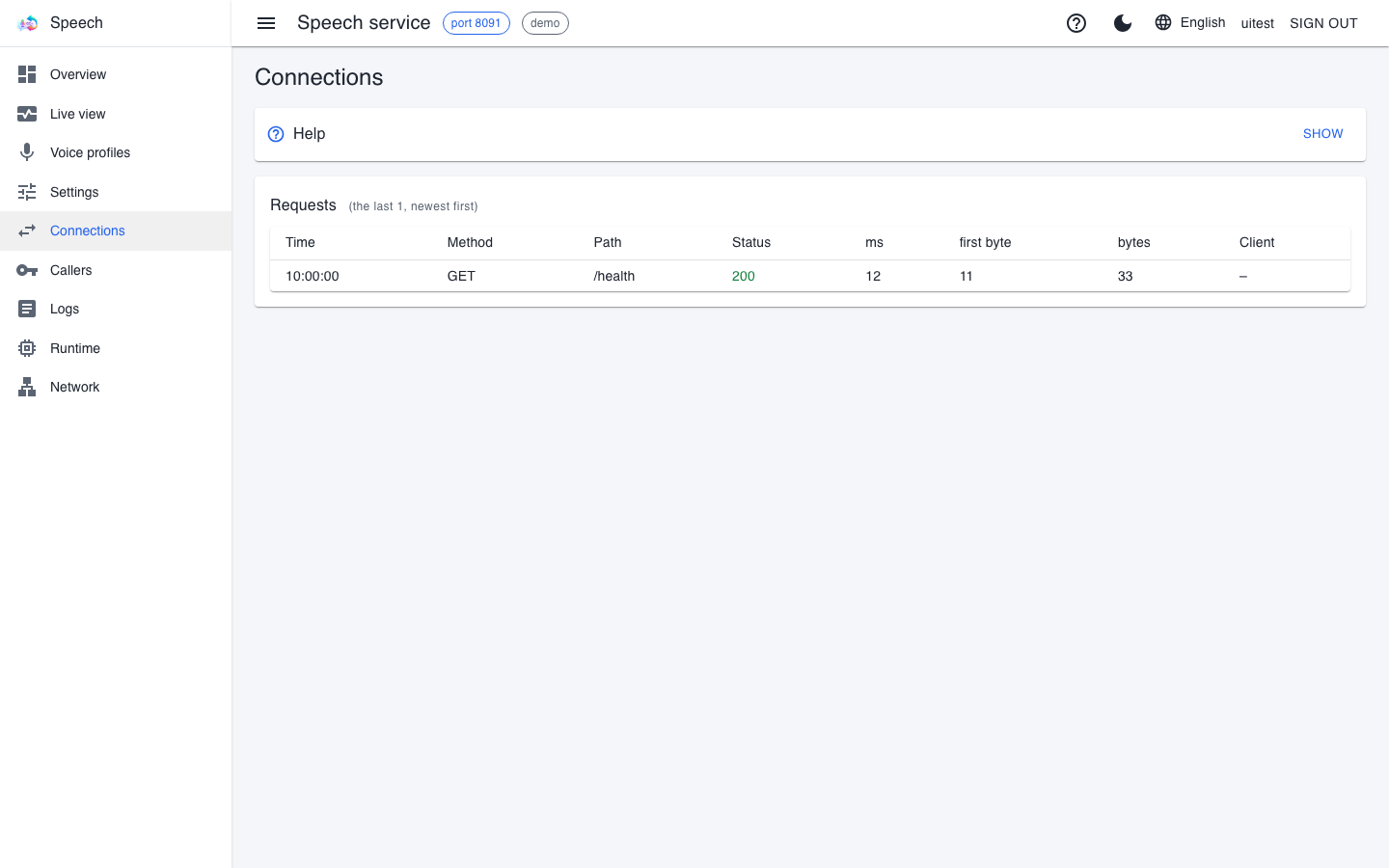
The translator and the voice service have no live connections: requests finish within seconds, so the request history says more than an "active connections" list would. The caption service's Connections page also shows its live captioning sessions.
When a key does not work
| Symptom | Cause and what to do |
|---|---|
a freshly issued key gets a 401 |
wait half a minute: the service picks it up with the next authorization snapshot; the key should then appear on the Callers page |
| a service rejects every key | the service has no peer token, or the account service does not accept it; check the lower box of the Keys page and run the setup-account-peers -Check check |
| the key works on one service but not on another | the key is narrowed to one service; issue one without narrowing, or one per service |
the key gets a 403 |
the owner lacks the permission for the operation: check their role and scope on the Users page |
| LiveCaption cannot use the saved key | the settings file comes from another machine or user; the encryption is per machine, so the key must be entered again |