
The caption service
The caption service's own pages: Models with the pool and the measurements, the Decoding profiles, Live view and Callers.
The caption service (captionserver) splits the audio into sentences and transcribes it with the Whisper model. Besides the common pages, its web interface has four pages of its own: Models, Decoding, Live view and Callers. On the machine the interface is at http://127.0.0.1:5112/admin by default; the header says "Captioning service".
A few terms that come up throughout this chapter:
| Term | What it means |
|---|---|
| pool | How many transcriptions can run at once. One slot means one parallel inference (inference: the model turning a piece of audio into text). |
| live path | Real-time captioning: LiveCaption sends the audio continuously and gets the captions back immediately. |
| batch path | Transcribing files chunk by chunk, for example with the command-line client. |
| decoding profile | A named bundle of Whisper settings (for example how cautious it should be when detecting silence). |
Models
The Models page manages the caption service's model pool: what the machine has, how large the pool is, which models are downloaded and loaded, which model belongs to which language – and this is where the measurements start.
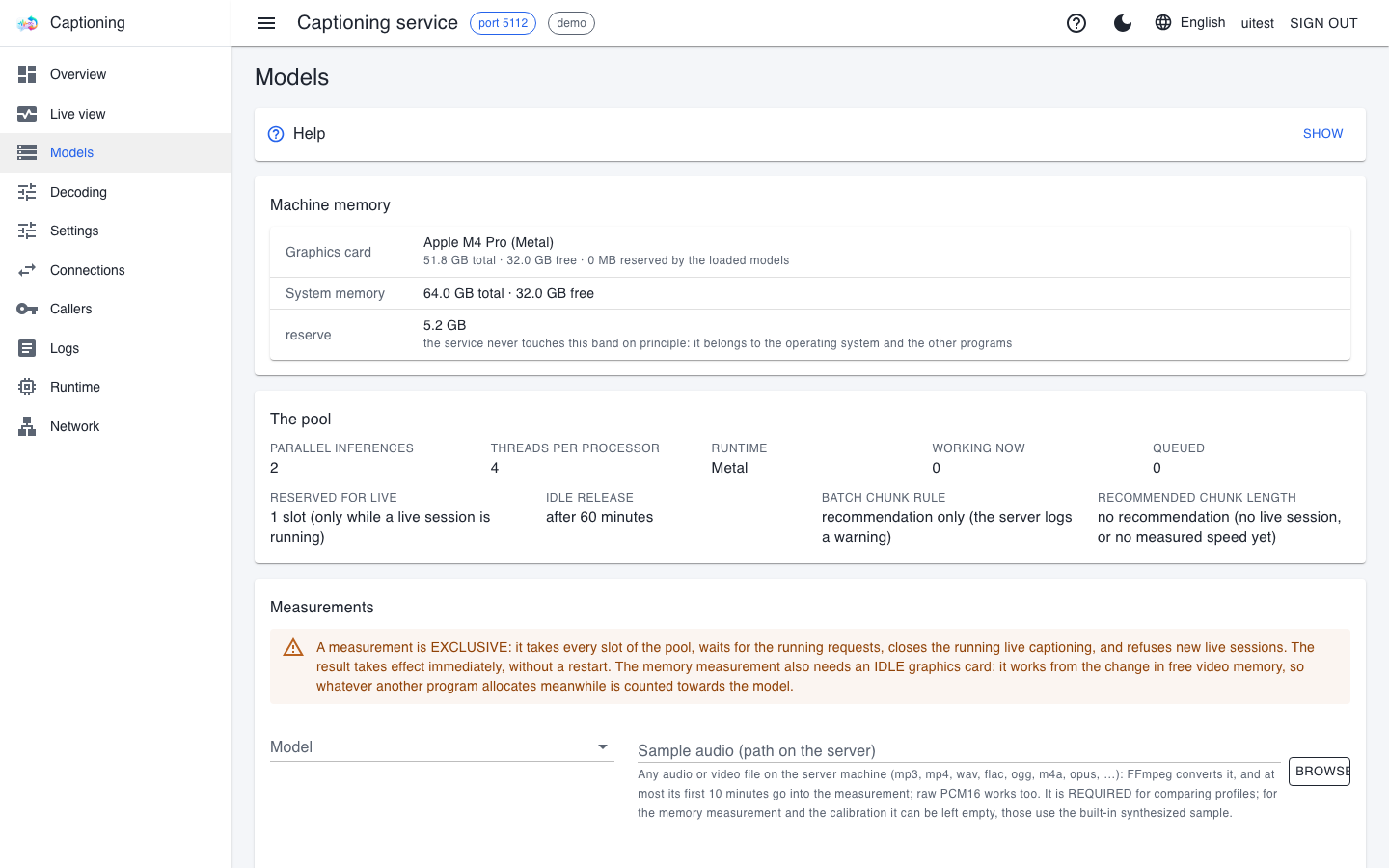
Machine memory
The top box shows the name of the graphics card, its total and free memory, the system memory, and the reserve: the band the caption service never touches on principle, because the operating system and the other programs need it. On Windows and Linux with an NVIDIA card the runtime is CUDA; on an Apple Silicon Mac it is Metal, where the graphics card and the system share the same memory; without a card it is CPU.
The pool
The fields of the pool box:
- Parallel inferences: how many transcriptions can run at once. The caption service measures this at startup from the free video memory, which is why it has to start last, after the translator and the voice service.
- Threads per processor, Runtime, Working now, Queued: the current picture.
- Reserved for live: while there is a live session, one slot is set aside for live captioning, so that transcribing a large file cannot crowd it out.
- Idle release: after this much idle time (60 minutes by default) a loaded model frees its memory; the next request loads it again.
If Queued stays above zero for a long time, the pool is too small for the load: fewer parallel clients, a smaller model or a stronger card helps.
The list of models
The list of models shows which model is downloaded and loaded, how much memory it needs, and in the Decoding column which decoding profile it runs with. The row's buttons:
- download: downloads the model from the official store; meanwhile the row shows the exact progress (percentage, size, speed, time remaining);
- Load now: loads the model immediately instead of on the first request – useful before a talk, so that the first sentence does not have to wait;
- Release: removes the model from memory.
Model choice per language
When the client asks for the automatic model (LiveCaption's default), the caption service chooses by the language being spoken. The Model choice per language section sets this up:
- The Default model is what the caption service uses when the language has no row of its own.
- The Add language button adds a new row: for example the larger
large-v3for Hungarian and the fastermediumfor English. - The Language detector is the small model that decides from the first seconds which language is being spoken.
- Save it. The choice applies from the next start.
Measurements
Three measurements can be started in the Measurements section of the Models page. None of them is required: the caption service works without them; they are for fine-tuning the settings.
| Measurement | What it gives you | Sample audio |
|---|---|---|
| Memory measurement | Measures for each model how much memory one transcription needs, and adjusts how many slots one model may take. | the built-in sample (the box can stay empty) |
| Throughput calibration | Finds the number of parallel transcriptions at which the machine reaches its highest throughput (audio processed per second); beyond that, more slots no longer speed things up. The pool follows it. | the built-in sample |
| Compare profiles | Transcribes the same audio with the selected decoding profiles and puts the results side by side: time, speed, difference, coverage, text. | required, your own file |
Starting a measurement
- Pick the model in the Model list.
- In the Sample audio (path on the server) box, type the path of the audio file on the caption service machine, or pick it with the Browse… button.
- For a profile comparison, select the decoding profiles to compare.
- Start the measurement. The confirmation window ("Start the measurement?") tells you how many live sessions will be closed; the Start button goes ahead.
A measurement is exclusive: it takes every slot of the pool, because otherwise the numbers would mislead. It waits for running requests for at most 5 minutes, closes the running live captioning, and accepts no new session meanwhile. So do not start a measurement while someone is captioning live – LiveCaption is cut off and has to reconnect. The memory measurement also needs an idle graphics card: whatever another program allocates meanwhile is counted against the model.
The rules of the sample audio
- Any audio or video file that FFmpeg knows will do (mp3, mp4, wav, flac, ogg, m4a, opus and the like); the caption service converts it itself. If FFmpeg is missing from the machine, the error message tells you where to put it.
- At least 3 seconds are needed; at most the first 10 minutes go into the measurement. For video the first audio track counts.
- Coverage measures how many words of a keyword list given in advance the transcription found. This needs a truth file with the same name next to the audio file, ending in
.truth.json(for exampletalk.truth.jsonnext totalk.wav). Without a truth file, or if the ten-minute limit cut the audio, the coverage column is empty and says why.
The sample library
The Browse… button opens a designated folder on the caption service machine: the sample library. At the top you see its contents (name, size, modification time, whether there is a truth file), at the bottom you can upload a file from your own machine. That way you can measure from another workstation too, without first copying the file to the server.
- An upload can be at most 1 GiB, and at least 1 GiB of free space has to remain on the disk afterwards.
- Upload the truth file from the row of a selected audio file; the caption service names it.
- Deleting removes the audio file and its truth file together. A file a measurement is running on cannot be deleted.
- Uploading and deleting need a real sign-in and the right to start measurements.
Reading the results
In the Earlier measurements list, the title of every row says what the measurement was made with. The list can be filtered by kind, and the last twenty measurements of each kind are kept.
- You can select up to four measurements of the same kind and put them into one table with the Compare button. If their model or sample audio differs, a warning appears above the table.
- The number columns can be sorted by clicking their header; the best value is highlighted, and below each number is the difference from the baseline.
- The chosen label is given by the measurement itself: in the calibration it is the smallest pool size that already reaches 95% of the highest throughput. Judge the calibration's recommendation by the Throughput column, not by the time.
- The Difference column tells you how far the profile's text differs from the baseline's – not which one is correct.
- The Text button opens the transcript; Highlight the differences shows the extra and the missing words in different colours.
Trying a profile live
In the result table of a profile comparison, the rows of named profiles have a Make it the default button. It makes the profile the caption service's baseline right away, for every request that has no assignment of its own – until the next restart. If it works well, assign it permanently on the Decoding page.
Decoding
The Decoding page (titled Decoding profiles) edits the decoding profiles with clicks. A profile only overrides what it states explicitly; everything else comes from the caption service's general settings.
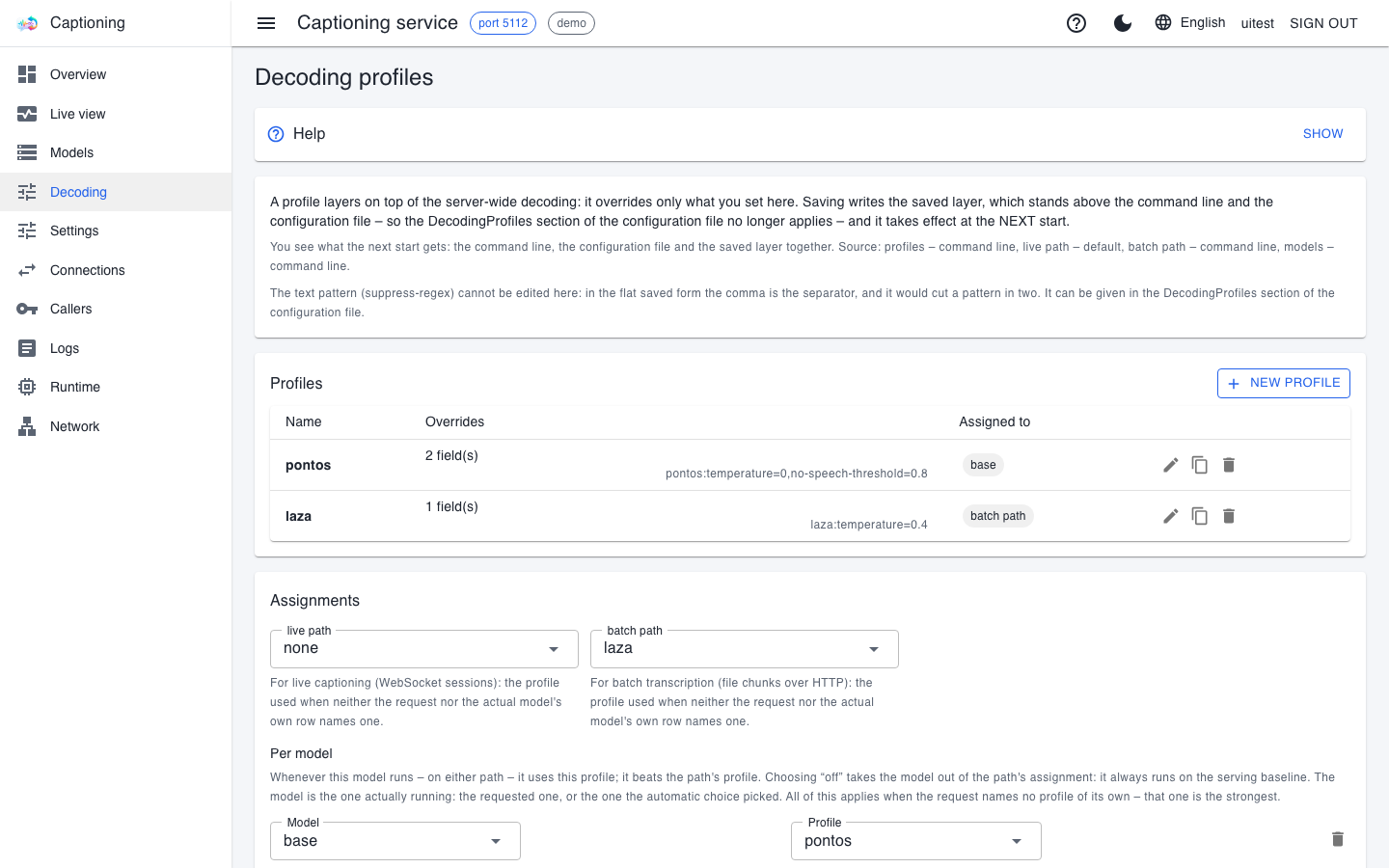
Adding a profile
- Press the New profile button.
- Give the profile a name: lowercase letters, digits and hyphens, at most 64 characters (
offandautoare reserved). - In the Fields step, choose one of three options for every field:
- leave alone: the profile does not mention it, the caption service's general setting stays;
- factory value: Whisper's own default, even if the caption service's general setting says otherwise;
- set: a specific value.
- The Summary step shows what goes into the saved file; the Done button adds it to the list.
An existing profile can be edited, copied or deleted with the icons in its row.
The assignments
In the Assignments section you decide which profile runs:
- live path: for real-time captioning (LiveCaption);
- batch path: for transcribing files;
- Per model: a separate profile for a given model (with the + model button). This is stronger than the path's assignment. If you choose
offfor a model, that model is excluded from the path's assignment and always runs with the baseline.
If a request names a profile itself, that comes before everything. So the order is: the request's own profile → the profile assigned to the model → the profile assigned to the path → the baseline. The Decoding column of the Models page shows for each model which profile runs, and why.
Saving
The page is saved as a whole, and the save takes effect at the next start; a bar on the page says when the next start will differ from what is running. The Discard the saved draft button brings back the profiles of the start script and the config file. Saving is checked just like the command line: a duplicate or invalid name, an unknown model or an out-of-range value is rejected.
One field is not edited on this page: the pattern of text to suppress (suppress-regex). It can be given in the DecodingProfiles section of the config file, and as long as such a profile is there, the page cannot save – it says so.
Live view
The Overview tells you the state, the Live view the moment: which slot is working right now, how many requests are waiting, whether serving is speeding up or slowing down, and how loaded the machine is. Live view works the same way on the translator and the voice service.
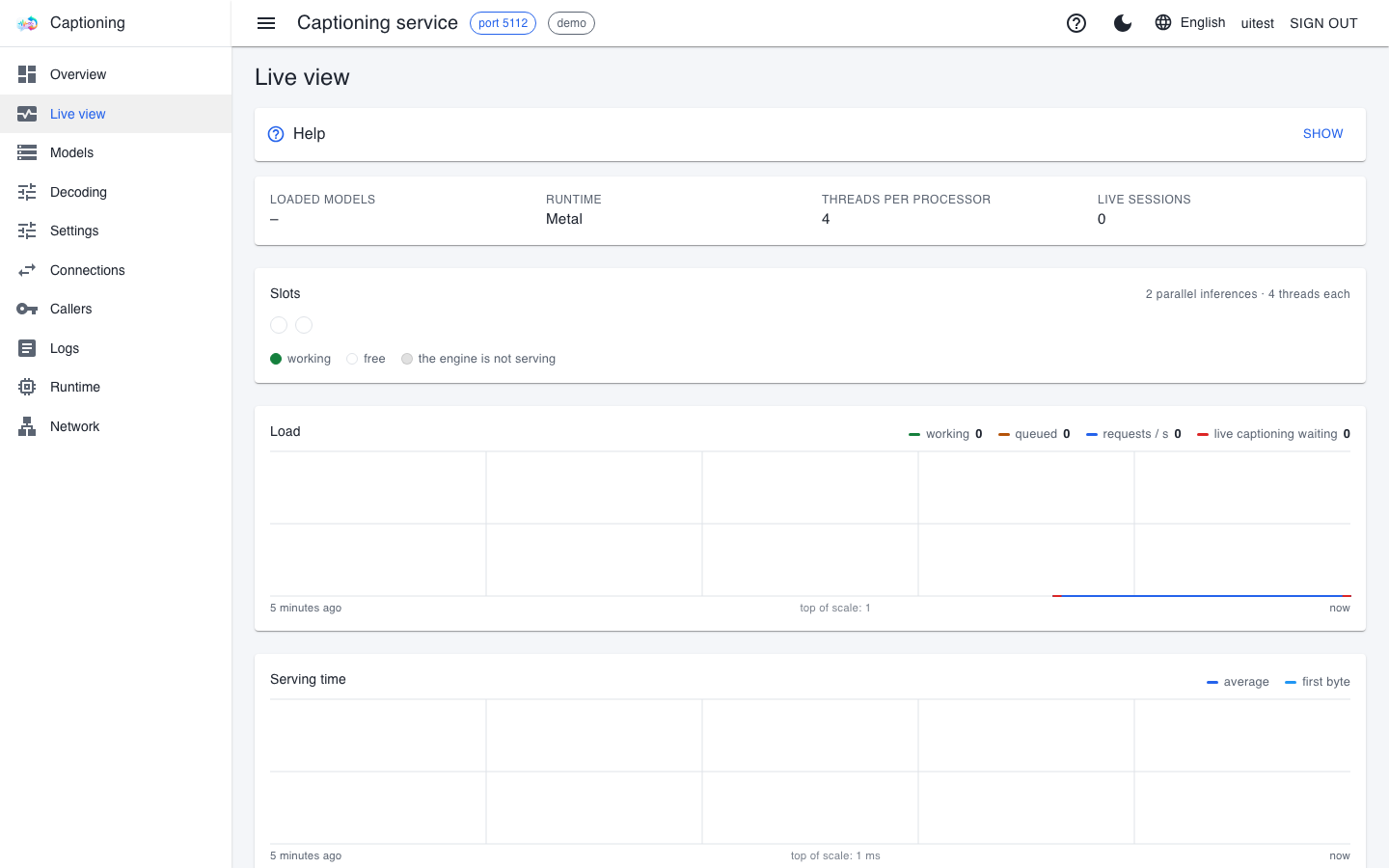
The Slots dot bar
Each dot is a serving slot: as many dots, as many jobs can run at once. On the caption service a dot is one parallel transcription of the pool.
| The dot | What it means |
|---|---|
| green (working) | The slot is busy with a job; hover over it to see for how many seconds. |
| empty (free) | Ready, and takes work immediately. |
| orange, pulsing (unusually long) | The slot has been on the same job far longer than usual. This is a signal, not an error: have a look at the Logs page. |
| grey (the engine is not serving) | There is no working engine behind it: it stopped, failed or is still starting. |
The charts
- Load: how many slots are working, how many jobs are waiting (live captioning separately), and how many requests arrive per second. Red spikes mark failed answers.
- Serving time: the first-byte time (how long until the answer begins), the average request time and the throughput.
- The machine: the processor load (of the whole machine and of this service separately), the graphics card's load and memory, and if the card reports them, its power draw and temperature.
The charts show the last five minutes, even right after you open the page, because sampling has been running since the service started.
If the live captions lag: check whether live captioning is waiting, and whether every dot is working. If the pool is full, a large file transcription is occupying it – the live path does get priority, but too few slots are still tight.
Callers
The Callers page shows who can reach this service, and with what. Nothing can be edited here: users and keys are managed by the account service, and this page shows a copy of them. The Callers page is the same on the translator and the voice service.
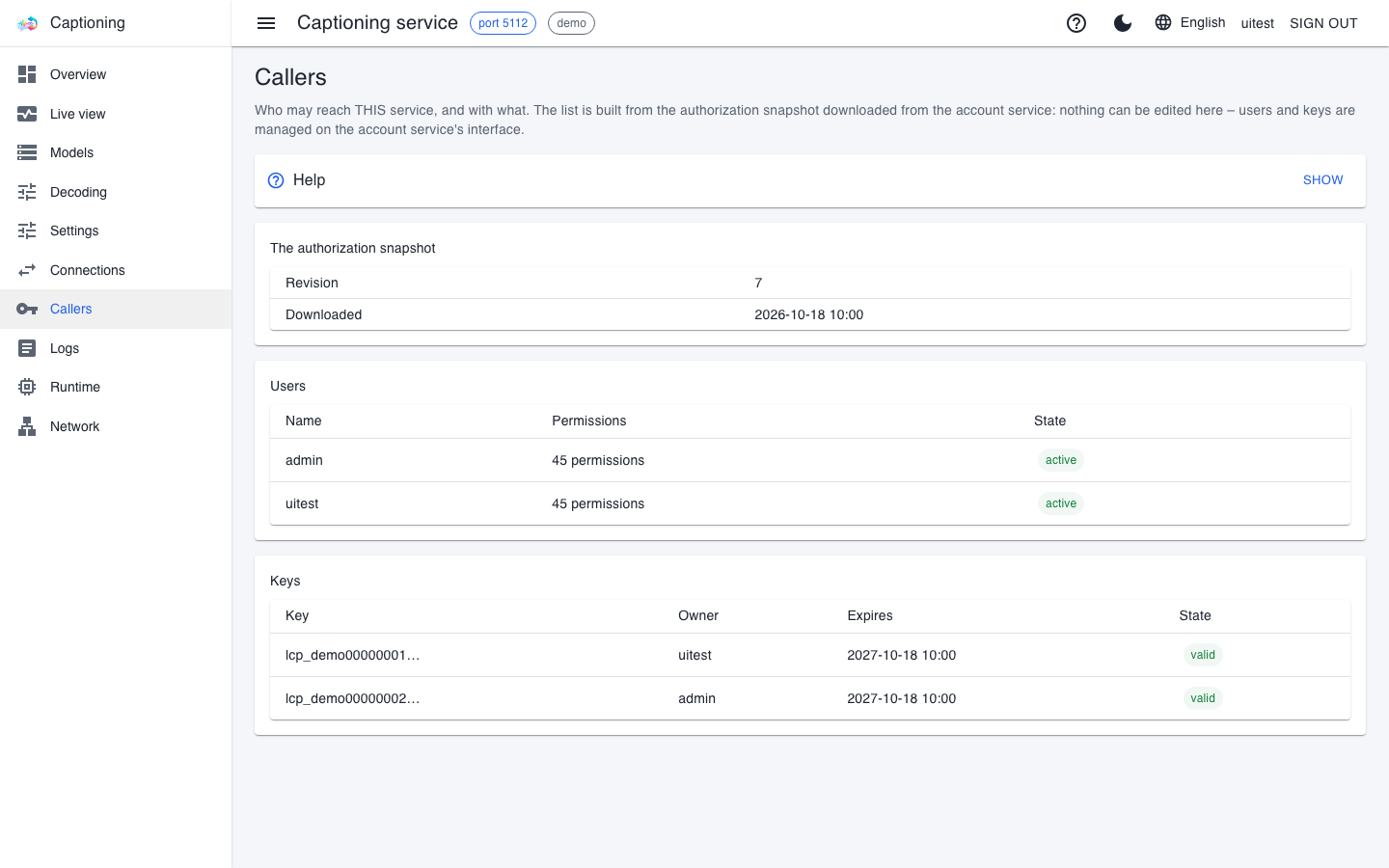
- The authorization snapshot: the Revision number and the Downloaded time. Every half minute the service downloads from the account service who may do what, and decides every request from that. The Revision is the same number that appears on the account service's Overview page.
- Users: the name, the number of permissions and the state.
- Keys: the shortened public identifier of the key, its owner, its expiry and its state. The key's secret itself is never shown.
Good to know:
- Changes are not instant. What you change in the account service (a new key, a disabled user) arrives here within half a minute. If it is urgent, check whether the Revision number has gone up.
- If the account service goes down, traffic does not stop: the last valid snapshot stays in force, after a restart from the local copy. The page then says that the snapshot was taken from the local copy. Signing in to the web interface is not possible in the meantime, though.
- If the snapshot is older than 24 hours, the page shows a red bar. Machine traffic still flows, but on the web interface actions that change something are refused. Fix the account service in that case.
Users and keys are added in the account service: see The account service and Keys and permissions.
Where to go next
- The translator
- Caption accuracy from the app's side: Segmentation and accuracy