
Web admin basics
The services' web interface: where to reach it, how to sign in, what is where on the page, and how help, language and theme are switched.
Each of the four services has its own web admin interface: this is where you see its state, change its settings and read its logs. The four interfaces are built the same way, so what this chapter says applies to all of them; the individual pages are covered in the following chapters.
Where to reach it
The interface runs on the service's control port, in the browser:
| Service | Address on the service's machine |
|---|---|
| account service | http://127.0.0.1:8101/admin |
| translator | http://127.0.0.1:8081/admin |
| voice service | http://127.0.0.1:8091/admin |
| caption service | http://127.0.0.1:5112/admin |
By default it can only be reached from the service's own machine. If it has to be reachable from another machine too, the --admin-host setting opens it up: for the translator, the voice service and the caption service on the Settings page (after saving and a restart) or with a start-up switch, for the account service only with a start-up switch. The Network page only shows where the interface can be reached from – see the Common pages and the Remote GPU server, several workstations chapters. If you changed the port, the new port goes into the address.
Signing in and out
The interface always asks you to sign in: fill in Name and Password on the sign-in page, then click Sign in. Users and passwords live in the account service, so the same name and password let you into all four interfaces – provided your role covers that service too. An API key (lcp_…) cannot be used here: that is for programs.
- Signing in is separate for each service. The browser keeps track of the four interfaces separately, so you sign in to each one once; signing out of one does not affect the others.
- To sign out, use the Sign out button at the right end of the header.
- Permission changes take effect within half a minute: if a user is disabled, or loses their role, the open interface signs them out too.
- The first sign-in and the mandatory password change are covered in the First start chapter.
How the page is laid out
| Place | What you find there |
|---|---|
| left sidebar | the service's pages (Overview, Settings, Logs, Network and the rest); its top row shows the service's icon and short name |
| left side of the header | the Menu button (three horizontal lines), which hides and brings back the sidebar; the service's name; the control port badge (for example "port 5112"); and, if the service runs as a named instance, the instance name |
| right side of the header | the help button (?), the theme button (moon or sun), the language picker (globe), the signed-in user's name and the Sign out button |
| top of the page | the page title, with the page's Help panel below it |
The sidebar pages differ from service to service: every service shows the common pages, while its own pages (for example the caption service's Models, the translator's Model profile, the account service's Users page) only appear there.
Help
Every page has its own help: what the page shows, what you can do with it, what its terms mean and where to go next – often with a diagram. There are two ways to open it:
- with the Show button on the right of the Help panel below the page title (it closes with the Hide button in the same place);
- with the ? button in the header, which always opens and closes the help of the page you are on.
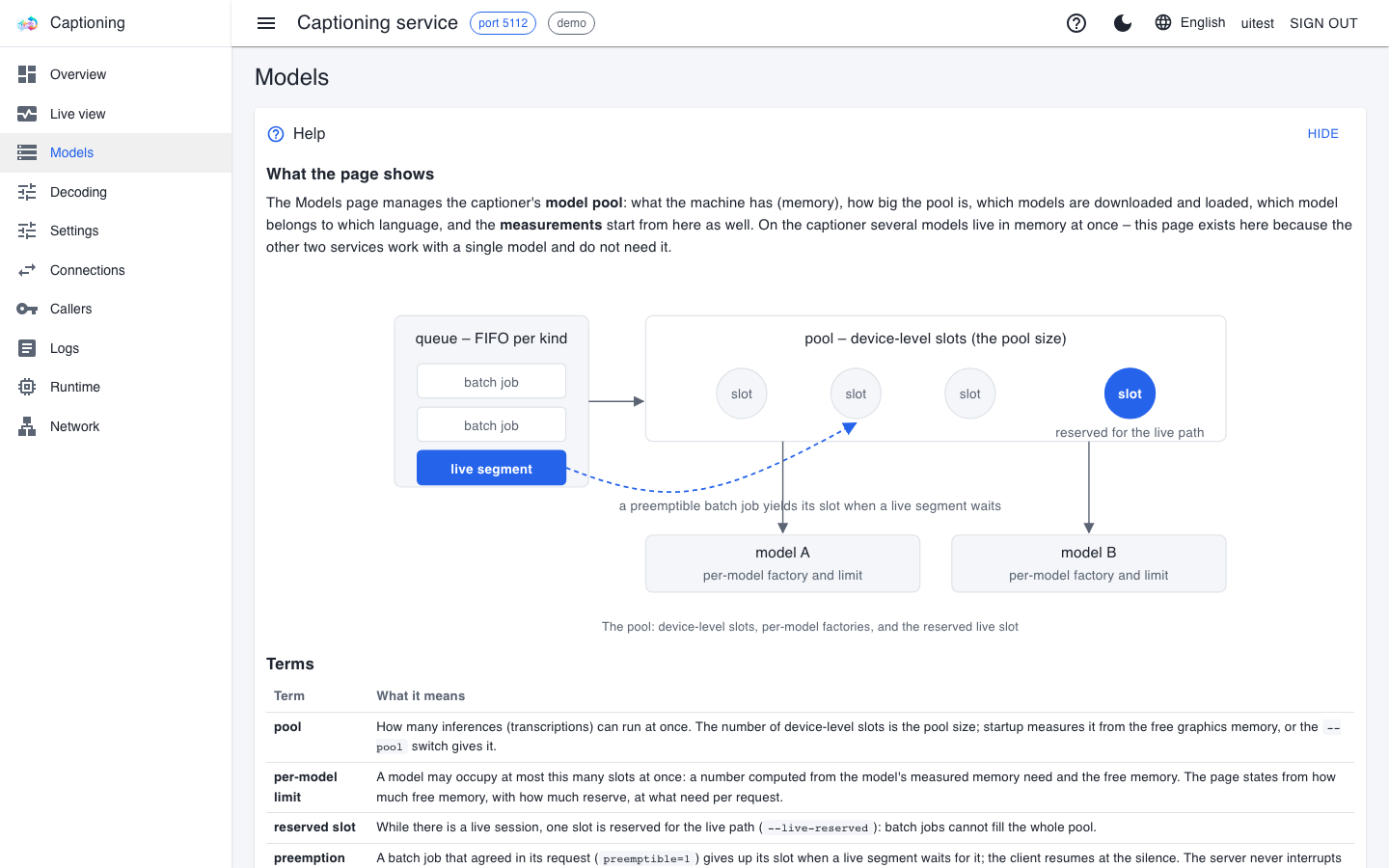
Whether help is open is remembered page by page in this browser: what you opened on a page stays open after switching pages, reloading and changing the language – but only on that page, not on the others.
Language
The interface speaks Hungarian and English. The globe picker in the header (before signing in, on the sign-in page) offers three choices:
- Automatic – the language currently in effect is shown in brackets, for example "Automatic (EN)". In this case the language requested by the browser decides, unless the
LCP_LANGUAGEenvironment variable is set on the service's machine: then that one does. - Magyar or English – your own choice is stronger than both.
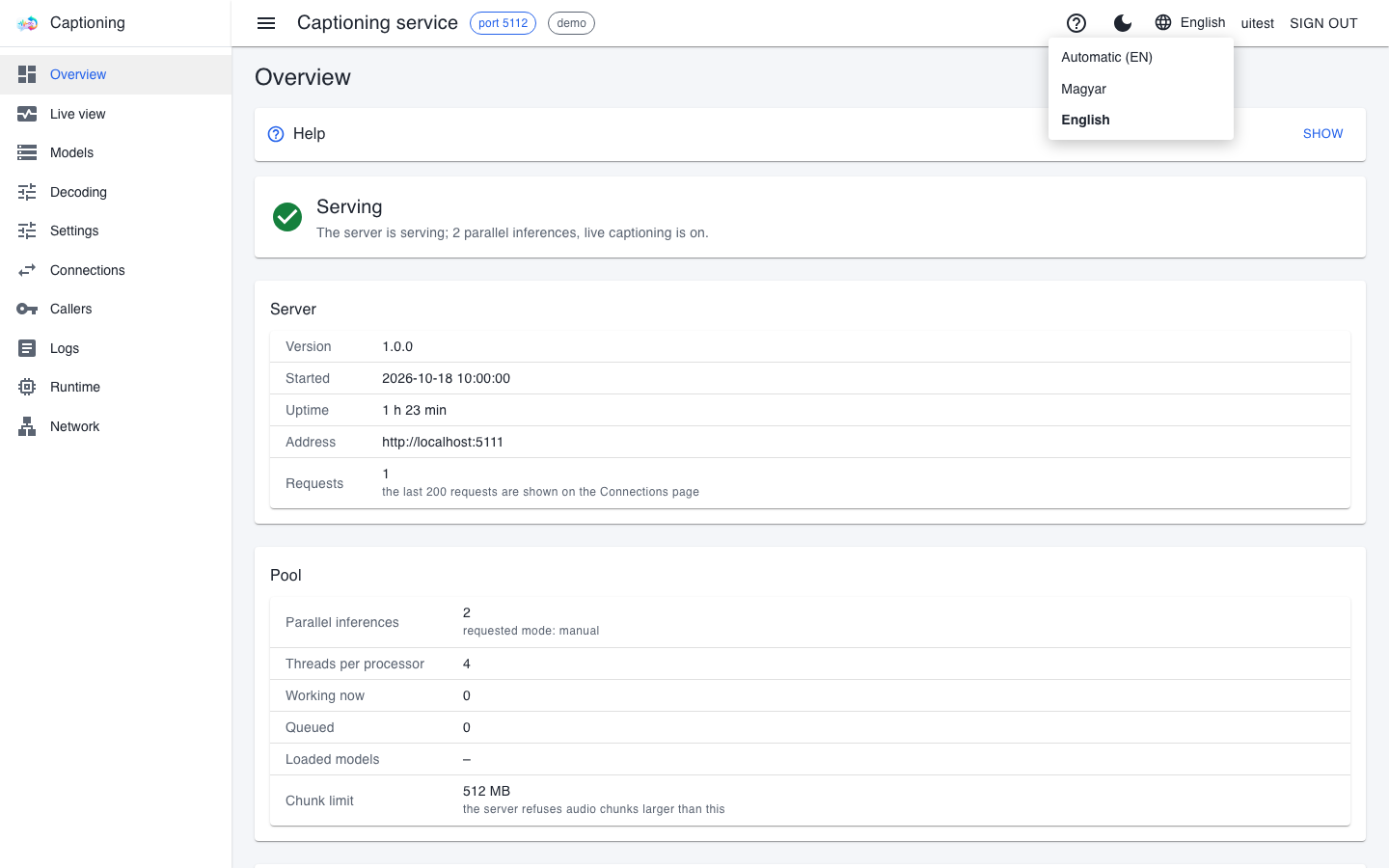
Changing the language reloads the page. The browser remembers the choice for a year, separately for each service – so the four interfaces can have different languages. Numbers and dates follow the language (2,5 GB in Hungarian, 2.5 GB in English).
Theme
The moon-shaped button in the header switches to dark mode, the sun-shaped one back to light. Light mode is the default. The interface does not remember the choice: after reloading the page it is light again.
Warning bars
At the top of the page, above the content, one of two yellow or red bars may appear:
- unencrypted interface reachable from the network – the interface can be reached from other machines, but the connection is not encrypted, so the password also travels in readable form. Behind a reverse proxy that provides encryption this is the right setting; otherwise it is worth switching encryption on (see the Network page in the Common pages chapter).
- the service is not responding – the interface is alive, but the service behind it does not answer; the bar tells you why. Look at the service's window or the Logs page.
Where next
- Common pages – the Overview, Settings, Connections, Logs, Runtime and Network pages
- Account service – managing users, roles and keys