
Remote GPU server, several workstations
The services on one machine with a graphics card, LiveCaption on several workstations: addresses, firewall, encryption, the account address and keys.
The usual layout: one powerful machine with a graphics card provides the services, and the workstations only run the LiveCaption app – they do not even need a graphics card. The latency of a wired local network hardly matters: a few milliseconds. This chapter describes what to set up on the server machine and what on the workstations.
The layout
| Part | Where it runs | What to open towards the network |
|---|---|---|
| account service | on the server machine (or a separate machine) | its service port only towards the other services' machines, if they run elsewhere |
| translator | on the server machine | the service port (8080) towards the workstations |
| voice service | on the server machine | the service port (8090) towards the workstations |
| caption service | on the server machine | the service port (5111) towards the workstations |
| LiveCaption | on every workstation | nothing |
A workstation only calls the three engine services; it never talks to the account service. The account service is reached by the other services: every half minute they download the authorization snapshot from it, and they forward web sign-ins to it as well. The simplest setup is to run the account service and its database on the server machine too.
On the server machine, the daily launcher brings up the four services in the right order; if one of them runs on another machine, the -NoAccount, -NoTranslator, -NoVoice or -NoCaption switch skips it. On an unattended server it is worth running the services as system services (see Running as a service).
The server machine: the Network page
On every service's web interface, the Network page shows where the service can be reached, whether the firewall lets it through, and whether the connection is encrypted. The Addresses box has three rows:
- Service: the service port, where the clients call. By default it listens on all network interfaces; the
--host localhostswitch narrows it to this machine, and an IP address to that one address. - Control and interface: the web interface port. By default it is reachable only from this machine; the
--admin-hostswitch opens it to the network (*for all interfaces, or one of the machine's IP addresses). A sign-in is required there too. - Local trust: when on, the interface can be read from this machine without signing in; sensitive actions still ask for a sign-in.
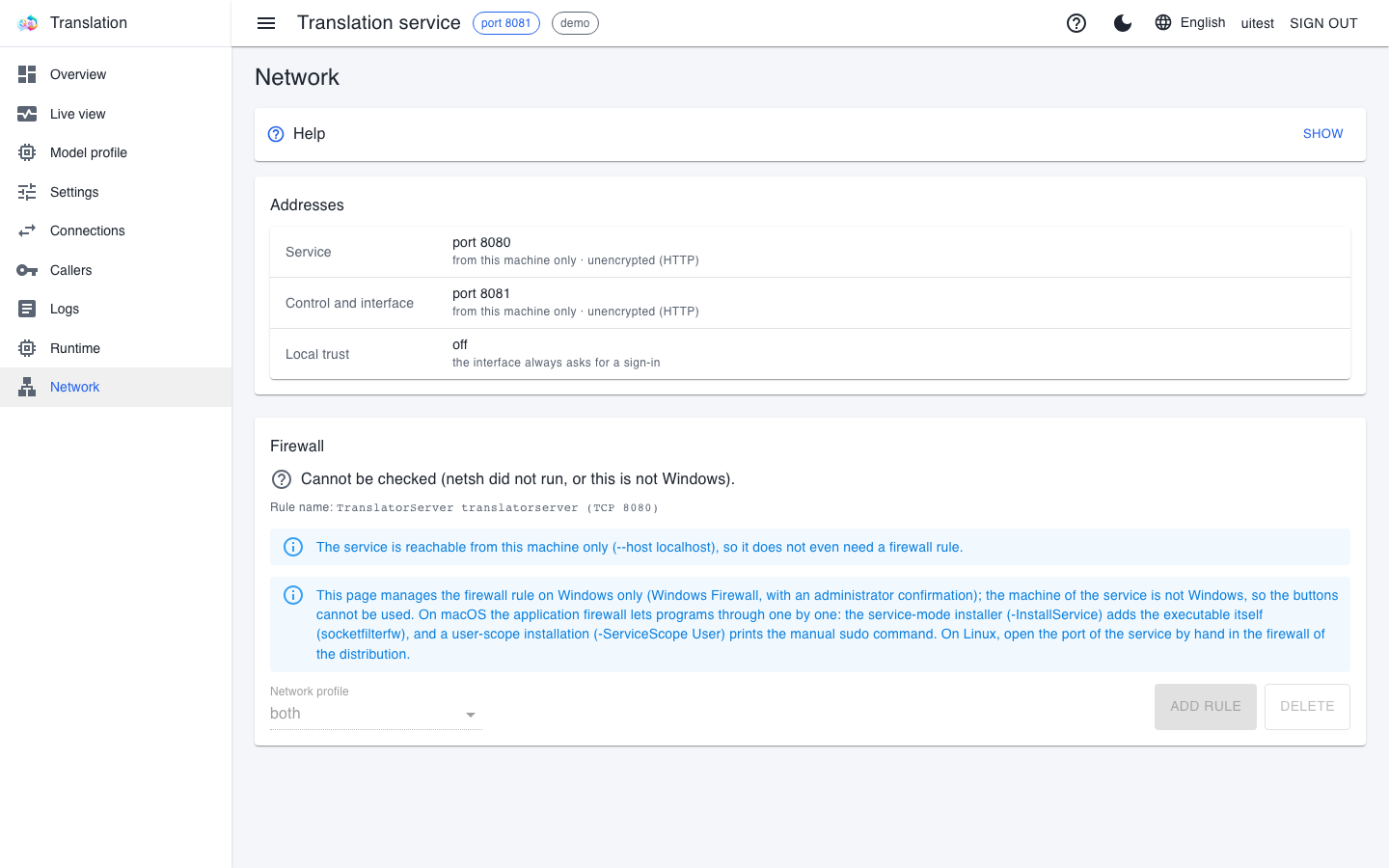
In the pictures the services listen locally only ("from this machine only") – workstations cannot reach them like this. In a remote layout, the Service row must show network access. The service's Settings page shows where the value comes from and how to change it.
Firewall
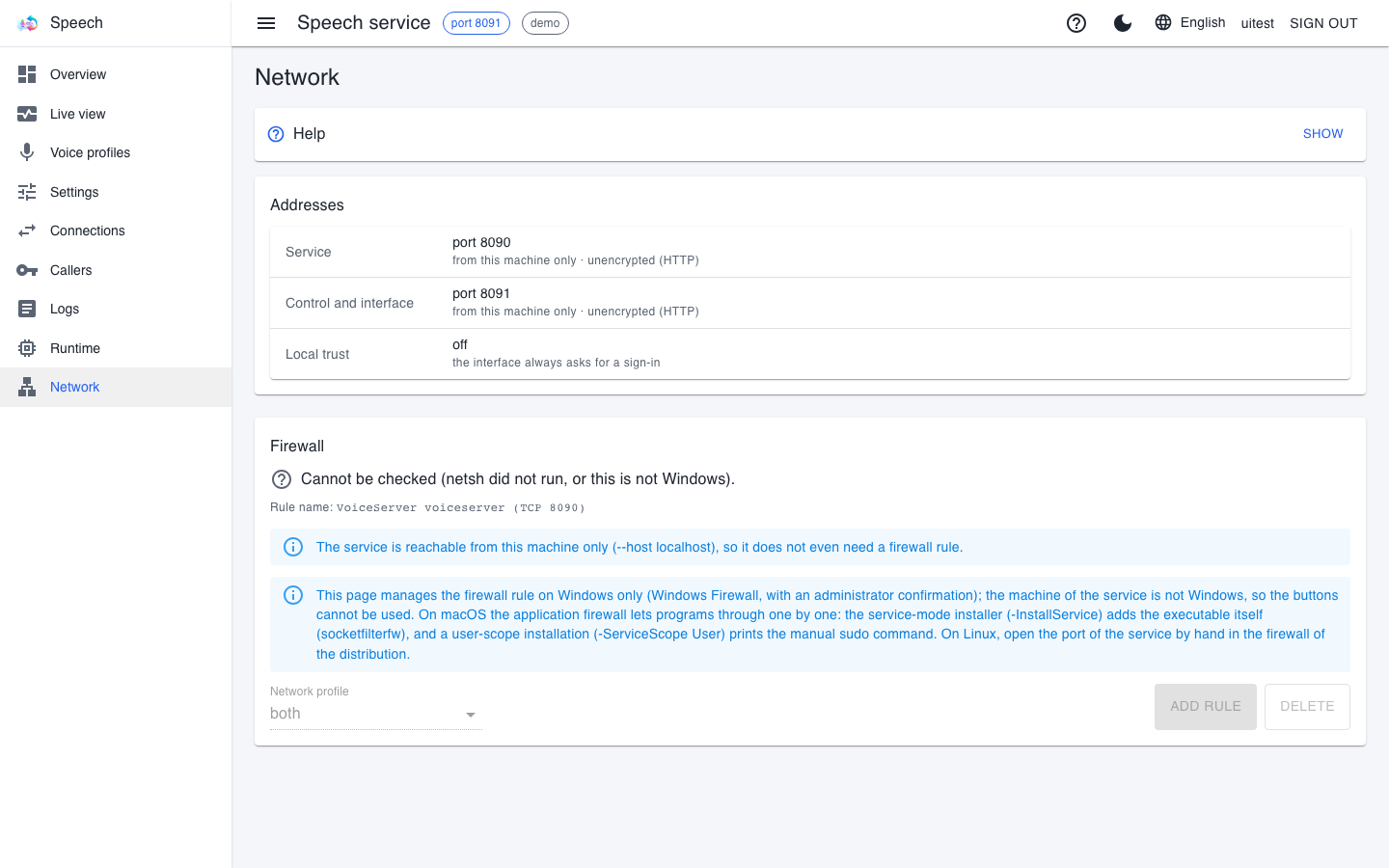
On Windows, the firewall drops incoming connections by default, and the workstation only sees "no response". The Firewall box on the Network page shows whether there is a rule for the service port; Add rule adds one and Delete removes it, while Network profile chooses which network type it applies to (domain, private, both). Adding and deleting ask for administrator confirmation (UAC), which appears on the service's machine – even if the button was pressed from another machine; until someone accepts it there, the action does not complete.
- At start-up the caption service adds the rule on its own, without asking, for private and domain networks (never for public ones). If Windows classifies the network as Public, this rule does not apply to it: mark the network as private.
- If the service only listens locally, no rule is needed, and the page says so.
On macOS, the Firewall box cannot check anything ("Cannot be checked"), its buttons and the profile selector are disabled, and an information bar tells the way: the macOS application firewall lets programs through, not ports. If the firewall is on, the program has to be allowed (System Settings → Network → Firewall); when installed as a service starting with the machine, the installer does this, and a user-scope installation prints the manual sudo command. Since macOS 15, a program also needs the Local Network privacy permission to reach other machines on the network.
Encryption
On an unencrypted network, the audio, the transcript and the key all travel in readable form. With the -Tls self-signed switch the service creates its own self-signed certificate and prints its fingerprint (the certificate's unique identifier) at start-up:
.\CaptionServer\start-captionserver.ps1 -Tls self-signed
The translator's and the voice service's launchers know the same switch, and the web interface (--admin-tls) can be encrypted too. On the workstation, the address on LiveCaption's Servers page starts with https://; the Certificate button that appears on the first connection shows the fingerprint – compare it with what the service's machine printed, or what the Network page shows, and only then accept it. From then on, LiveCaption accepts only that one certificate for that address.
If the web interface is unencrypted and reachable from the network, every page shows a warning bar: the sign-in password travels in readable form. Behind a reverse proxy (a server in front that does the encryption) this can be the right setting.
The account service's address
The three engine services know a single account service address: the one in the LCP_ACCOUNT_URL environment variable. It is mandatory: without it the services do not even start. On every machine that runs a service, it must point to the same account service. The AccountServer\setup-account-peers tool sets it: first the peer tokens with the -Tokens switch, then the address with -Activate; -Check verifies that the account service accepts them. After setting it, restart the open windows, because the variable does not reach processes that are already running.
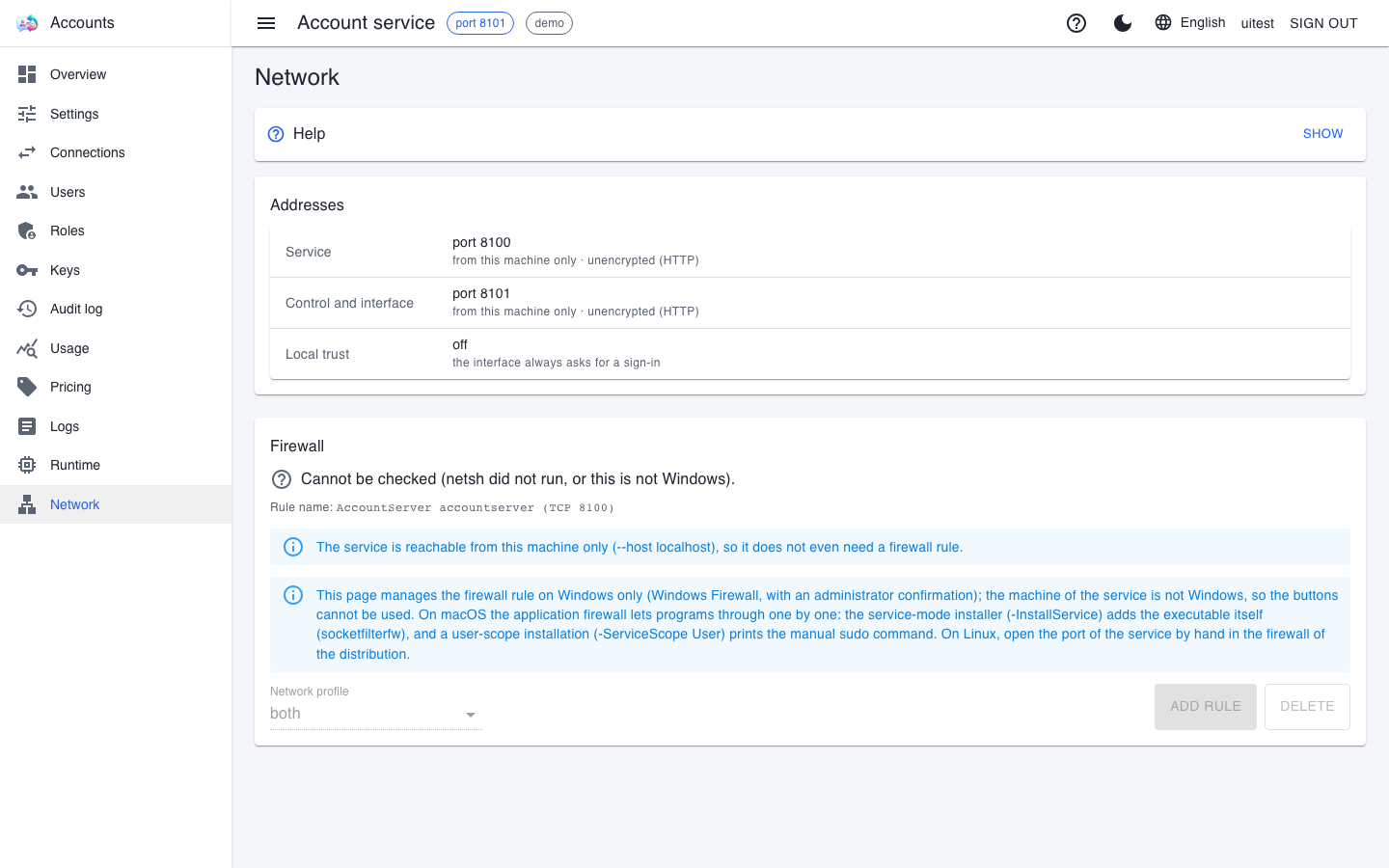
If the other services run on the same machine, it is enough for the account service to listen locally (as in the picture). If they run on another machine, port 8100 has to be opened to the network, and since the sign-in password also travels on this port, an encrypted connection or a reverse proxy is recommended. The account service's web interface is also local-only by default.
Checking on the account service's Connections page
The account service's Connections page shows whether the other services really reach it: each row has the request path, the response code and the name of the calling service.
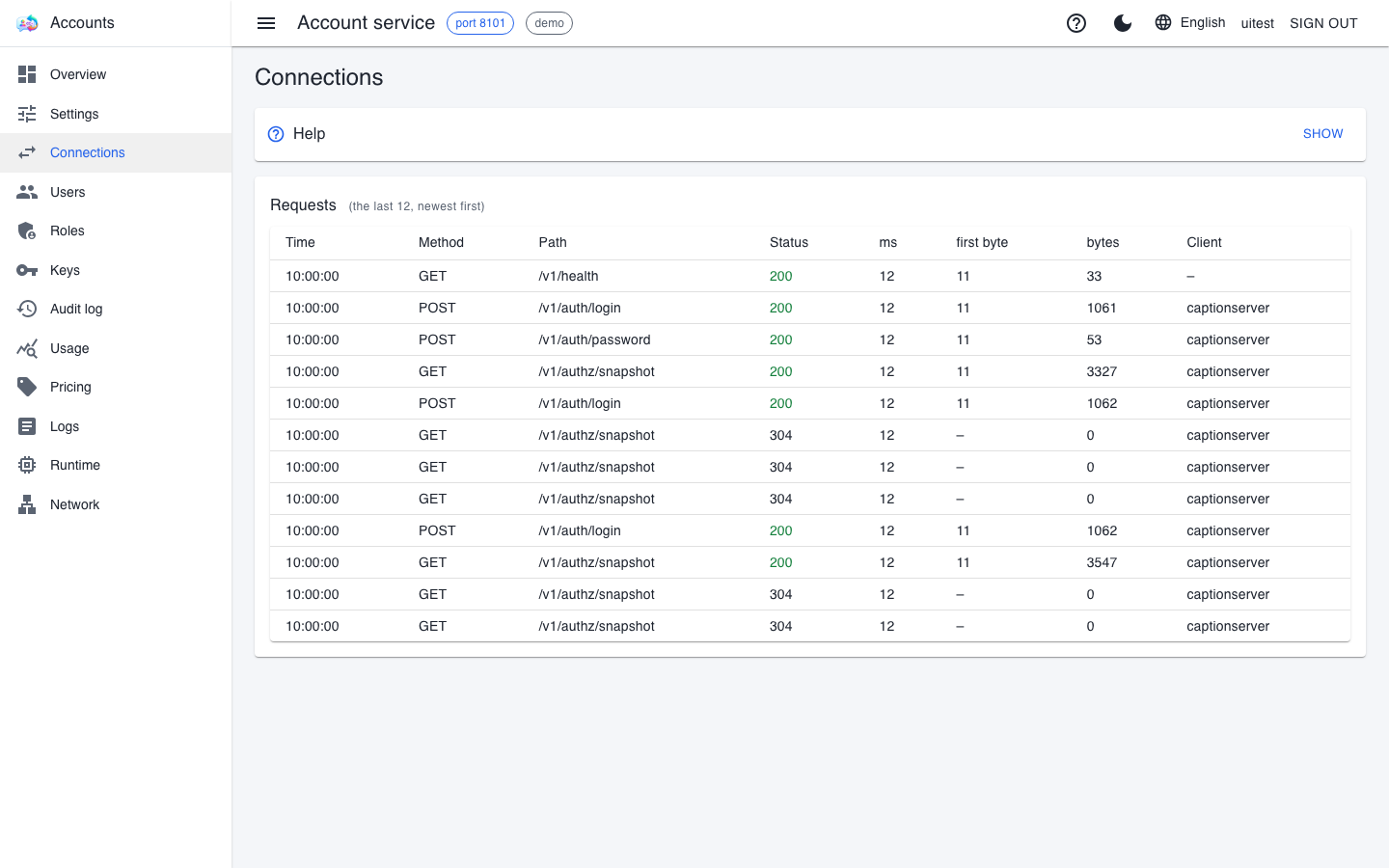
- The
/v1/authz/snapshotrequests are the snapshot downloads, every half minute, per service. A304response means the snapshot has not changed – this is the normal state. - The
/v1/auth/loginrequests are web sign-ins: a service's interface forwards the password to the account service. - If a service's name does not appear within a minute, it cannot reach the account service: check its address (
LCP_ACCOUNT_URL), the firewall and its peer token.
The workstations
No service runs on a workstation, so the daily launcher is not needed there either: start LiveCaption as usual.
- Open the Servers page of LiveCaption's settings window.
- For each of the three services, enter the server machine's address and port (for example
http://192.168.1.20:5111, orhttps://when encrypted). - Enter the workstation's own API key for each of the three services. The key is stored bound to the machine and the user, so every workstation gets its own – the simplest way is the
generate-user-keytool run on the account service's machine (see Keys and permissions for clients). - Press the check button next to the address: the field's border turns green when both the connection and the key are fine.
The web admin button on the Servers page only works when the service runs on the same machine; a remote service's interface can be opened in a browser at the server machine's address – if the interface is open to the network.
Checking from a workstation
The command-line check walks the whole chain without transcribing anything, and tells you at which step it got stuck (name resolution, TCP port, server, model selection):
captionclient --check --server http://192.168.1.20:5111
livecaption --check
The exit code of captionclient is 0 when all is well, 3 when FFmpeg is missing, and 6 when the server cannot be reached. livecaption --check checks all three services at the addresses in the settings. A detailed walkthrough written for Windows is in the One GPU machine on the network guide.