
The translator
The translator's pages: the engine buttons on Overview, the model profile and the seven steps of the wizard, Live view, Settings and Runtime.
The translator (translatorserver) translates sentence by sentence, with a translation model running on the machine (TranslateGemma). It has two parts: the front end, which accepts the requests and provides the web interface, and the engine (llama-server), which runs the model. On the machine the interface is at http://127.0.0.1:8081/admin by default; the header says "Translation service".
Its most important page of its own is Model profile: this is where you put together which model runs, with how large a window and how many parallel requests, so that it is guaranteed to fit on the graphics card. Without a profile the engine does not start – after the first start, this is the first thing to do.
A few terms for this chapter:
| Term | What it means |
|---|---|
| profile | Every setting of the model in one bundle: the model's size and variant, the KV cache, the slot mode and count, the window and the headroom. |
| slot | The place of one translation request in the engine: as many slots, as many requests can work at once. |
| window | How many tokens (word pieces) fit into one translation request, input and output together. |
| KV cache | Where the engine keeps the state of the tokens already processed; the smaller its type, the less video memory it needs. |
| headroom | The video memory that does not belong to the translator: the share of the display, the caption service and the voice service. |
| budget | The card's full memory minus the headroom: what the translator has to work with. |
Overview
The Overview works as described in the common pages; on the translator it shows two boxes: Front end (version, start time, uptime, the Translation API address, the number of requests) and Engine (whether it is supervised, its port, the running profile, the model, the KV cache and the slots).
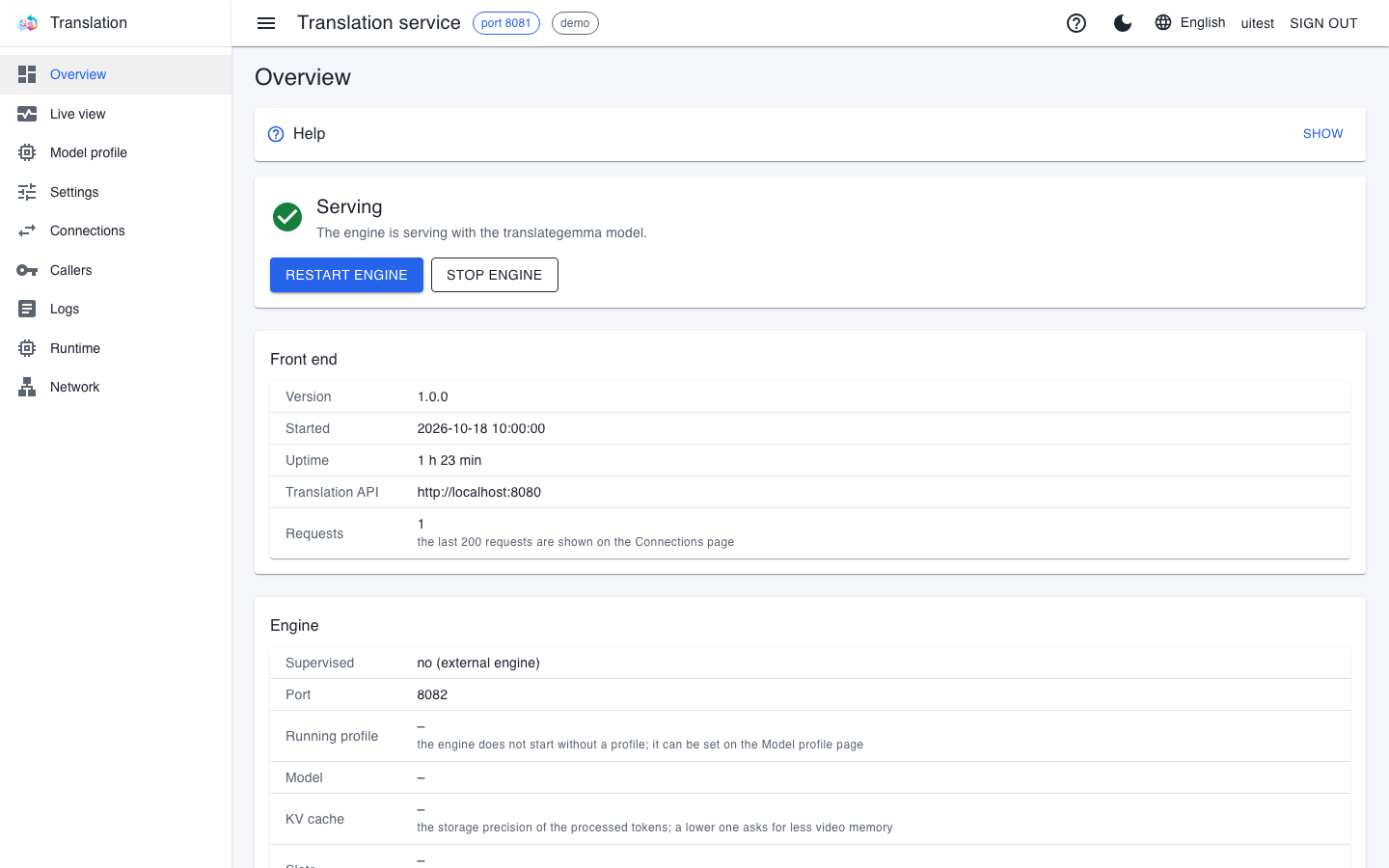
- Restart engine restarts the engine with the current profile. Do not use it to switch profiles – use the Model profile page (below).
- Stop engine stops the engine for good, for example when the graphics card is needed for something else; translation answers "not available" until then.
- If the Running profile row shows "–", with a note that the engine does not start without a profile, go to the Model profile page.
- If the Supervised row says "no (external engine)", the engine was not started by the translator; the buttons and profile switching have no effect on it.
The model profile
At the top of the Model profile page is The machine's resources (the graphics card, the memory and the translator's budget), below it the Saved profiles, and at the bottom the Building a profile wizard.
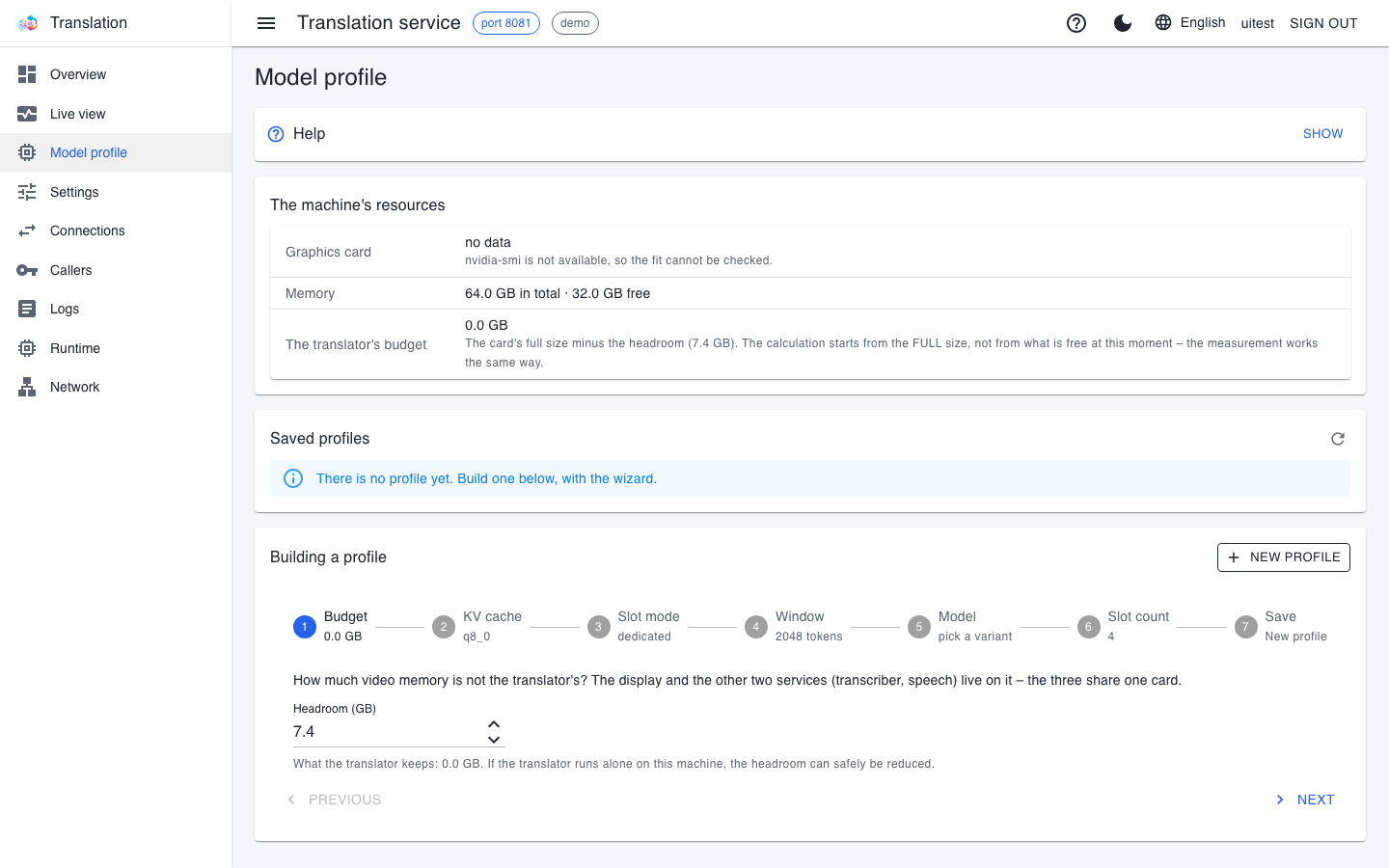
A profile rules out the failure where the model and the settings together do not fit on the graphics card: the engine would then put part of the model into system memory, and translation would quietly become many times slower. That is why every profile shows its fit:
| Value | What it means |
|---|---|
| measured | The profile's needs were measured on this machine, and it fits. |
| estimated | The needs were calculated from the model's size; it fits, but no measurement has confirmed it yet. |
| unknown | Data is missing: there is no data about the graphics card, or the variant has not been downloaded yet. This is not the same as "does not fit". |
| does not fit | The budget is smaller than the need. With such a profile the engine does not start, but the translator keeps running so that you can fix it on this page. |
The verdict is always made on today's machine: a profile saved on another workstation automatically gets the right answer here.
If the Graphics card row says "no data" (the page then explains that nvidia-smi is not available – for example on a machine without an NVIDIA card, or on a Mac), the page cannot check the fit, and the translator's budget may show 0 GB. In that case choose the variant and the number of slots cautiously, measured against the machine's memory.
The seven steps of the wizard
The Building a profile wizard walks you through step by step. The header of every step shows the current choice, and you can go back to any step with the Previous button or by clicking the step in the header. Start a new profile with the New profile button; you can load a saved profile into the wizard to change it.
1. Budget
Here you enter the Headroom (GB): how much video memory does not belong to the translator. The display and the other two services (the caption service and the voice service) live on it when they share one card. Under the box the page shows how much is left for the translator.
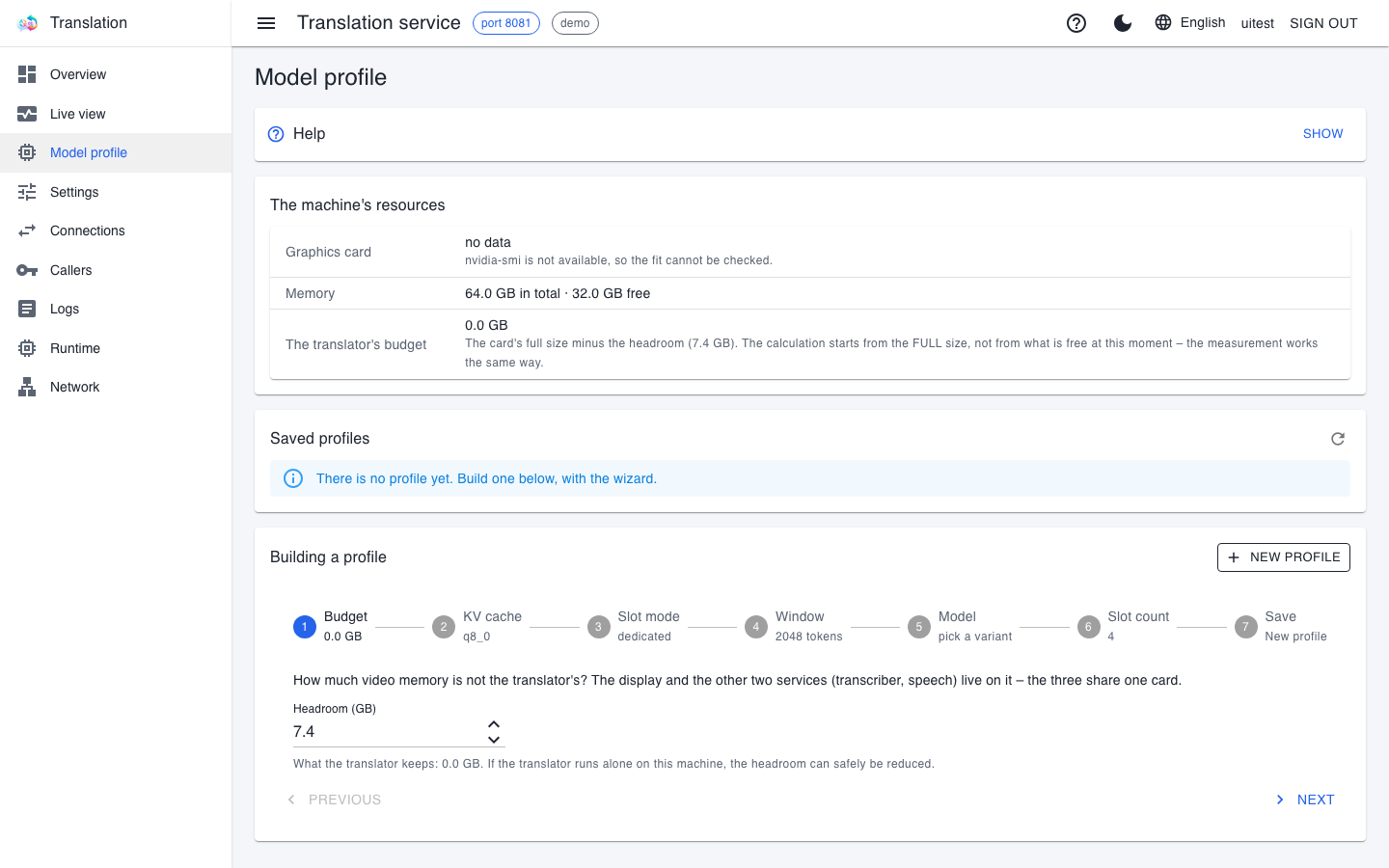
If the translator runs alone on the machine, the headroom can safely be reduced. If all three services are on one card, leave enough room for the caption service as well.
2. KV cache
Here you choose how precisely the engine keeps the processed tokens. A smaller type allows a larger window or more slots from the same memory.
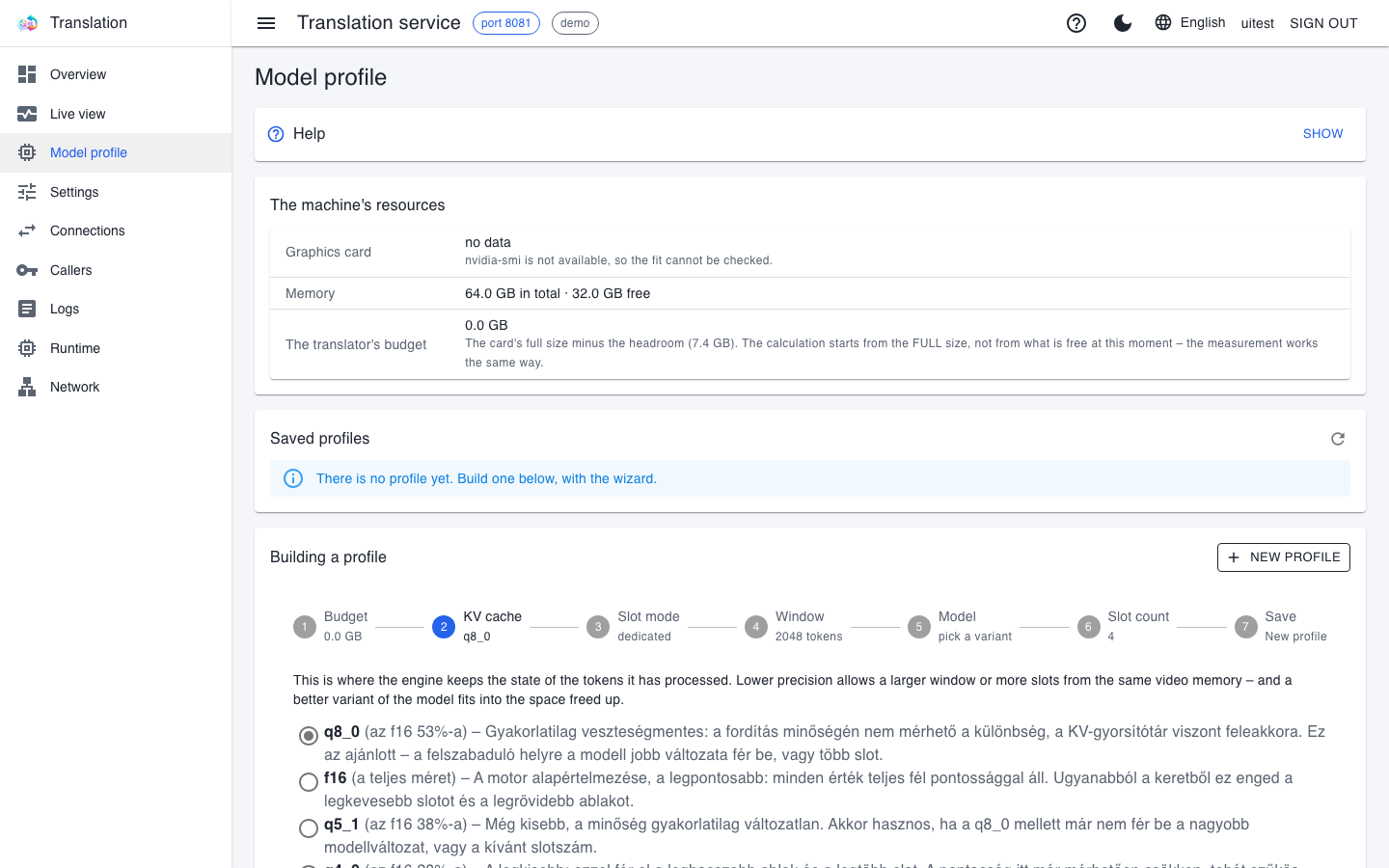
- q8_0 (recommended): no measurable difference in translation quality, at roughly half the memory.
- f16: the most precise, but needs the most memory.
- q5_1 and q4_0: smaller still; useful when the wanted model or slot count no longer fits with q8_0. With q4_0 precision drops measurably.
3. Slot mode
This decides how the slots divide up the KV cache.
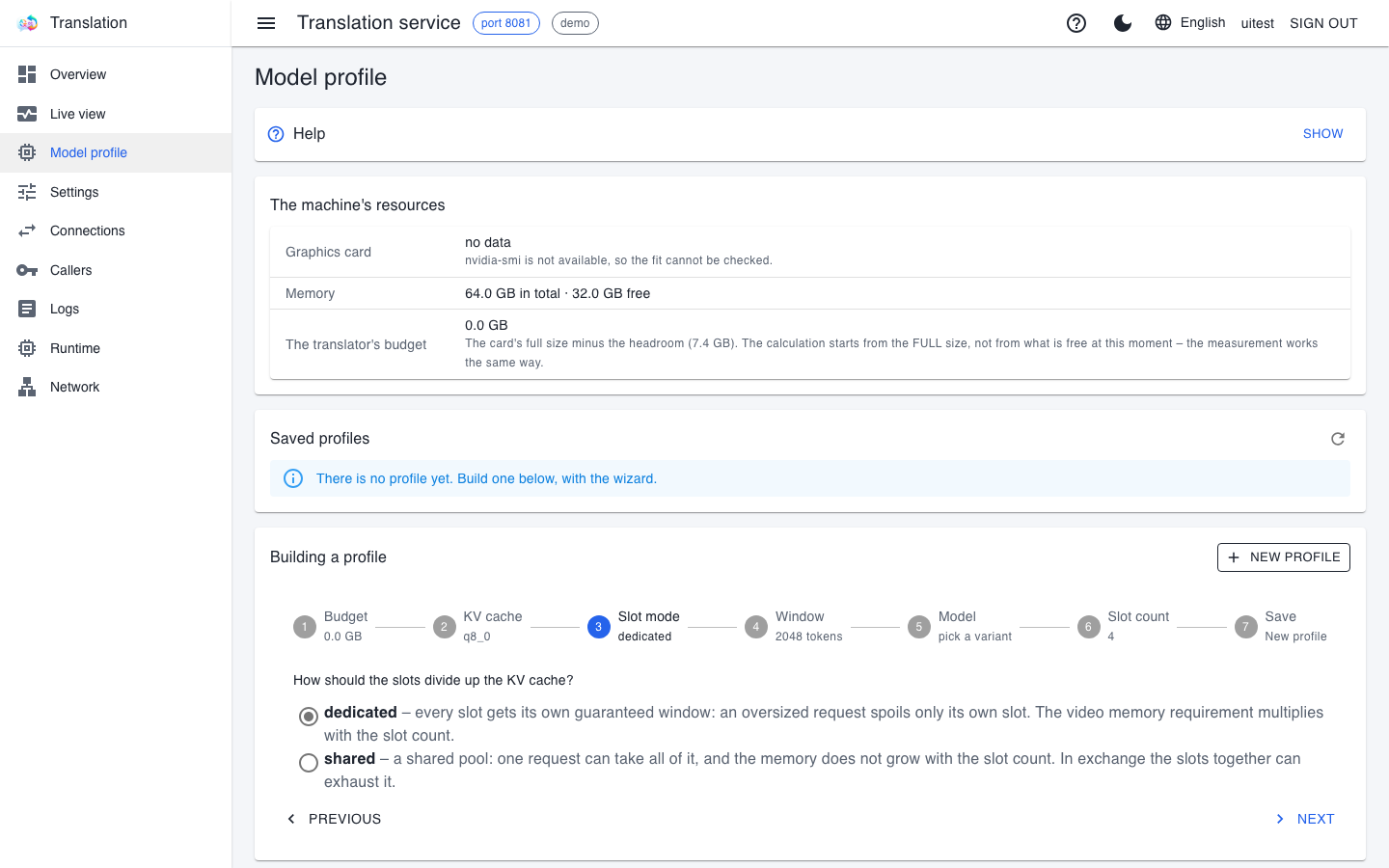
- dedicated: every slot gets its own guaranteed window; a request that is too large only spoils its own slot. The memory need multiplies with the number of slots. This is the safe choice with several users at once.
- shared: the slots draw on one common pool; one request can get all of it, and the memory does not grow with the slot count – in exchange, the slots together can exhaust it.
4. Window
Here you set how large a window one slot gets (between 512 and 8192 tokens).
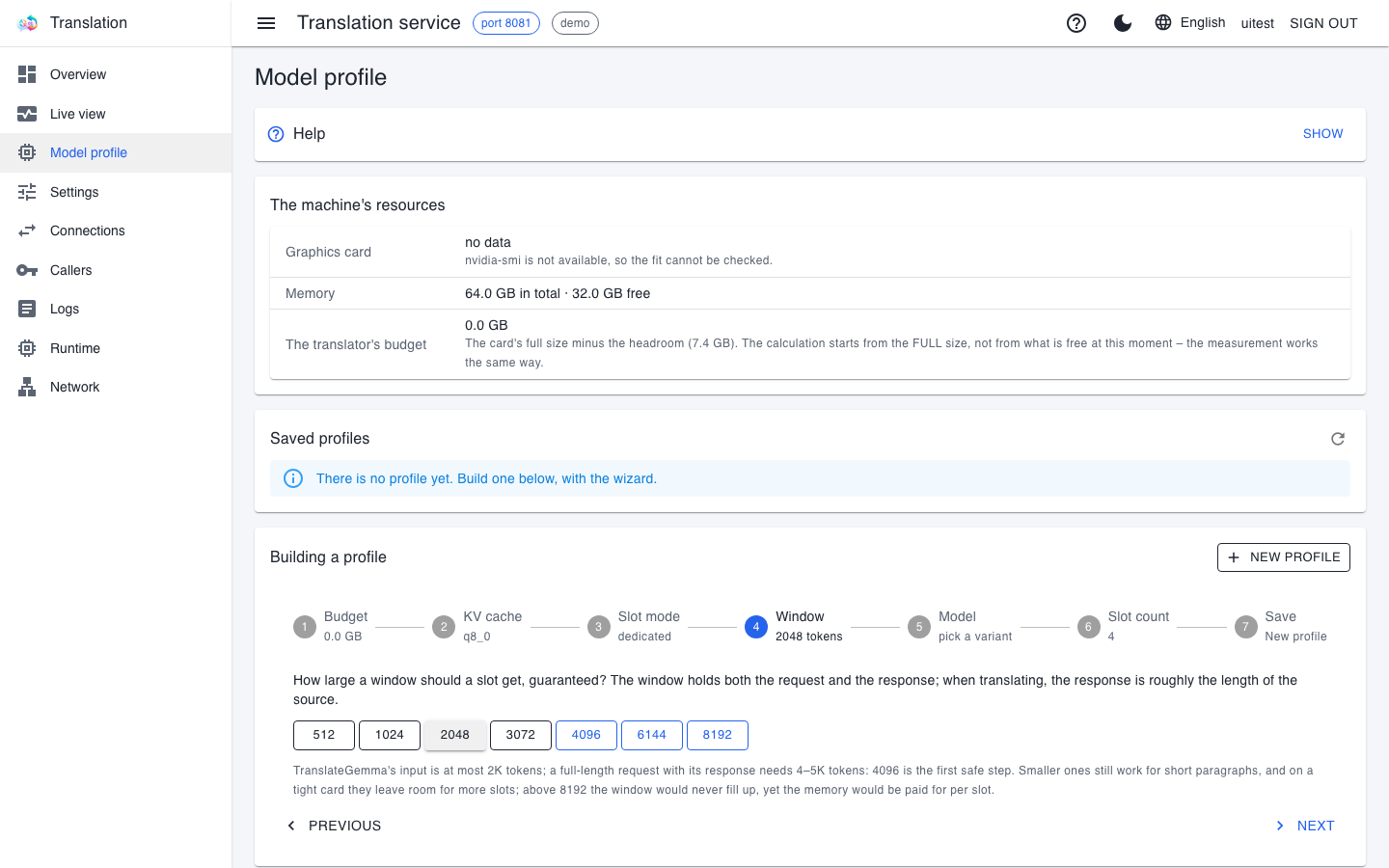
LiveCaption translates sentence by sentence, so a short window is enough; for longer paragraphs or translating documents, 4096 is the first safe step. Above 8192 the window would practically never fill up, but you would pay for the memory in every slot.
5. Model
Here you choose the model's size and variant (quantization). A larger model translates better but needs more room.
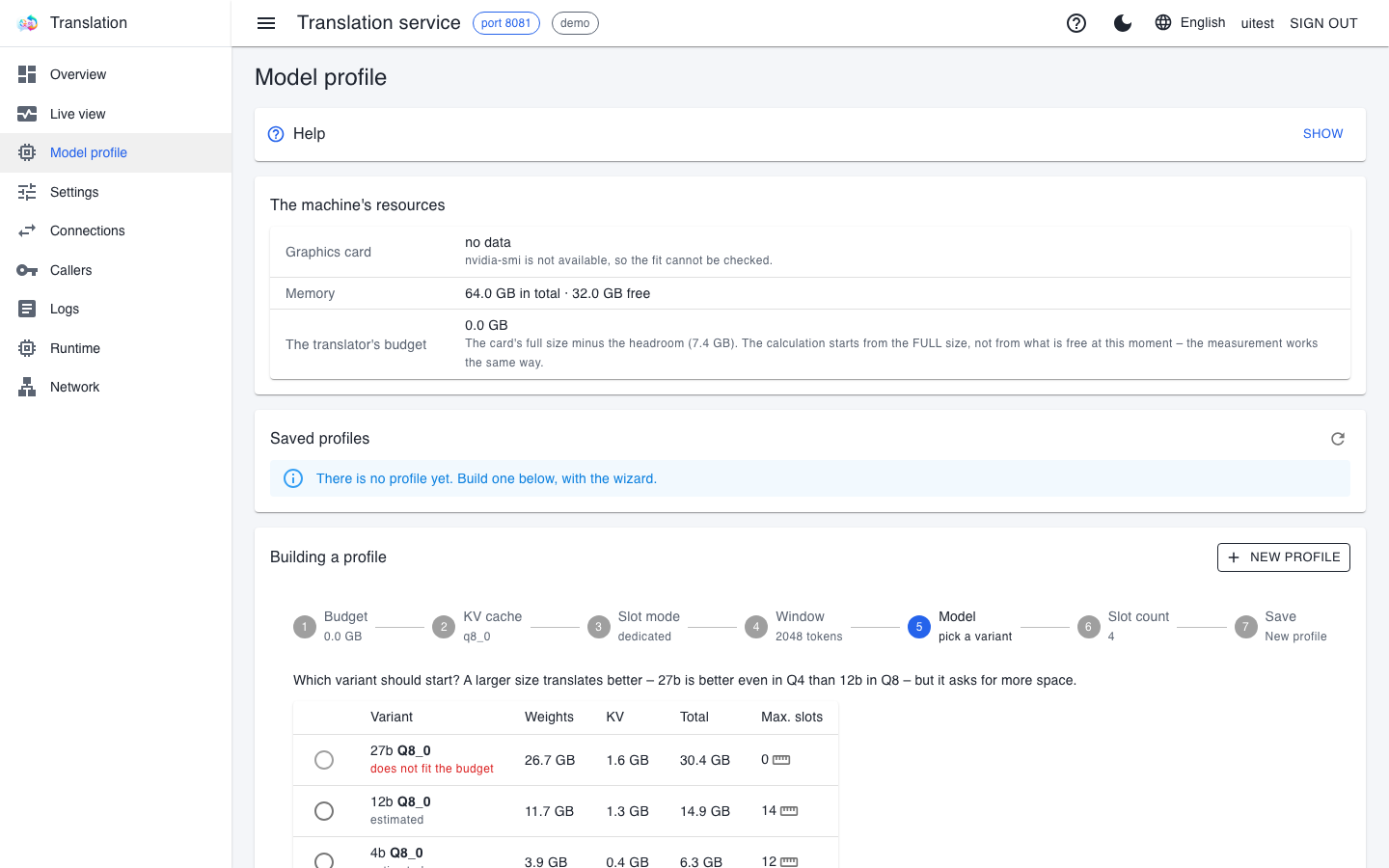
For each row the table shows the memory needed by the weights and by the KV cache, the total, and at most how many slots fit next to it (Max. slots). Do not pick a variant marked "does not fit the budget". Variants not yet downloaded are in the Variants available to download list; the download can be started from there, and its exact progress is shown on the page.
6. Slot count
Here you set how many requests the engine serves at once.
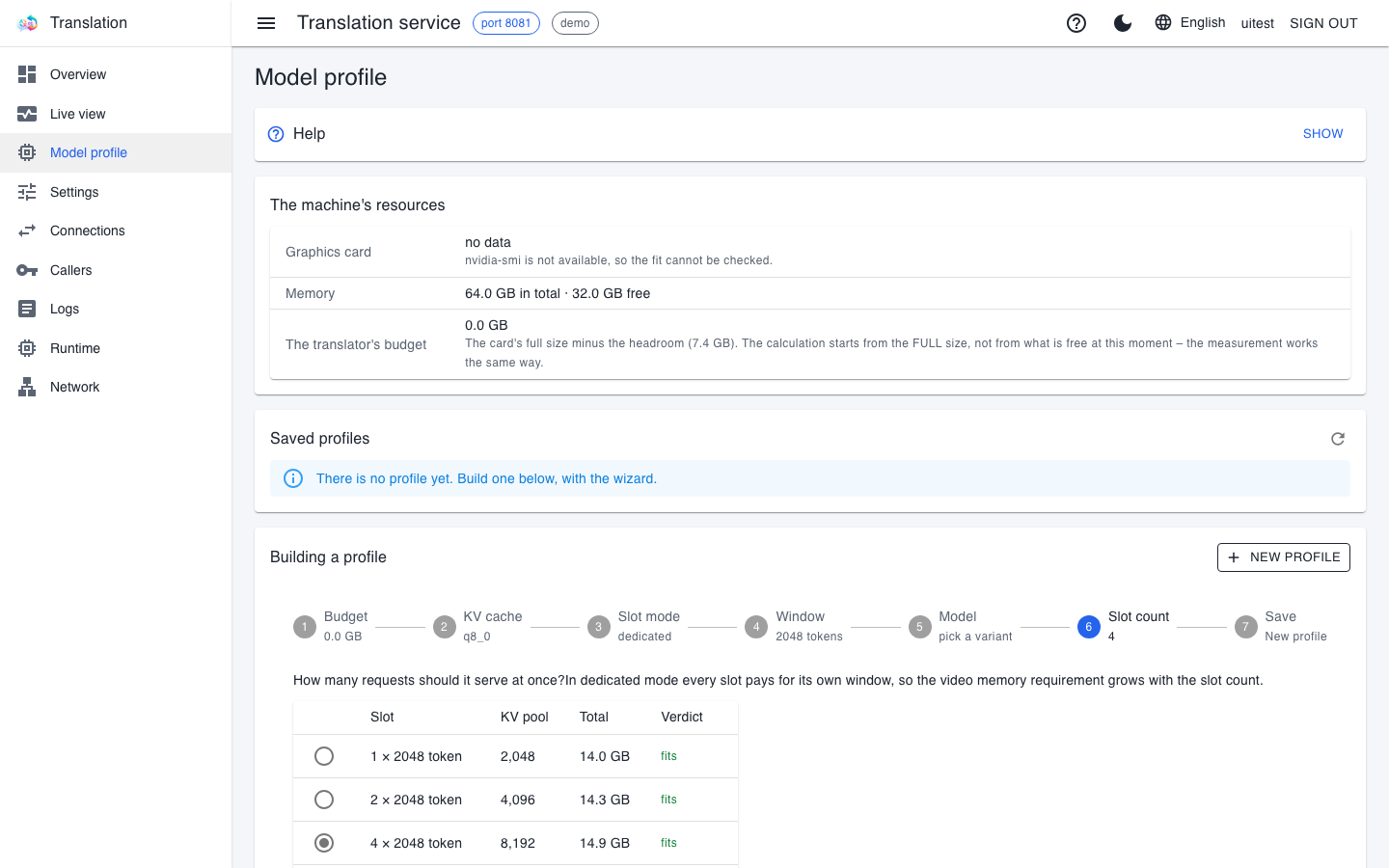
For every row the slot ladder shows the size of the KV pool, the total need and the verdict (fits, tight, does not fit). A few slots are enough for one LiveCaption workstation; if several workstations or file translation use the translator too, choose more, as long as the verdict says "fits".
7. Save
In the last step you name the profile (Profile name, and if you like, a Note); on the right is the summary: the variant, the KV cache, the slots, the headroom and the need out of the budget.
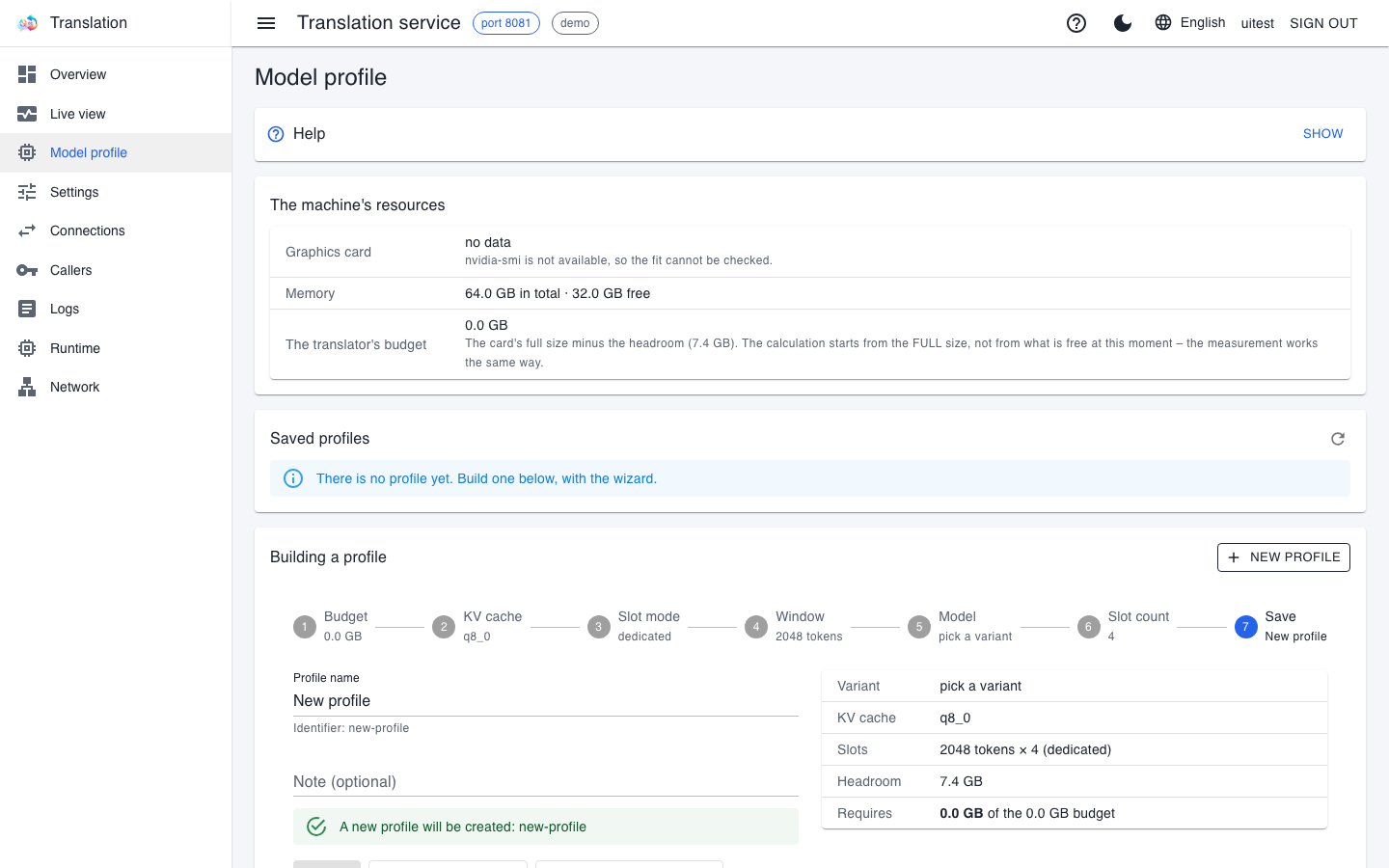
You can choose from three buttons:
- Save: the profile is saved but does not become active – except the very first profile, which becomes active automatically.
- Save and select: the profile starts at the next start.
- Save and start now: the engine stops and comes up again right away with the new profile. Running translations are cut off, and while it loads (this can take minutes) translation answers "not available".
Managing the saved profiles
In the Saved profiles list every profile shows its fit and whether it is active. With the row's buttons:
- Select for the next start: this profile starts next time; the running engine does not change until then.
- Load now (the engine restarts): switches to this profile immediately; running translations are cut off.
- Measure (the measurement icon): replaces the estimated need with an exact measurement; the measurement runs in the background.
- The profile can be loaded into the wizard for changes, saved as a copy, or deleted.
At the bottom of the page the operations box shows the running operation (measurement, engine switch), its progress and its last lines. If the list did not refresh, the refresh icon at the top right recalculates the list and the fit.
Live view
Live view works the same way as on the caption service (see the Live view section of The caption service chapter). On the translator a dot is one slot of llama-server, and the bubble of a working slot also shows how many tokens it has produced so far. At the top are the running profile and the engine's uptime, and on the Serving time chart the tokens / s value shows the translation speed.
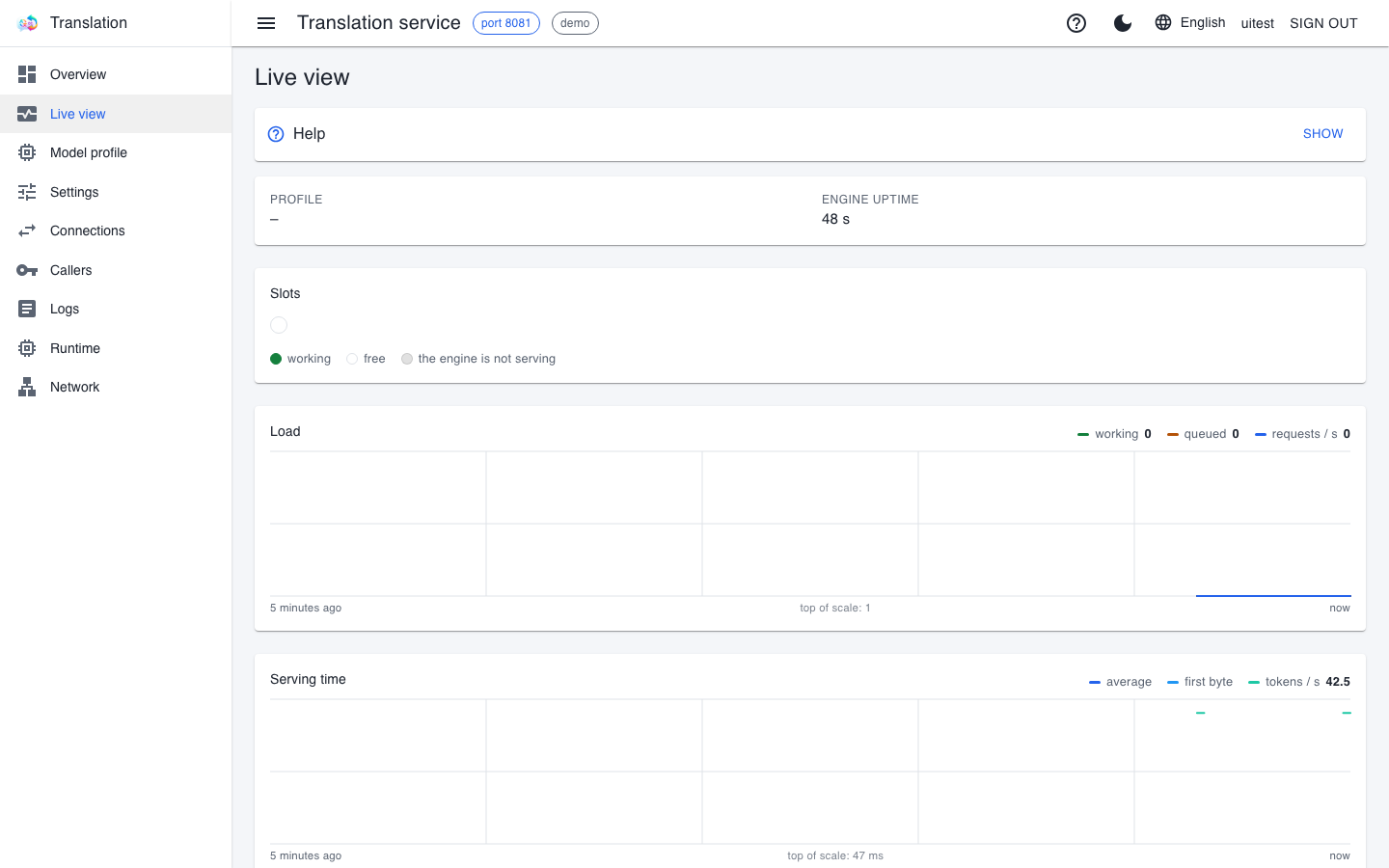
If queued stays above zero for a long time, there are too few slots for the load: build a profile with more slots (if it fits), or with a smaller model.
Settings
The Settings page works as described in the common pages. On the translator the model's settings (size, variant, KV cache, window, headroom) are not set here but only on the Model profile page: that way no combination can be put together that does not fit on the card.
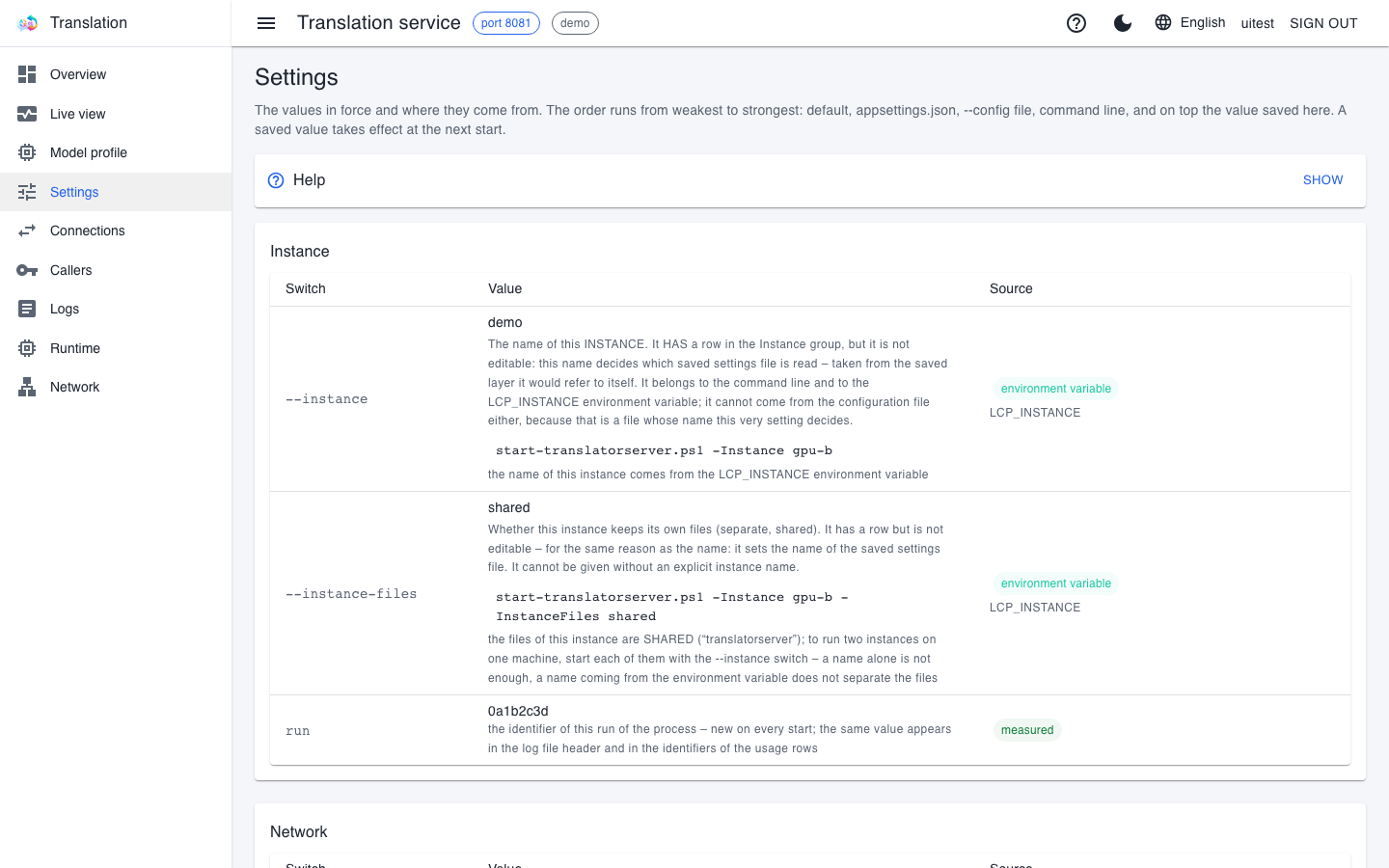
The old command-line switches (--model, --size, --cache-type, --engine-args, --vram-headroom) are gone. If they are still in the config file or start script of an earlier installation, the translator stops with an explanatory error that names the key. Remove the key, start the translator, and build the profile on the Model profile page.
Runtime
The Runtime page works as described in the common pages; on the translator it also shows where the models are (the Hugging Face cache, HF_HUB_CACHE, otherwise HF_HOME/hub), the command line llama-server was last started with, which of its processes are running, and if a model is downloading, the exact progress of the download.
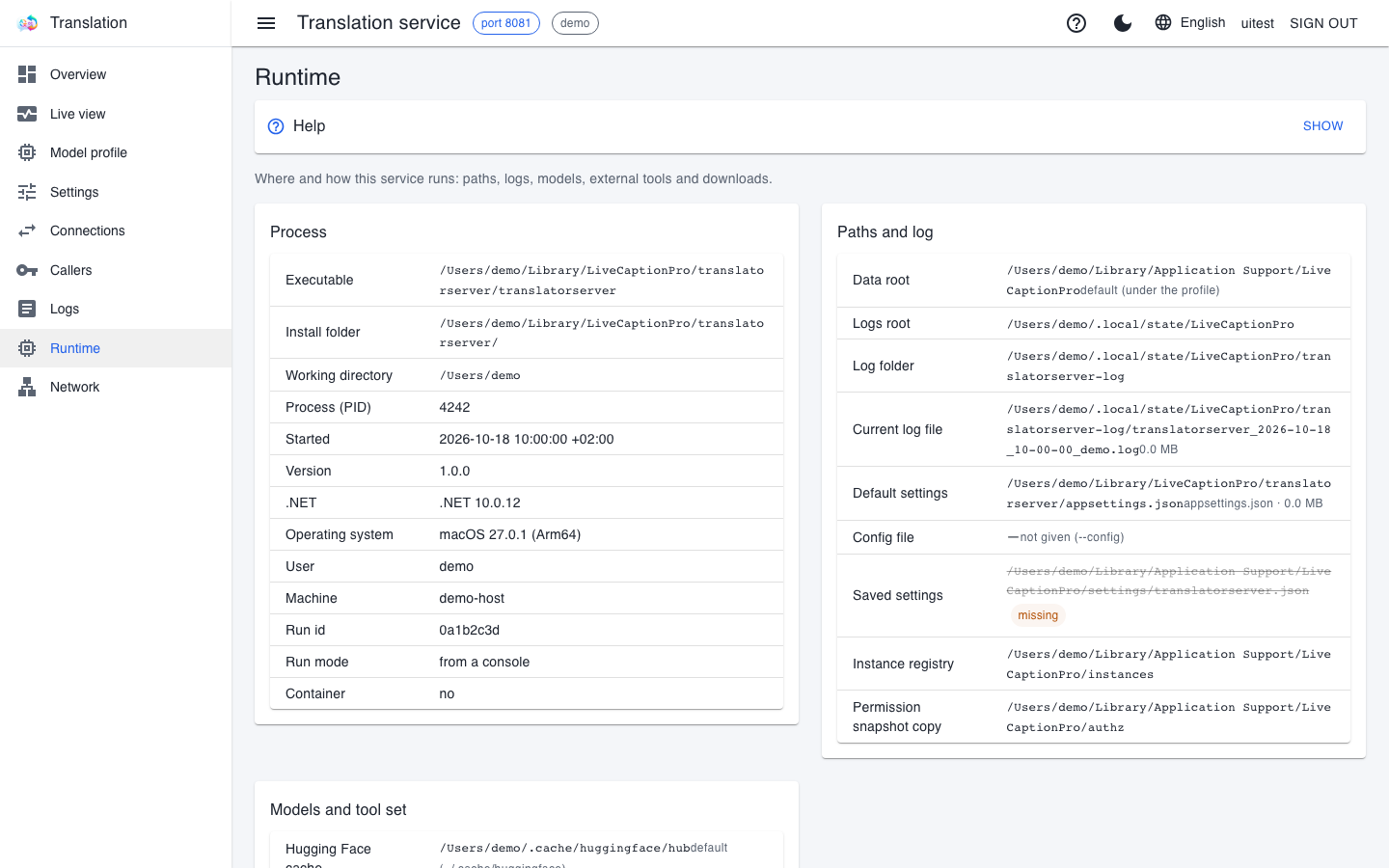
If starting the engine failed, the External tools card shows the last command line and the reason; the details are in the translatorserver-log folder on the Logs page, where the engine's output is in chronological order too.
If translation does not work
- "The engine does not start without a profile": there is no active profile. Build one with the wizard and save it with the Save and start now button.
- The profile "does not fit": increase the budget (less headroom), or choose a smaller variant, a smaller KV cache or fewer slots.
- Translation is slow although the profile fits: check in Live view whether requests are waiting, and whether the caption service started before the translator (it may then have taken the video memory). The right order: account service, translator and voice service, the caption service last.
- LiveCaption gets no translation: on the Connections page, check whether the request arrives and which code the translator answers with.
Setting up translation on the app's side: Translation. More symptoms: Troubleshooting.