
First start: account service, initial identity administrator, script key
The fixed order of the first start: the database, the account service and the initial identity administrator, connecting the services, and the keys.
All four services authenticate, and this cannot be switched off: users, passwords and keys live in the account service, and the other services ask it who may do what. That is why the account service comes first on the first start, and the order is fixed. If you ran the setup tool from the Installation and removal chapter, most of the steps have already happened – this chapter still shows what was done, and what you need to do when signing in.
The terms
| Term | What it means |
|---|---|
| identity administrator | the user whose role can manage users and permissions; the account service creates the first one itself |
| peer token | the service's own key, which it uses to identify itself to the account service; one per service |
| script key | the key of the command-line scripts (captioning, translation), kept in a persistent environment variable |
| account address | the address of the account service (LCP_ACCOUNT_URL); until it is set, the other three services do not even start |
1. The database
The account service keeps its data in a PostgreSQL database. Before the first start this has to be brought up, with the launcher in the AccountServer folder: managed-postgres.cmd on Windows, managed-postgres.command on macOS.
- On Windows the database runs in the machine's Docker, in a container (this needs Docker Desktop).
- On macOS it runs natively, with the Homebrew
postgresql@18package – no Docker needed.
The first run asks whether it may create the database, then writes the connection details and the encryption key for web sign-ins into two persistent environment variables – both are secrets, do not copy them anywhere. At the end it checks that the account service can really connect. Later, the account service's launcher starts the database on its own before starting the service. Connecting an external database is covered in the Maintenance, backup, lockout chapter.
2. The account service's first start
Start the account service in its own, visible window: AccountServer\start-accountserver.cmd (on macOS start-accountserver.command).
The first start creates the initial identity administrator: a user named admin, with a random password. The password appears once, in this window – never in a log. Write it down before you close the window. If the database already has an identity administrator who can sign in, no new one is created; if there is one without a password, that one gets the initial password.
Also worth knowing:
- The window also prints a secret-free description of the database connection (host, port, database, user).
- If you redirect the output to a file, the password ends up in that file too – delete the file once you have read it.
- The service's client-facing (machine API) port listens on every network interface by default, and it says so. If it is only needed on this machine, start it with the
-HostName localhostswitch; if the account address already points to127.0.0.1, the launcher binds to this machine only, on its own. - The web interface (control port 8101) can only be reached from this machine by default.
3. Signing in and the mandatory password change
Open http://127.0.0.1:8101/admin in the browser. On the sign-in page, type admin into Name and the initial password into Password, then click Sign in.
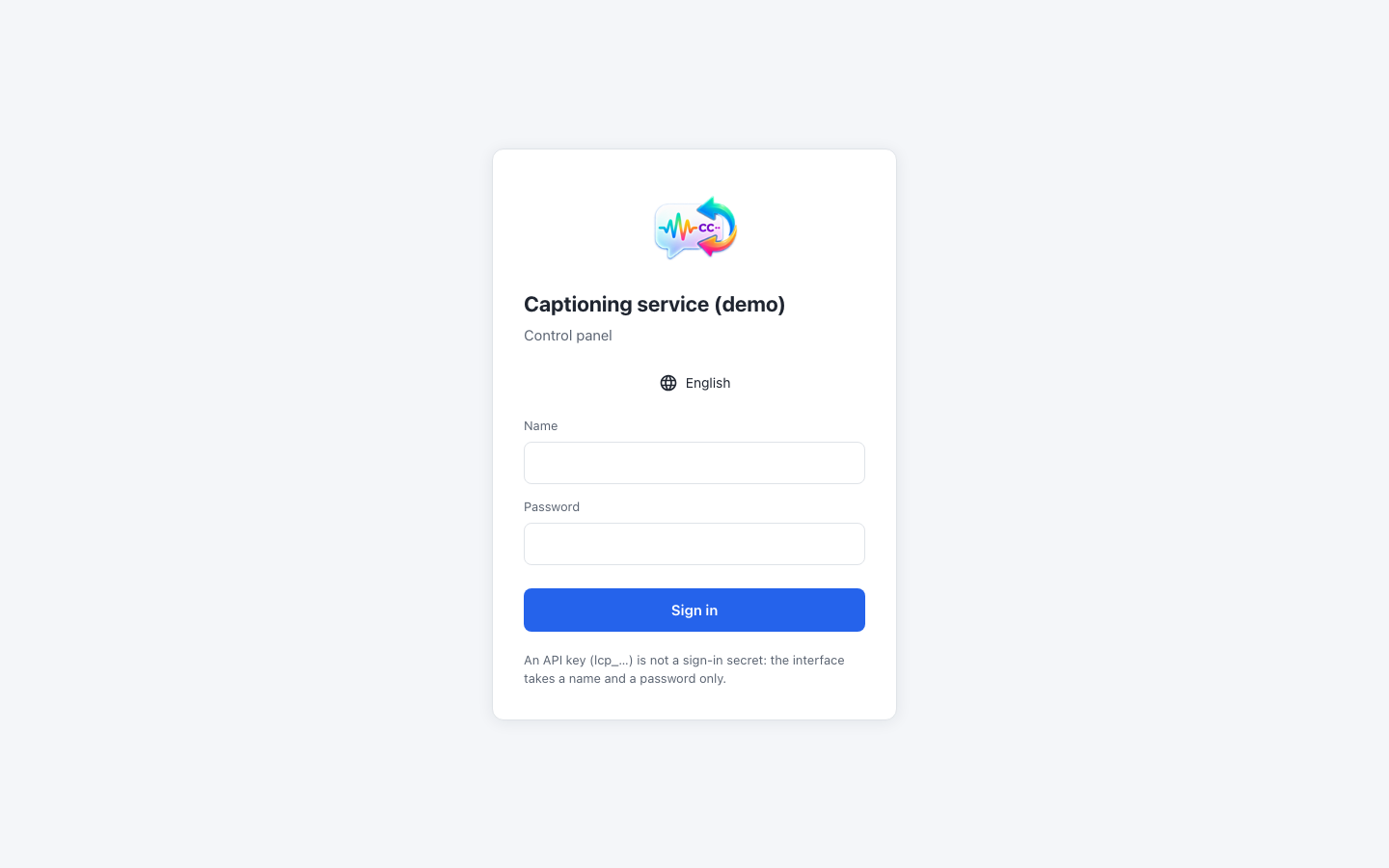
The language can also be changed on the sign-in page. An API key (lcp_…) does not work here: the interface takes a name and a password only.
Signed in with the initial password, the interface takes you straight to the Password change page. Enter the initial password under Current password, the new one under New password and Again (at least 8 characters, not starting with lcp_), then click Set the new password. After that you sign in again with the new password.
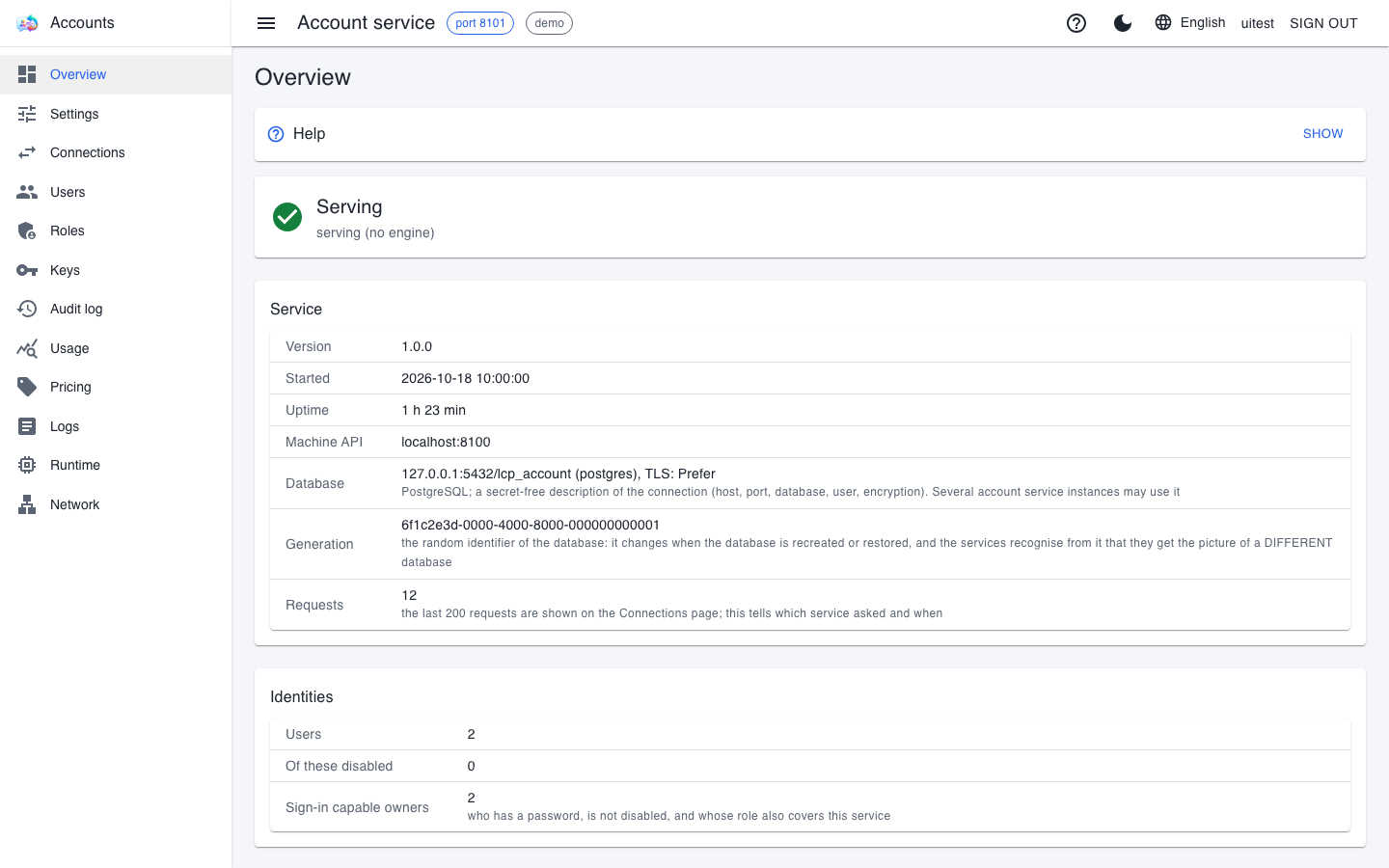
After signing in you land on the account service's Overview page. If Serving appears with a green tick at the top, the service is running fine; the Service card shows the version, the machine API address and the database, and the Identities card shows how many users there are and how many of them can sign in.
4. Connecting the services to the account service
The translator, the voice service and the caption service only start if they know where the account service is, and have their own peer token for it. The setup script in the AccountServer folder does both:
AccountServer\setup-account-peers.ps1 -Tokens     # obtain the three peer tokens
AccountServer\setup-account-peers.ps1 -Check      # authenticated test: are the keys accepted
AccountServer\setup-account-peers.ps1 -Activate   # write the account address
-Checkis the only proof that the services really receive their permission snapshot. Its exit code is0if all is well;3if a key is missing or rejected;4if the account service cannot be reached.- Activation also has a clickable launcher:
AccountServer\setup-account-url.cmd(on macOS.command). It writes the localhttp://127.0.0.1:8100address. - After activating, close every open window, and start the services from a new one: windows that are already running do not see the new variable.
The script never prints the secret and never saves it to a file: it only reports the variable's name and whether it is set.
5. The script key
The command-line scripts (captioning videos, translating files) have their own key, issued by generate-api-key.cmd (on macOS .command) in the root of the repository. The key goes into a separate persistent environment variable per service (LCP_SCRIPT_KEY_CAPTIONSERVER, …_TRANSLATORSERVER, …_VOICESERVER), and meanwhile it appears nowhere – neither on screen nor in a log.
generate-api-key.cmd                          # for all three services
generate-api-key.cmd -Service caption         # for the caption service only
generate-api-key.cmd -Service caption -Force  # replace the existing key
Nothing overwrites an existing key: if the variable already holds one, the tool only checks whether the service accepts it. Replacement only happens with the -Force switch. Windows opened from now on see the new variable. The captioning scripts also offer to issue the key on their own if they find none.
6. A key for the LiveCaption app
The desktop app's keys come from generate-livecaption-key.cmd (on macOS .command), which writes them straight into the app's settings, encrypted – just as if you had typed them on the Servers page of the Settings. LiveCaption must not be running meanwhile, otherwise the tool exits with code 7. On macOS the key is guarded by the macOS Keychain: when it asks, the one-time Allow is the right answer, not Always Allow.
Keys for another machine or user are covered in the Keys and permissions chapter; the app's side in the app manual's First start chapter.
If the initial password is lost
The password cannot be read back from anywhere afterwards. A new password is set on the account service's machine with the AccountServer\maintenance\admin-password.cmd (on macOS .command) launcher: it asks for the new password twice, hidden, and invalidates the open browser sessions. The running services do not need to be stopped for it. After that you can start the whole system as described in Daily start and stop.