
The account service
The account service pages – users, roles, keys, audit log, usage and pricing: what each one shows and where to set what.
The account service (accountserver) is the one place in the product where users, roles and keys live. The caption service, the translator and the voice service keep no user list of their own: every half minute they download the authorization snapshot from here (a copy of the users, keys and permissions) and decide from it. This chapter walks through the pages of the account service's web interface, which is reachable on its machine at http://127.0.0.1:8101/admin.
The pages at a glance
The first and last pages of the left-hand menu (Overview, Settings, Connections, Logs, Runtime, Network) exist in all four services – they are covered in the Common pages chapter. The account service has six pages of its own:
| Page | What it is for |
|---|---|
| Users | who signs in, with which role, on which service |
| Roles | what is allowed: named bundles of permissions |
| Keys | the programs' keys and the services' peer tokens |
| Audit log | who did what, when, and how it ended |
| Usage | how much work the services did, and for whom |
| Pricing | a per-model multiplier for weighting usage |
The Users and Roles pages are the two halves of access control: Roles says what is allowed, Users says to whom.
Users
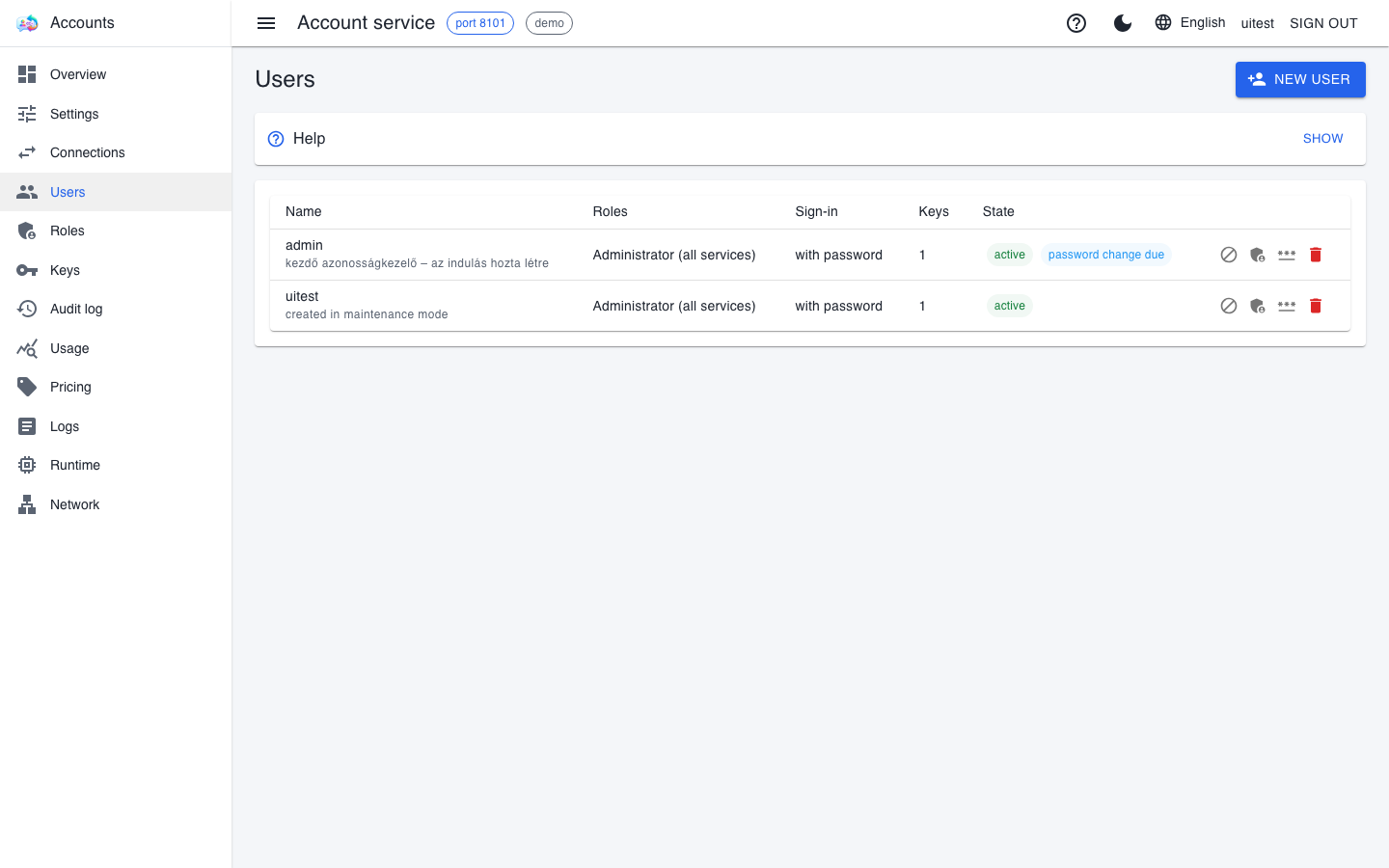
Each row is one user: the name, the roles with their scope, whether they can sign in with a password, how many valid keys they have, and their state. Four icons sit at the end of the row: disable, assign a role, set a password, and delete.
- Add a user with the New user button at the top right. A new user has no permissions yet: give them a role.
- Role and scope. A role is always given together with a scope: either all services or a single service. "All services" includes user management; narrowed to one service, the user cannot reach the others. A user can hold several roles with different scopes – for example Operator on the voice service and Viewer everywhere.
- A user without a password is allowed too: they cannot sign in to the interface and only call the services with their keys.
- Nobody can read a password back, only set a new one. A password set by an administrator must be changed by the user at their first sign-in – that is what the "password change due" tag means.
What the page deliberately refuses: the last administrator able to sign in cannot be disabled or deleted. Without one, nobody could get into the interface, and the only way back would be the command line on the service's machine (see Maintenance, backup and lockout).
Roles
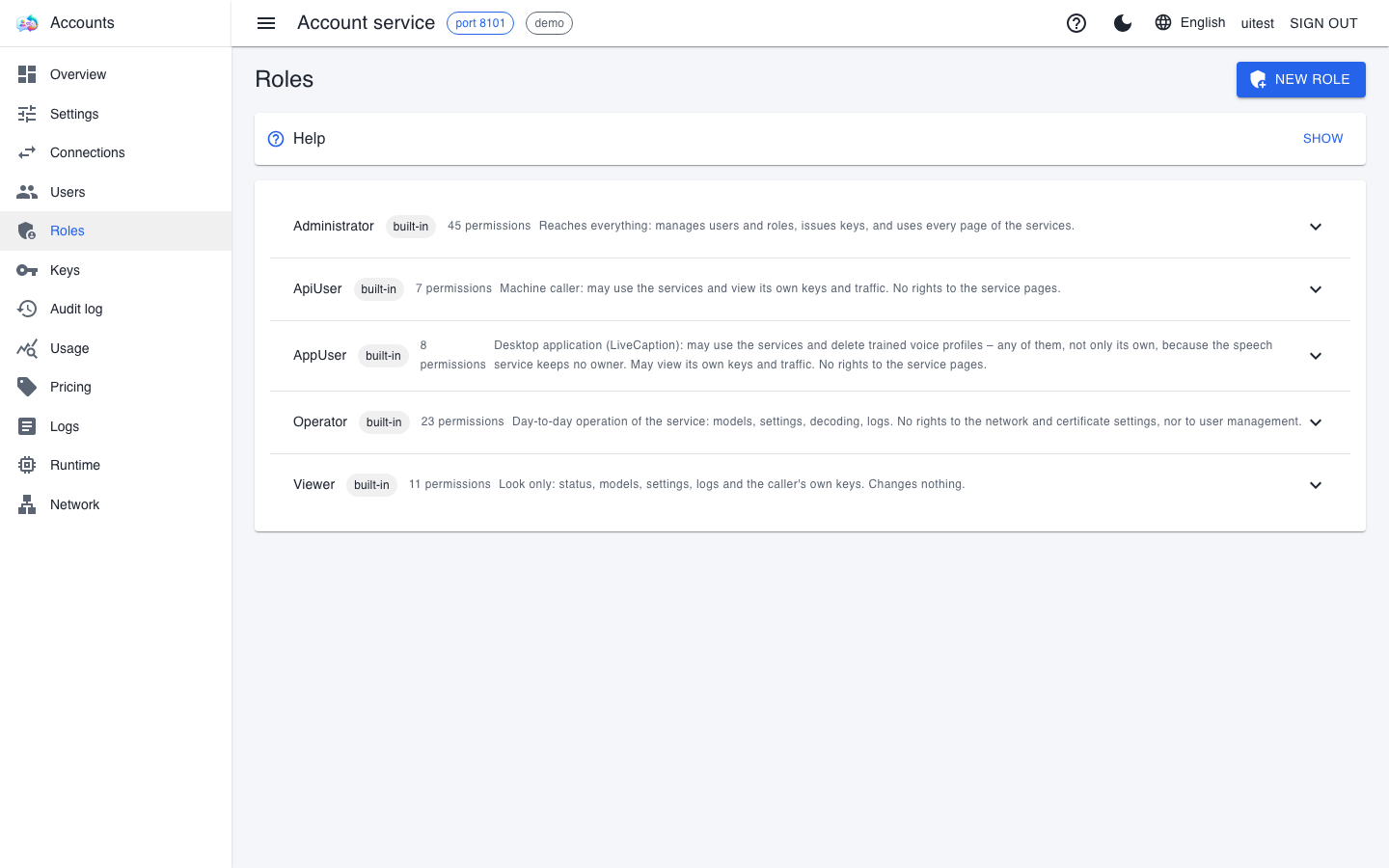
A role is a named bundle of permissions; users are given roles, not individual permissions. There are five built-in roles:
| Role | Who it is for |
|---|---|
| Administrator | everything: manages users and roles, issues keys, and uses every page of the services |
| Operator | day-to-day running: models, settings, decoding, logs – no access to network and certificate settings or to user management |
| Viewer | look only: status, models, settings, logs and their own keys |
| ApiUser | a calling program: may use the services and view its own keys and usage; no access to the pages |
| AppUser | the LiveCaption app's account: what ApiUser has, plus deleting trained voice profiles |
- The contents of the built-in roles can be edited, but they cannot be deleted. An update does not overwrite what you added or removed.
- Your own role is created with the New role button and starts empty: it grants nothing until you say what it should allow.
- Some permissions carry an elevation mark: they need a real sign-in and do not work with a machine key or local trust. This covers every action that touches someone else's account or issues or replaces a secret.
- Deleting a role also removes its assignments; the page asks first. If a change would leave nobody able to manage users, it is refused.
Keys
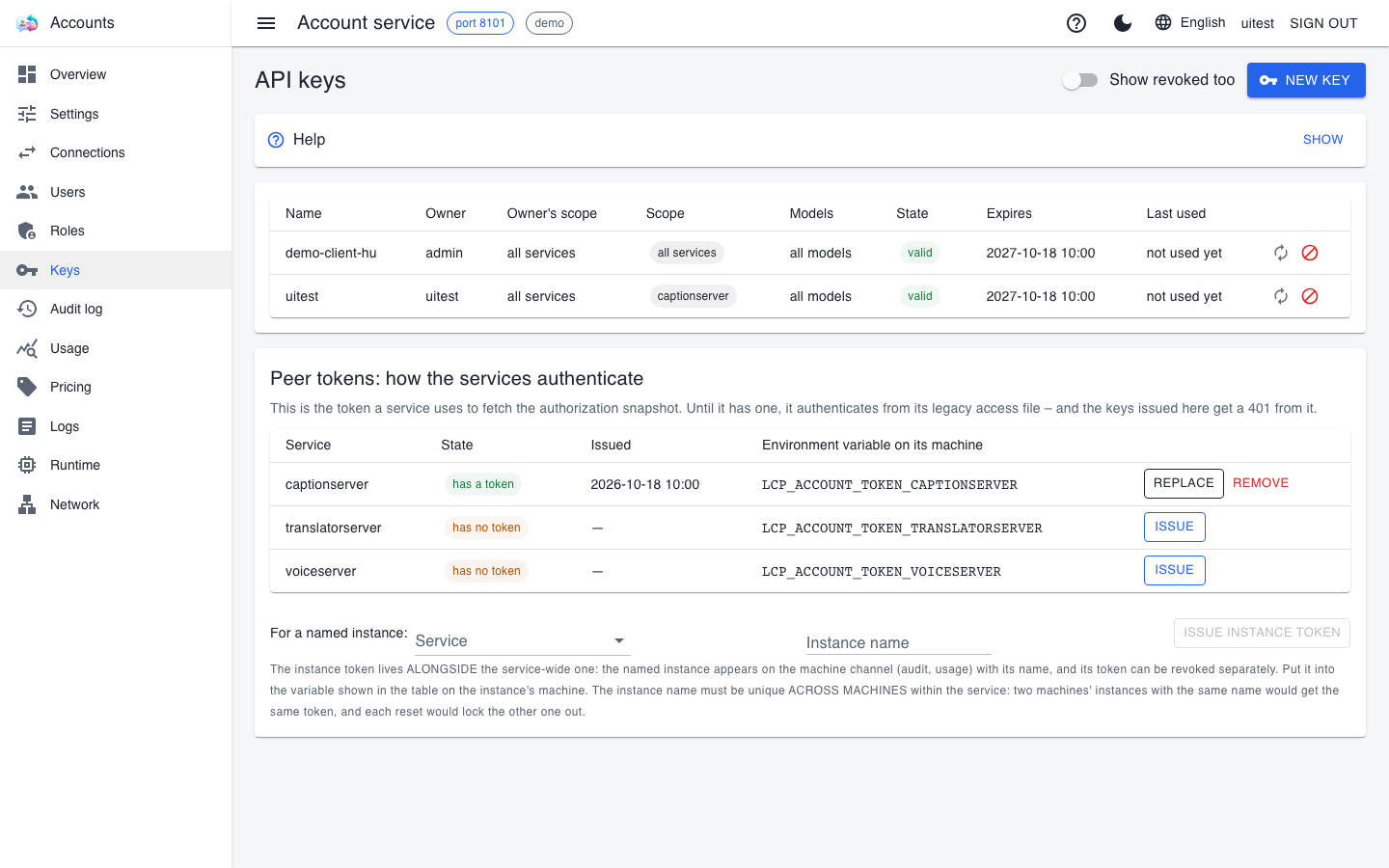
The upper table lists the keys: which program may call the services, and on whose behalf. Each row shows the name, the owner, the owner's scope, the key's scope, the models, the state, the expiry and the last use. The key itself is never shown: the service stores only its hash, and the full key appears exactly once, right after it is issued.
A key can be in one of four states:
- valid – usable;
- in grace period – expired or replaced, but still working because of a rotation;
- expired – its lifetime is over;
- revoked – invalidated immediately; the row stays, but the list only shows it with the Show revoked too switch.
The two icons at the end of the row are rotate and revoke. Rotation issues a new key with the same name and scope, while the old one keeps working for a grace period – the usual, calm route. Revocation is immediate, and is for a key that has leaked.
The lower box holds the peer tokens: the token each service uses to fetch the authorization snapshot. It is not a user key, and no person uses it. Issuing keys, the scope rule and handling peer tokens are covered step by step in the Keys and permissions for clients chapter.
Audit log
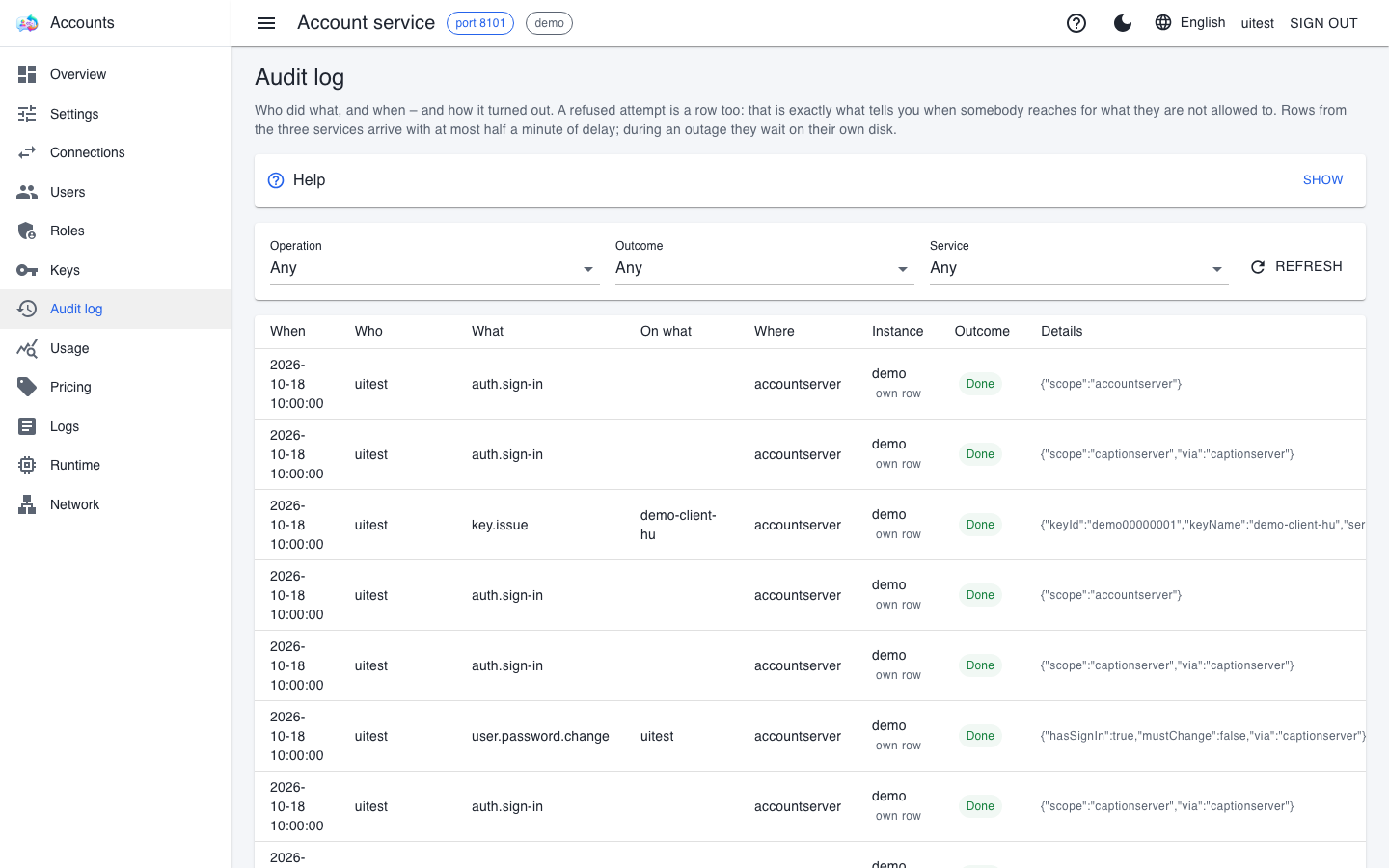
The audit log records who did what, when, and how it ended: creating a user, setting a password, issuing or revoking a key, granting a role, saving a setting, stopping an engine, downloading a log. It is not the same as the Connections page (which shows network traffic) or the Logs page (which shows what the programs wrote): only this page tells you who changed something.
- The outcome is one of three: Done, Refused (no permission, or the session had expired) and Failed (it started but failed, or the service stopped meanwhile). A refused attempt is the most valuable row: it is exactly what shows someone trying something they are not allowed to do.
- Filters: Operation, Outcome, Service, and the Refresh button. The page shows at most two hundred rows at a time, newest first – if the list is full, narrow it down.
- Delay: the account service's own actions appear at once; those of the other three services within half a minute, later during an outage.
- Secrets never enter the log: only the public identifier of a key is shown.
- Who sees what: the full log needs
audit.read.all, your own rows needaudit.read.own. Rows are kept for 400 days.
Usage
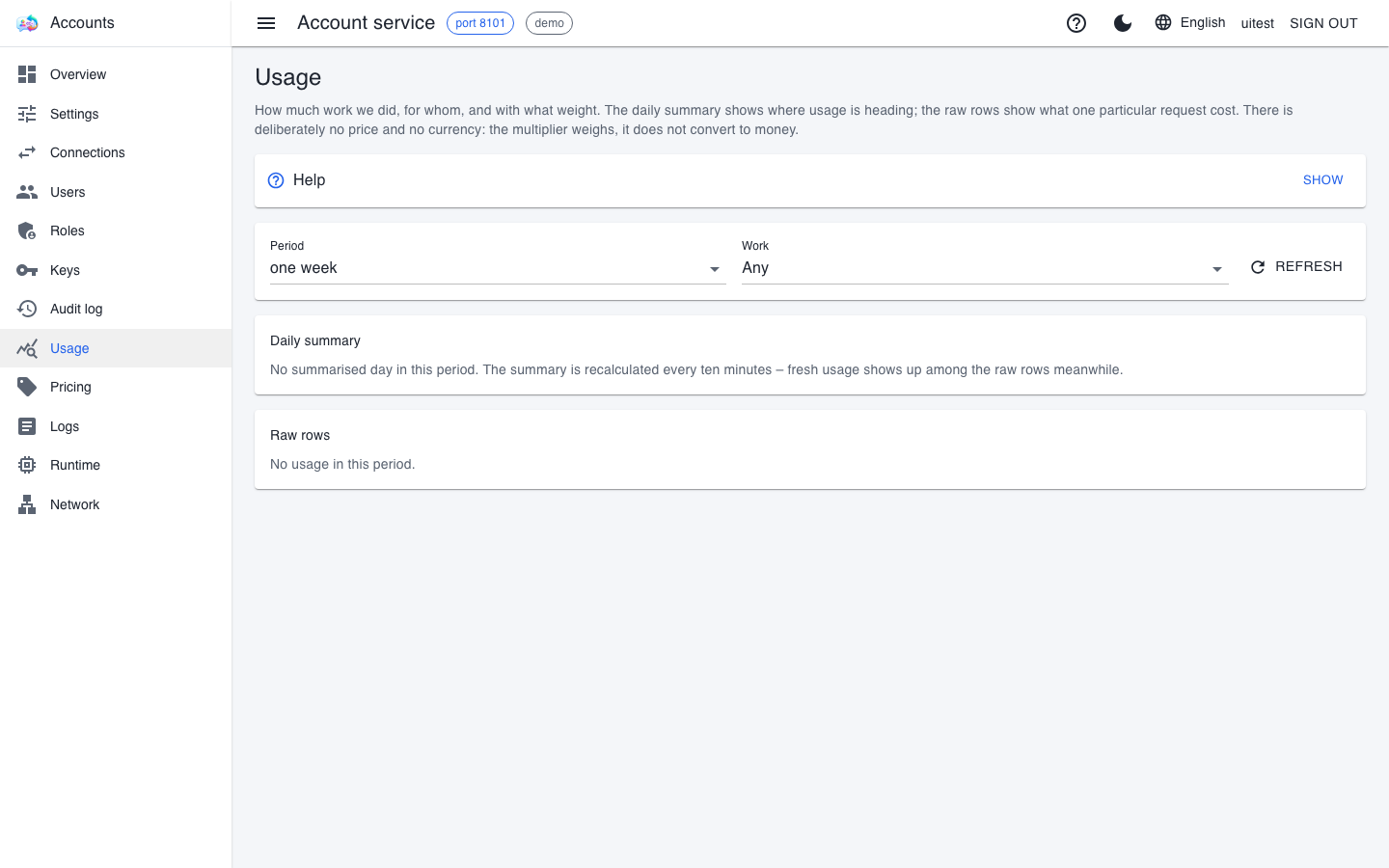
This page shows how much work the services did, for whom, and with what weight. Narrow it with the Period and Work selectors, and refresh it with the Refresh button.
- The Daily summary gives the long-term picture and is kept permanently. It is recomputed every ten minutes, so fresh traffic shows up among the raw rows first.
- The Raw rows show the measurement of individual requests; they live for 62 days, so a disputed item can be traced back.
Every kind of work has one billing basis:
| Work | Billing basis |
|---|---|
| batch transcription | seconds of processed audio |
| live captioning | seconds of received audio; the session length is a separate item |
| translation | output tokens |
| speech synthesis | input characters |
| voice cloning | one item |
If the measured value is missing (for example, the model sent no token count for a translation), the row is marked estimated and counted as one item. Price and currency are deliberately absent: the multiplier weights, it does not charge money. The spoken text, the captions and the translations themselves never enter the measurement. All usage needs usage.read.all, your own needs usage.read.own.
Pricing
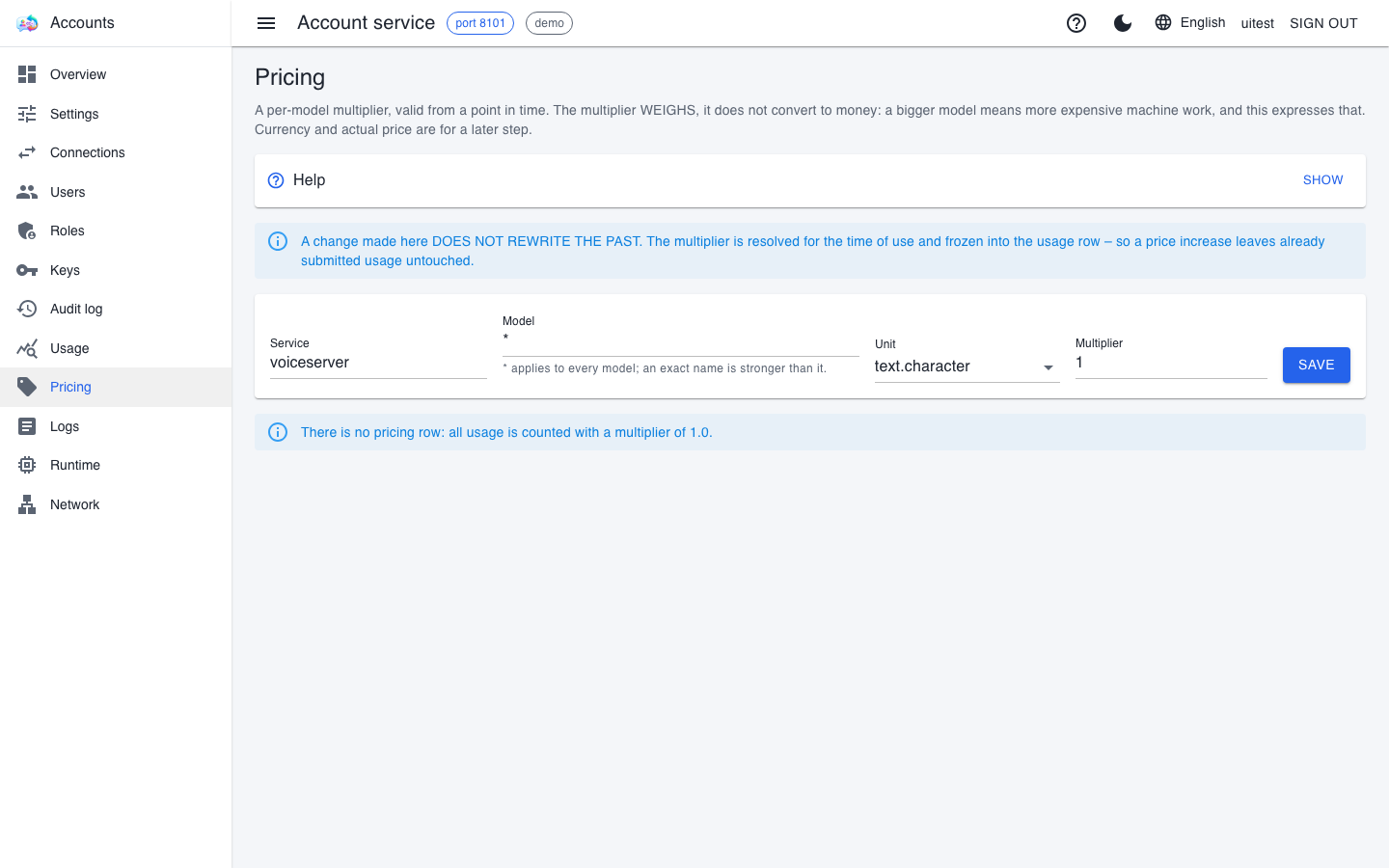
Here you can add a per-model multiplier, effective from a point in time. The multiplier weights the measured quantity: a larger model means more expensive machine work.
- Choose the service in the Service field.
- Type the exact model name in the Model field, or leave it at
*: that applies to every model, but an exact name is stronger. - Choose in the Unit field what the multiplier applies to (for example
audio.second,token.output,text.character). - Enter the Multiplier and press Save.
Good to know:
- A multiplier never rewrites the past. It is resolved by the time of use and frozen into the usage row: a price rise today only affects tomorrow's usage, and a September measurement sent in late is counted with the September multiplier.
- Without a matching row the multiplier is 1.0.
- The number follows the interface language (
1.5in English,1,5in Hungarian). Do not use a thousands separator. Anything that is not a number is refused. - Adding and deleting needs a real sign-in, and every change leaves an audit row.
Settings and Runtime
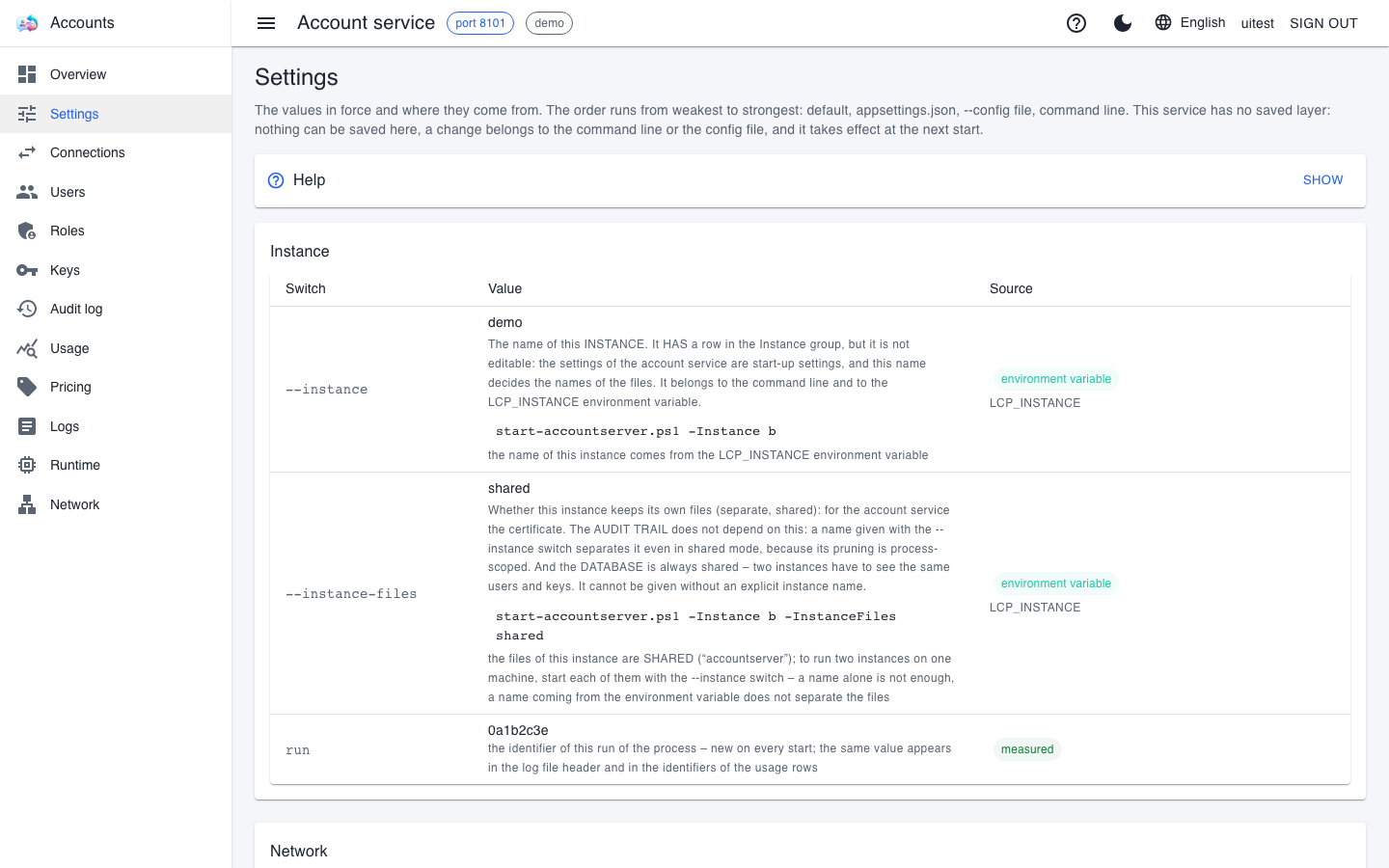
The account service's Settings page is read-only – its subtitle says so too: it shows which switch runs with which value and where that value came from (default, appsettings.json, command line, environment variable). Unlike the other three services, the account service has no settings saved from the interface: its settings are start-up settings, given by the launcher or by the installed service entry.
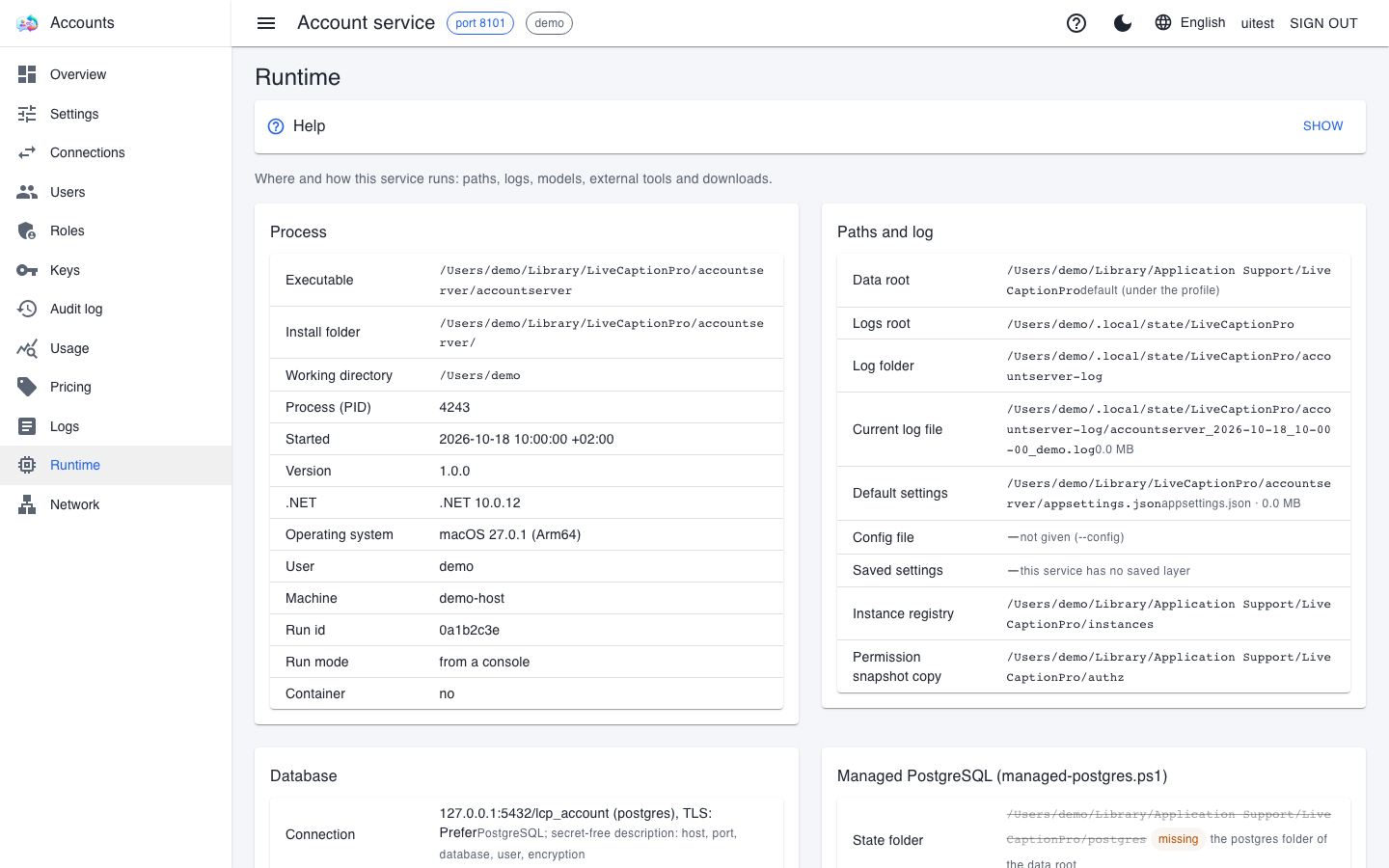
The Runtime page shows where the service runs from: the program file, the data root, the log folder, the location of the local copy of the authorization snapshot and, further down, the database target – host, port, database and user name. The password and the full connection string are never shown. If the local database is run by the product's own PostgreSQL manager, its state is shown here too.
When the account service is unreachable
The other services keep working with the authorization snapshot they downloaded last, so a short outage does not stop traffic: key-borne requests go through. New sign-ins, however, are not possible: the password is always checked by the account service, so during the outage nobody can sign in to any service's interface – sessions that are already signed in carry on. A change made here (a new key, a removed role) takes effect on the other services within half a minute; the Revision number on a service's Callers page shows which snapshot it is using.