
Common pages
The pages found in all four services – Overview, Settings, Connections, Logs, Runtime and Network: what they show and what you can do with them.
The web interface of every one of the four services has the same six pages in its menu: Overview, Settings, Connections, Logs, Runtime and Network. The pages are laid out the same way everywhere; only their content is about the service in question. The screenshots were taken on the caption service; the translator, the voice service and the account service show these pages in exactly the same way. Signing in, switching the language and the Help panel of each page are covered in the Web admin basics chapter.
Overview
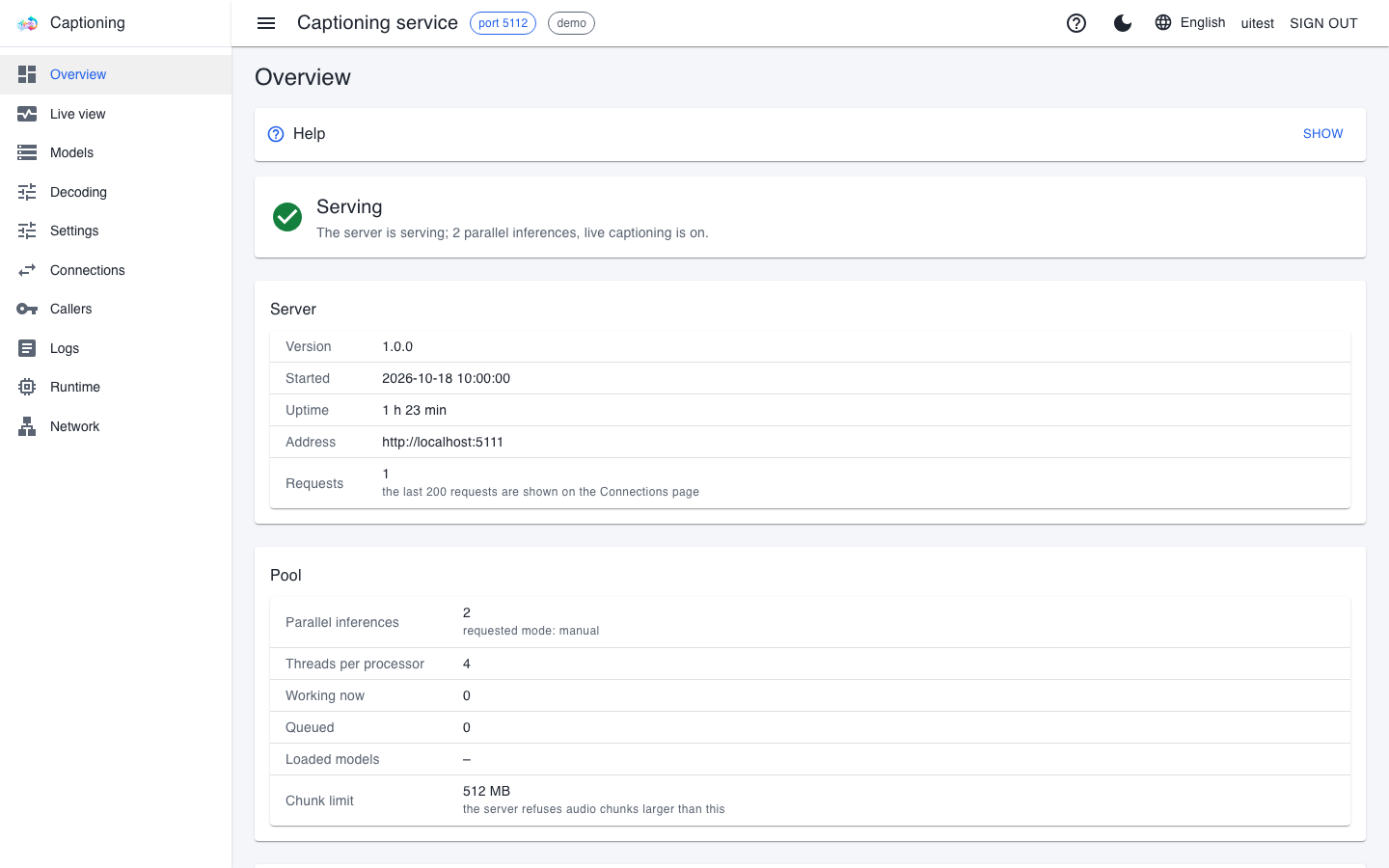
The Overview tells you the state of the service at a glance: whether it is running, with what, and how much work it has done so far. At the top is the state word and a short explanatory sentence, below it the groups of metrics. The page refreshes itself every two seconds, so you always see the current situation.
The state words
| Word | What it means | What to do |
|---|---|---|
| Serving | The service is fine and accepting requests. | Nothing. |
| Starting – the model is loading | The engine is starting; until it is ready, requests get a "not available" answer. | Wait until it says Serving; with a large model this can take minutes. |
| Stopped | Someone stopped the engine on purpose. | Start it again with the Restart engine button. |
| Failed | The engine did not start, or it crashed. The explanatory sentence says why. | Read the reason; the most common one is that the model does not fit on the graphics card. The Logs page shows the details. |
| The model has been released | The model was removed from memory after a period of inactivity (60 minutes by default) or by hand. This is not an error. | Nothing: the next request loads it again. That request still gets a "not available" answer; it has to be retried once loading is done. |
| Not managed (external engine) | The engine was not started by the service, which only forwards requests to it. | The engine buttons have no effect; manage the engine where it was started. |
The caption service has no separate engine process, so its state is always Serving as long as its interface can be reached.
The metrics
The boxes differ by service: on the caption service they are Server, Pool, Hardware and Live captioning; on the translator and the voice service Front end (the part of the service visible from outside) and Engine (the model running in the background). Under the Requests row the page also notes that the last 200 requests are shown on the Connections page.
The engine buttons
On the translator and the voice service there are buttons under the state:
- Restart engine: stops the engine and starts it again with the current settings. Use it when the engine is stuck.
- Stop engine: stops the engine for good; requests get a "not available" answer until you start it again. Useful when the graphics card is needed for something else.
- Stop for good: only shown while the model is released. In that state a plain stop would not last, because the next request would load the model again.
Every button press is recorded in the log: who started what, and when.
Settings
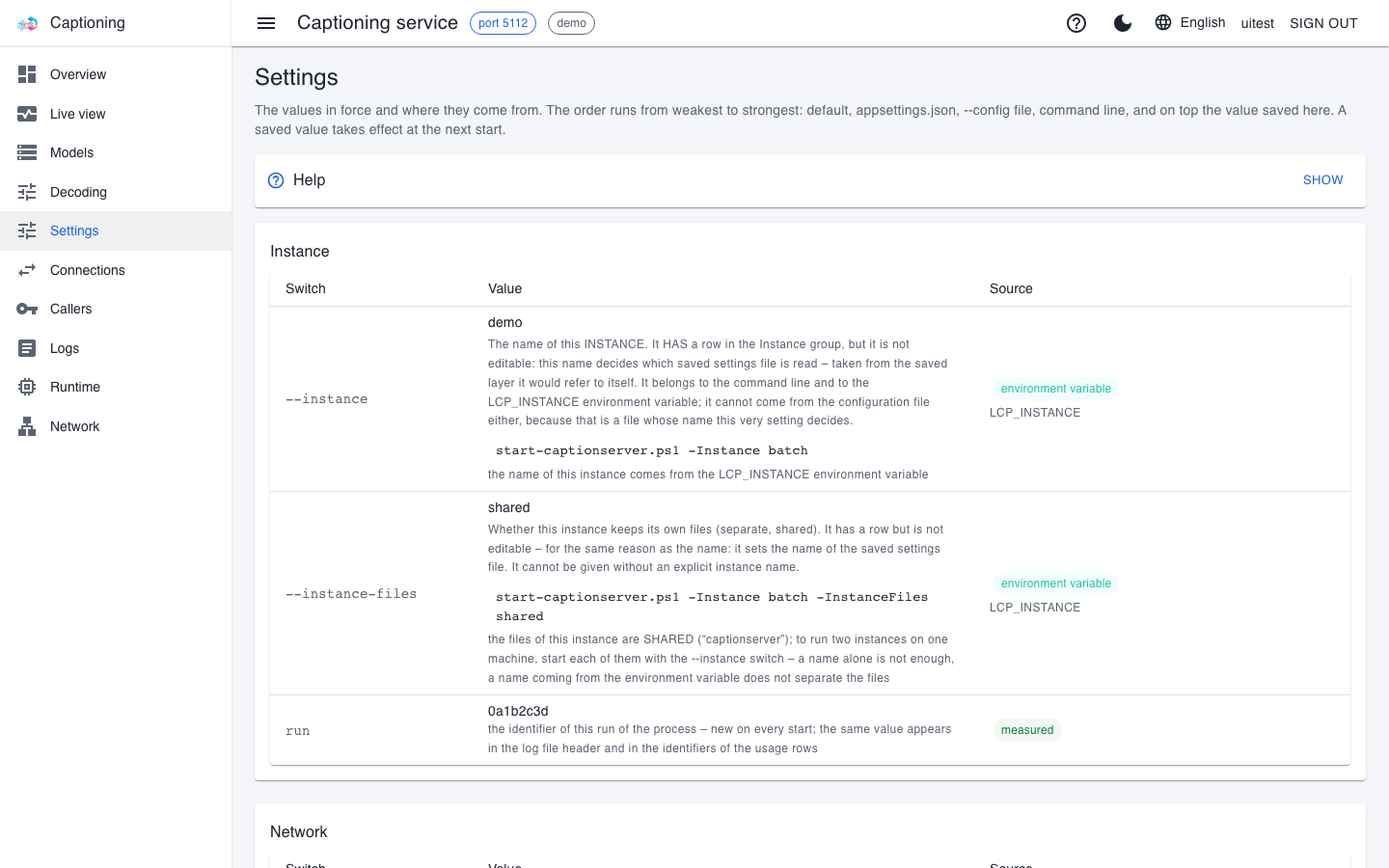
The Settings page shows every effective value and also where it came from. The rows are grouped (for example Instance, Network); each row has the switch name, its value with a short explanation, and the Source column.
Where a value can come from
| In the Source column | What it means |
|---|---|
| default | Nobody set it; it is the program's own default. |
| config file | The appsettings.json next to the program, or a file given with the --config switch. |
| environment variable | A variable set on the machine supplied it (for example LCP_INSTANCE supplies the instance name). |
| command line | A switch of the start script. |
| measured | The service measured it itself (for example the size of the caption service's pool). |
| saved | It was saved on this page. |
The order from weakest to strongest: default, appsettings.json, the --config file, the command line, and on top the value saved on this page. The saved value is deliberately the strongest: what you set on the interface is not lost after a reinstall or because of an old start script. The account service has no saved layer: there the page's subtitle says so, the page only shows, and a change belongs to the command line or the config file (The account service).
Changing a value
- Find the row and type or pick the new value.
- Press the row's Save button. The service checks the value exactly as it does at startup: a clashing port, mutually exclusive switches or an out-of-range value are rejected, and the error message tells you why.
- The saved value takes effect at the next start. Until then the row shows two values: the one running now and the one that will apply at the next start.
- Restart the service when convenient.
A saved value can be removed with the row's Reset button; at the next start the value from the weaker source comes back. The Remove every saved value button removes all saved values at once.
Good to know
- Saving needs a real sign-in. If you read the interface without signing in, through local trust, you can only look.
- Not every row is editable. Secrets (such as the certificate password) and the instance name cannot be saved here; such a row says why, and which command sets it instead.
- This page does not refresh itself, so that a half-typed value is not lost; the list refreshes after every save.
- If a saved value stops the service from starting (or makes the interface unreachable), start it once with the
--ignore-savedswitch: the saved values are then skipped but not lost, and you can correct them on the page.
Connections
The Connections page tells you who is using the service and what has happened recently.
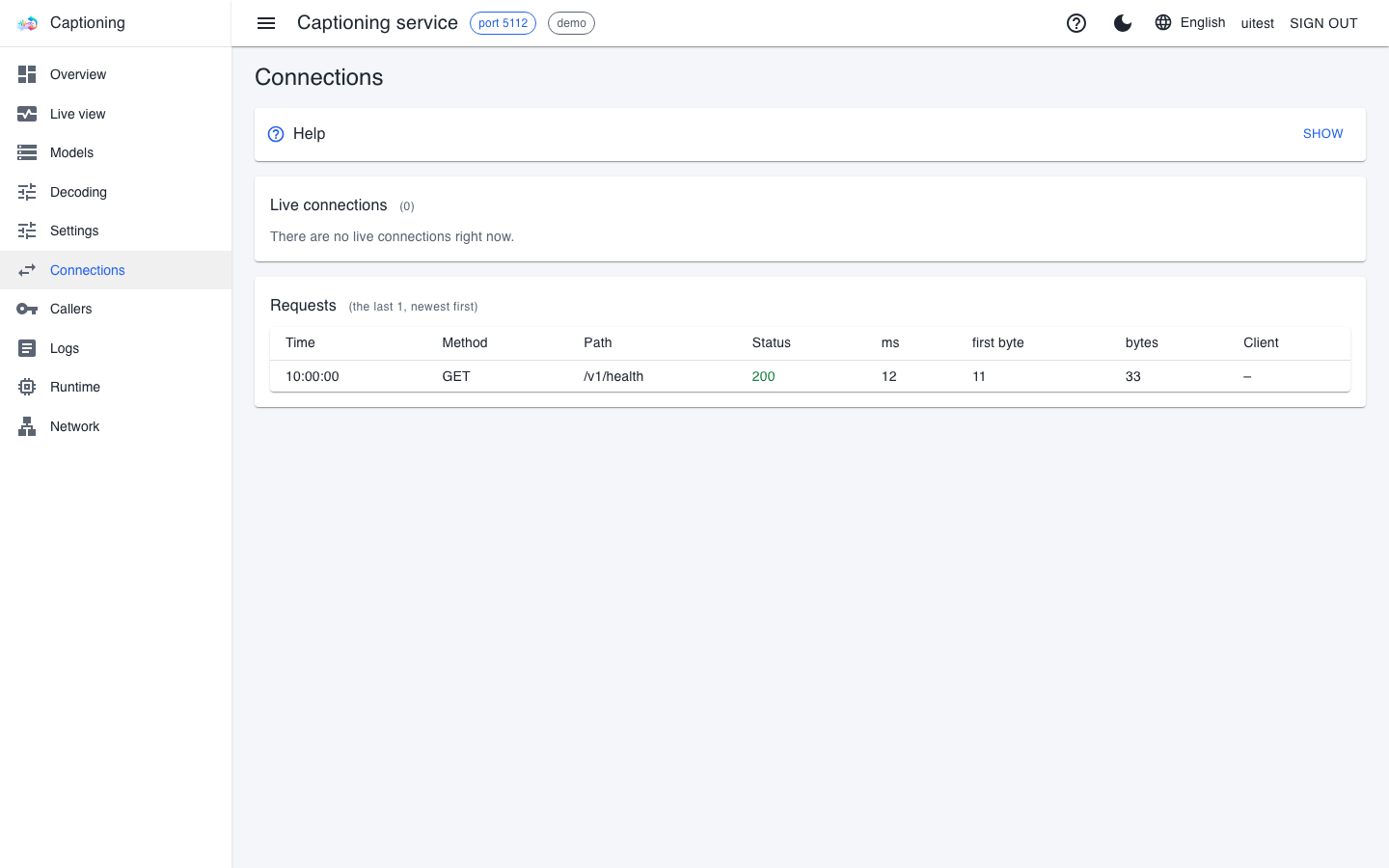
- Live connections (caption service only): the open sessions of real-time captioning – who opened them, when, with which model and language. A LiveCaption that is captioning right now shows up here.
- Requests: the last 200 requests, newest first. Each row has the time, the method and the path, the status code of the answer (200 means success), the total time and the first byte time (how long it took until the answer began), the size of the answer and the client's name.
The translator and the voice service have no live connections: every request there is a short question and answer, so the request history tells you more.
Good to know:
- The list is lost when the service stops; the log file keeps the requests permanently.
- Health checks (
/health,/v1/health) are included too, because scripts ask them often; for these the Client column shows "–", since this is the only request that is answered without a key. - If a client cannot reach the service, this is where you see whether its request arrived at all. If it did but the code is 401 or 403, the problem is the key or the permission (Keys and permissions); if the request does not appear at all, it is the network or the address.
Logs
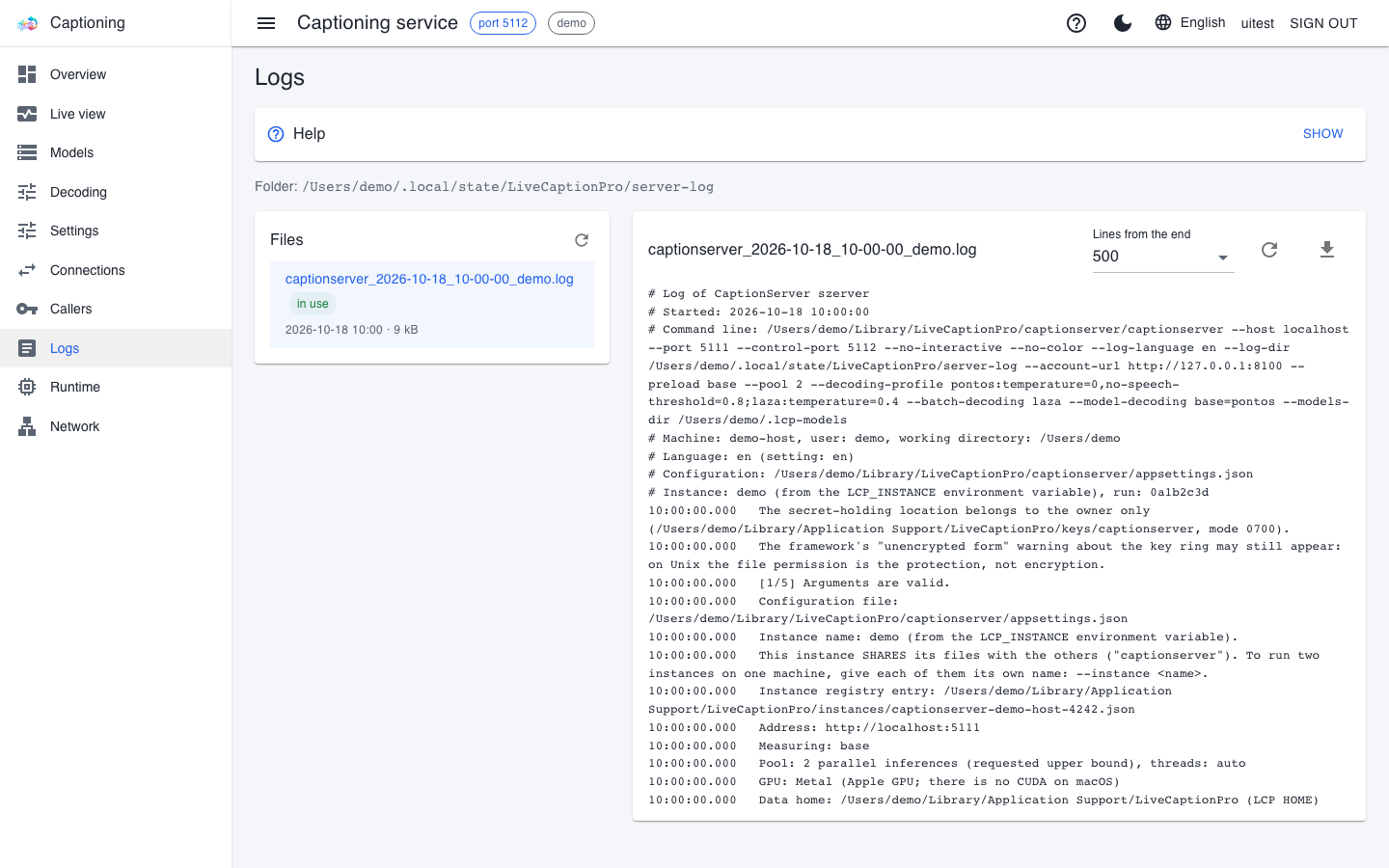
The Logs page shows the service's log files, so you do not have to sit down at the service machine to read them. At the top is the full path of the log folder, on the left the list of files, on the right the end of the selected file.
How to use it:
- Pick a file from the Files list. The "in use" label marks the file the service is writing right now; every start opens a new file.
- In the Lines from the end box, set how many lines you want to see.
- The Read again button fetches the fresh end, the Refresh list button picks up files opened since.
- The Download the whole file button saves the entire file to your machine, for example to attach it to a bug report.
Good to know:
- Where the logs are: the path at the top of the page is the one in effect. Started from a console, on Windows in the user's temporary folder (
%TEMP%\LiveCaptionPro\<folder>), on macOS and Linux under~/.local/state/LiveCaptionPro/<folder>; if theLCP_HOMEvariable is set on the machine, under that. Installed as a service, the installer decides: on Windows and Linux under the service's data root (on Linux in the journal too), on macOS in the/Library/Logs/LiveCaptionPro/<service>folder (in user scope under~/Library/Logs). The folder is named after the service:server-log(caption service),translatorserver-log(translator),voiceserver-log(voice service),accountserver-log(account service). - Secrets are masked: the log header contains the full command line, but keys and passwords are hidden – in the downloaded file as well.
- Old logs are removed automatically: at startup the service deletes its own log files older than 30 days.
- The log language is a setting of its own (
--log-language); it does not follow the interface language. If you send the log to an English-speaking operator, set it to English on the Settings page. - Requests are in the log too, one line per request; health checks only at the detailed log level.
Runtime
The Runtime page shows in one place where and how the service runs. It is useful when you want to know which program file is running, where it writes, where it looks for models – or when you want to follow a download.
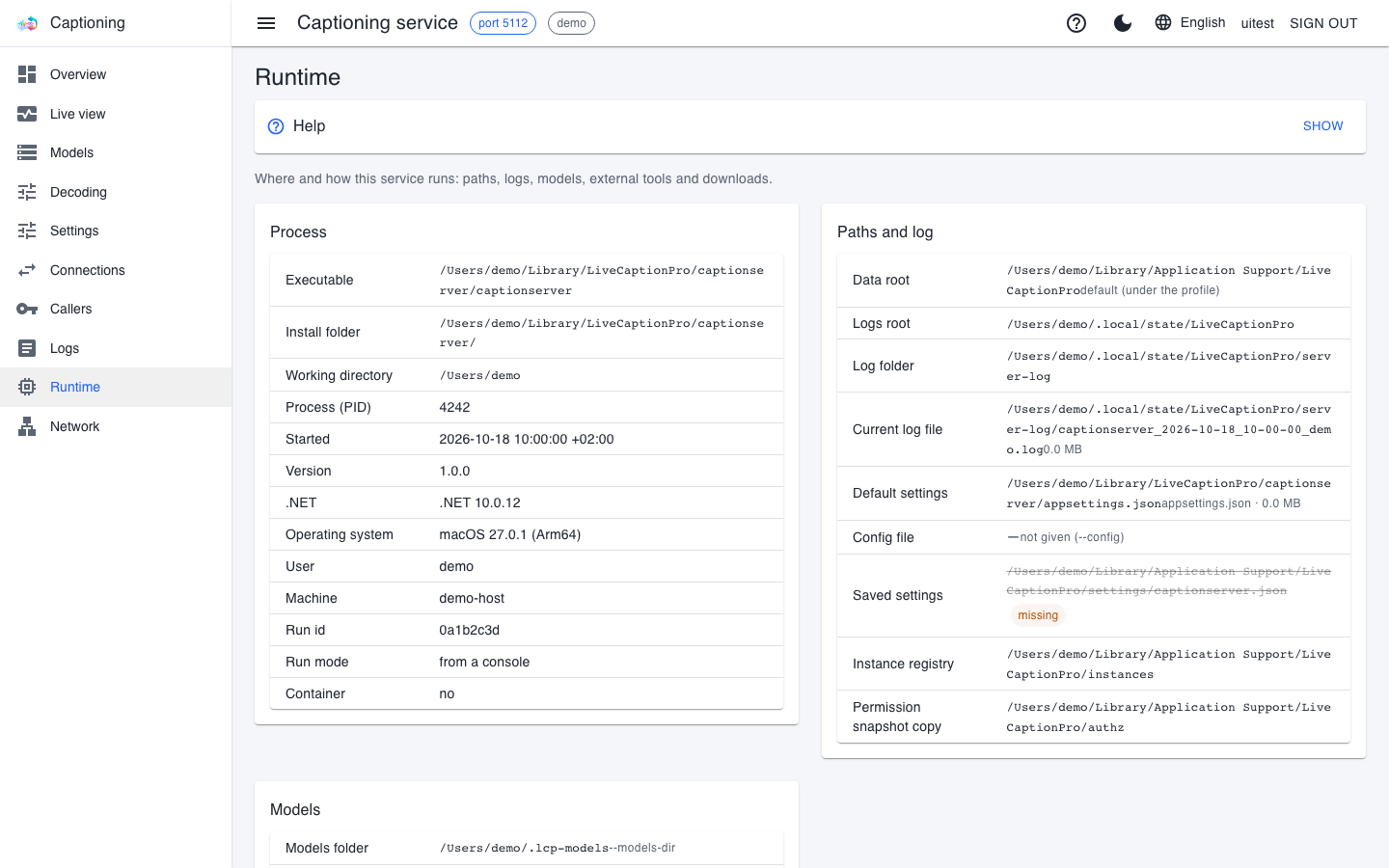
- Process: the executable, the install folder, the working directory, the process ID (PID), the start time, the version, the operating system, the user and the machine, and whether it runs from a console or as a service.
- Paths and log: the data root (where the service keeps its permanent data), the log folder and the log file being written, the default settings file and the saved settings file. A missing file is struck through and labelled "missing" – the saved settings file, for example, only exists after the first save.
- Models, External tools and Downloads: where the models are, the command line the engine was last started with, which of its processes are running, and if a model is downloading, the exact progress (percentage, downloaded and total size, speed, time remaining).
By default the data root is %LOCALAPPDATA%\LiveCaptionPro on Windows and ~/Library/Application Support/LiveCaptionPro on macOS; the LCP_HOME variable moves it elsewhere, and the page shows this next to the row.
Good to know:
- No secret is shown here either: keys and passwords in the command lines are masked, and for files only the path and the size appear, never the content.
- While a download is running its percentage is at most 99.9; 100 means it finished successfully, because a check still follows the last byte.
- If several instances run on one machine, the page always shows its own instance; the instance name is in the header.
Network
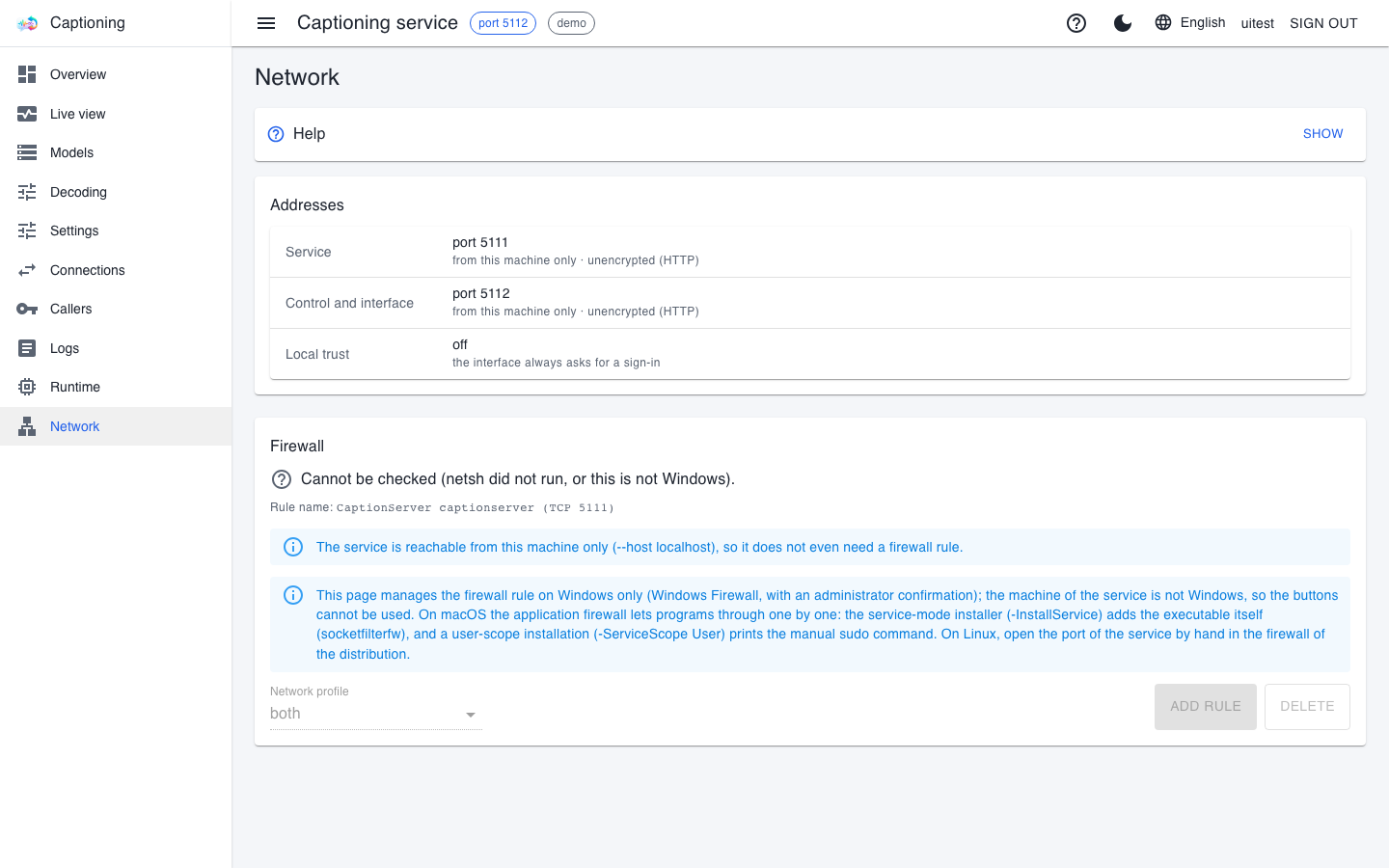
The Network page tells you where the service can be reached, whether the connection is encrypted, and whether the firewall lets it through.
The addresses
| Row | What it means |
|---|---|
| Service | The service port: this is where the clients connect (LiveCaption, the command-line clients). It can be "from this machine only" or "reachable from the network too". |
| Control and interface | The control port: this web interface runs on it. By default it can only be reached from this machine. |
| Local trust | When on, the interface can be read from this machine without signing in; changes still require signing in. |
Under each row you can also see whether the connection is encrypted (HTTPS) or unencrypted (HTTP).
If the service has to be reached from another machine, the service port must be opened to the network (with the --host switch, also on the Settings page). The web interface can be reached from the network too (--admin-host), and you have to sign in there as well. If the interface is reachable from the network without encryption, a warning bar appears on every page, because the password can be read on the network. The full sequence of steps is in the Remote GPU server, multiple workstations chapter.
Encryption and certificate
Both ports can be encrypted: --tls applies to the service port, --admin-tls to the control port; the value is off (the default) or self-signed (the service's own certificate). With its own certificate, LiveCaption asks on the first connection whether to accept it: you can view and accept it with the Certificate button on the Servers tab of the Settings window.
On Windows the page can also install the certificate into the machine's trust store, so that the browser does not warn. This asks for administrator confirmation, and the confirmation window appears on the service machine – even if you pressed the button on another machine. On other systems the buttons are disabled, and an information bar gives the manual way: on macOS the sudo security add-trusted-cert command, into the System keychain; on Linux the certificate store of the distribution.
The firewall
On Windows the page tells you whether there is a firewall rule for the service port, and can manage it with the Add rule and Delete buttons. Pick the network profile (domain, private or both), then press the button. This too asks for administrator confirmation on the service machine, and the action does not finish until someone accepts it there. If the service can only be reached from its own machine, no rule is needed, and the page says so.
On macOS and Linux the page cannot check the firewall ("Cannot be checked"), the rule buttons are disabled, and an information bar tells the way on that system. On macOS the application firewall lets programs through one by one: the service-mode installer (-InstallService) adds the program itself, and a user-scope installation (-ServiceScope User) prints the manual sudo command; started from a console, allow the service's incoming connections in the firewall of System Settings. On Linux, open the service port by hand in the firewall of the distribution.
If the client cannot reach the service
- In the Addresses box, check whether the service port is reachable from the network. If it says "from this machine only", open it with the
--hostsetting and restart the service. - Check the Firewall box: on Windows add a rule, on other systems follow the way in the information bar.
- If the port is encrypted, the client also needs an
https://address, and the certificate has to be accepted. - On the Connections page, check whether the request arrives.
More symptoms and fixes: Troubleshooting.
Where to go next
- The caption service – the Models, Decoding, Live view and Callers pages.
- The translator – the model profile and the wizard.
- The voice service – voice profiles and the voice model.